Within a job all status changes will create a new line in the Comment grid. The user should add an appropriate comment on why the status has changed.
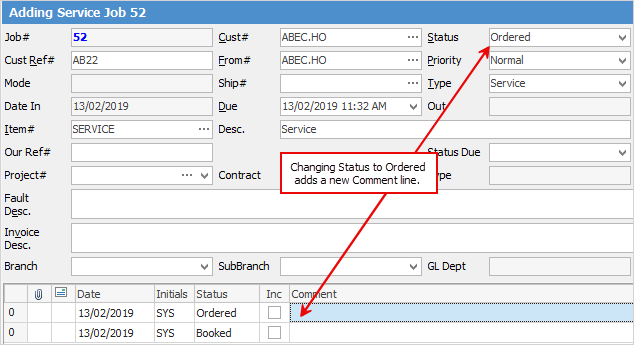
Users should be encouraged to enter a new comment when customer contact is made, and to add useful information for the job record.
Ticking Inc beside the Comment field will show comments in the Job Report, but not on the invoice. You can also order comments based on either Status or by using the tick in Inc to bring those comments to the top of the grid.
|
Because each comment in the Comment grid is time/date/initial stamped, these form a chronological record of work performed and customer contact for immediate and future reference. The contents of the Comment grid add to the quality record for each job. The chronological order of comments is preferred and should be added so that the latest comments appear at the top of the Comment grid. |

The Comment grid text need not appear on the invoice for a job – but can be reported on.
Further information
Add Stock to Job When Insufficient Stock
Auto Create Purchase Orders from Jobs
Charge Customer a Re-stocking Fee
Create a Job from a Similar or Previous Job
Create a Template for Recurring Jobs
Credit an Overcharged Customer
Export a Job Report to Spreadsheet
Export Labour Hours from a Job
Make Progress Payments and Claims
Select Serial Numbers on a Job
Stock Availability Allocation Process by List