Create a Template for Recurring Jobs

Back Top Prev Next Print

On the ribbon, go to Tools > Status and add a new status called Template in all job areas required.
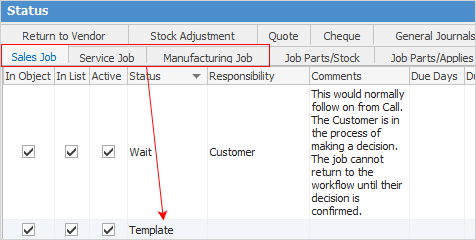
 

jobtemplatestatus


Create a new job and enter all required fields. Select the status of Template.
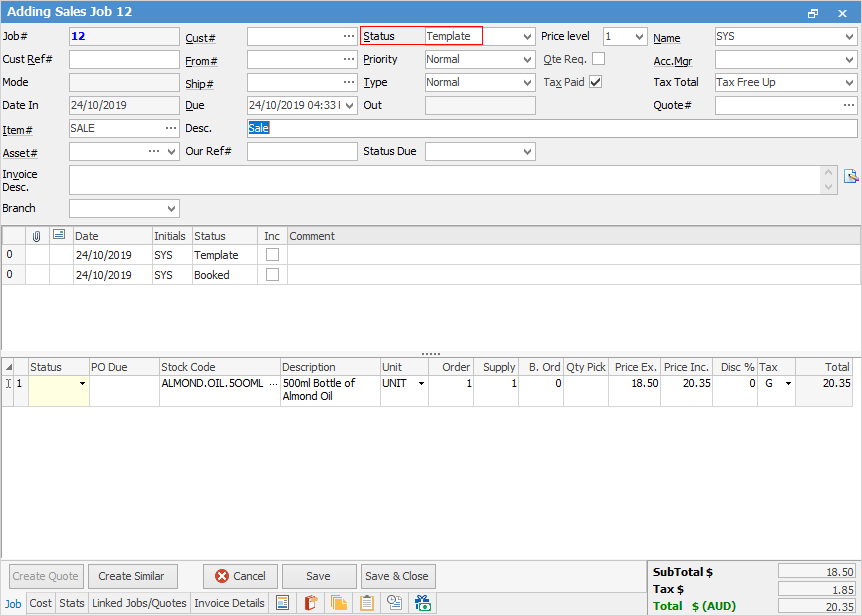
 

jobtemplate1


info

Note: A Price level must be selected and a choice made in the Tax Paid checkbox if no customer is added.


Create a Job List using Template in the Status field, pin it and and name it something appropriate.
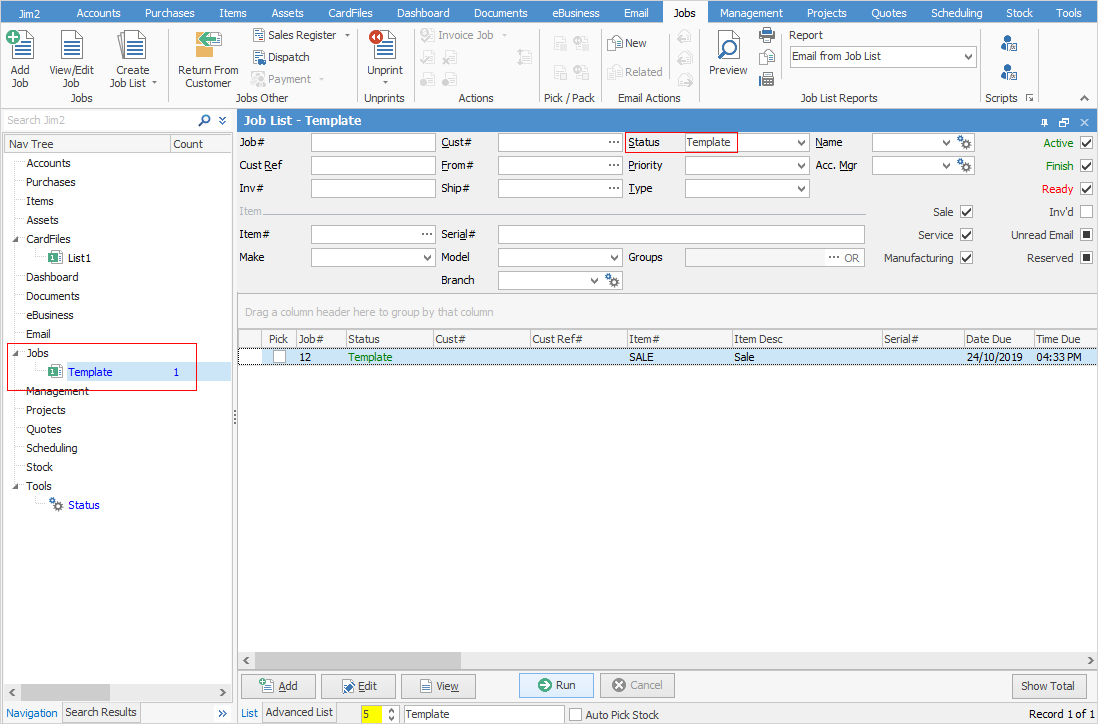
 

jobtemplatelist


To produce a recurring job, open the Template job and select Create Similar. Make the required changes/additions.
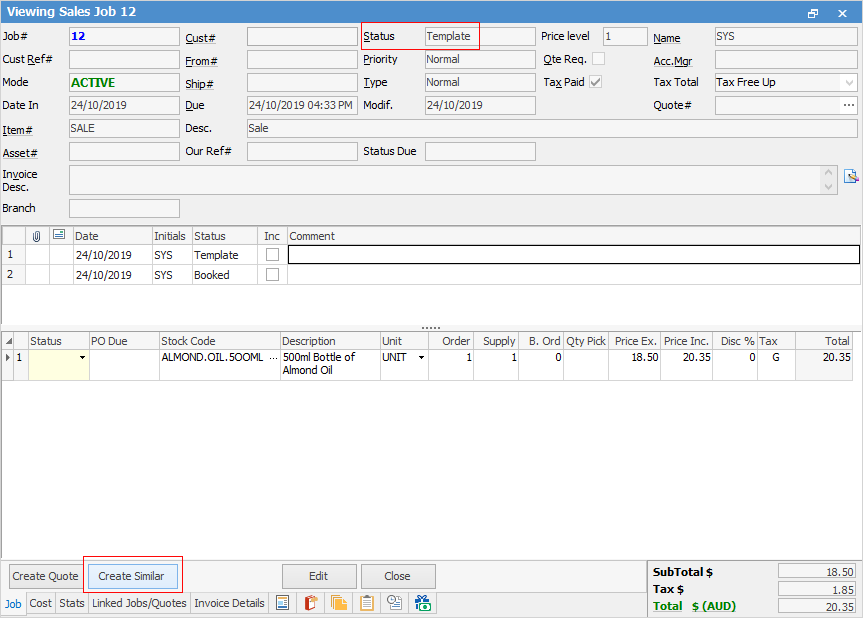
 

cstemplatejob


Further information

Jobs at a Glance

Jobs Security

Job List

Return From Customer

Sales Register

Dispatch

Hire Stock to a Customer

Job Comment Grid

Job Footer

Job Header

Job Status

Job Preview Pane

Job Reports

Job Stock Grid

Progress Payments and Claims

How Job status affects the GL

Add a Job

Add Billable Labour to a Job

Add Labour to a Job

Add Comments to a Job

Add a Document to Job

Add Discount to a Job

Add Freight to Jobs

Add Multiple Jobs

Add Stock By Multi Selection

Add Stock to a Job

Add Stock to Job When Insufficient Stock

Auto Create Purchase Orders from Jobs

Charge Customer a Re-stocking Fee

Create a Job from a Similar or Previous Job

Create Back Order

Credit an Overcharged Customer

Email from a Job List

Export a Job Report  to Spreadsheet

Export Actual Labour

Export Labour Hours from a Job

Handle Part Delivery of Jobs

Job/Order Prepayments/Refunds

Import Jobs

Mark a Job as Ready

Print a Job

Reserve Stock for a Job

Scan Stock into Jobs

Select Serial Numbers on a Job

Stock Availability Allocation Process by List

Stock Availability by Location on the Fly

Take Deposits from Customers

Unallocate Stock From a Job

Unlink a Job

Unmark a Job as Ready

Unprint a Job

Unreserve Stock for a Job

Use Comments to Track Work in a Job

Use Stock Lookup and Select

View or Edit a Job