
To add a document to a job, view the job, then drag and drop the file (from the drive/network) directly onto it.
A document added in this way would normally be flagged as Hidden, meaning that it won't be displayed in a document list, unless the Show Hidden icon is selected.
 |
Right click on the document and select copy.
With the job in View or Edit mode, select the Add Document from Clipboard icon in the ribbon:

|


Manually add or link to an existing document directly from the job's Documents tab, as follows: ▪open the job in Add or Edit mode ▪go to the Documents tab in the footer ▪select Add New, or Link Existing 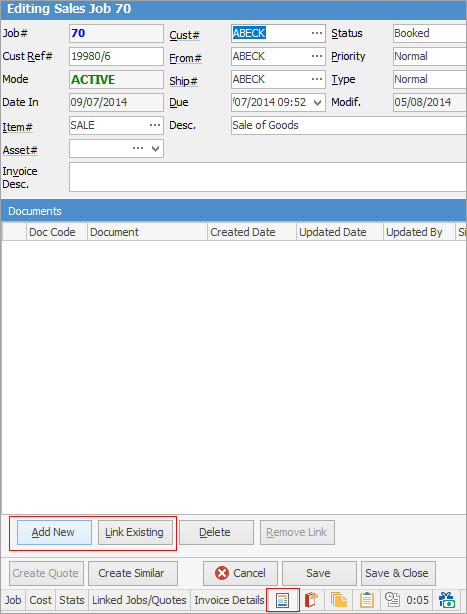 ▪select the document from the list.
See Add or Link Existing Document for more detailed information. |
Unlink a document (ie. remove the link) or delete a document from a job in this manner: ▪open the job in Edit mode ▪go to the Documents tab ▪select the document from the grid ▪select Delete Document or Remove Link. 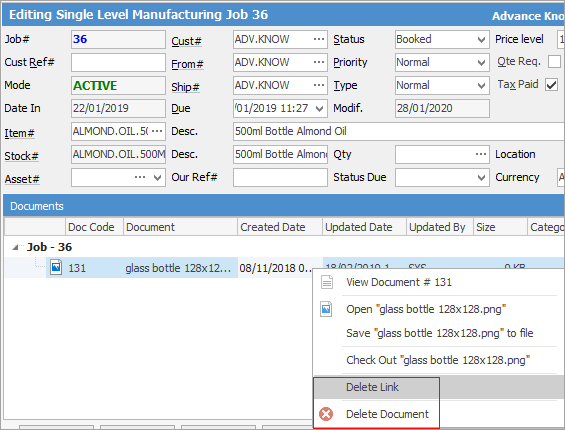
See Add or Link Existing Document for more detailed information.
|

Further information
Add Stock to Job When Insufficient Stock
Auto Create Purchase Orders from Jobs
Charge Customer a Re-stocking Fee
Create a Job from a Similar or Previous Job
Create a Template for Recurring Jobs
Credit an Overcharged Customer
Export a Job Report to Spreadsheet
Export Labour Hours from a Job
Make Progress Payments and Claims
Select Serial Numbers on a Job
Stock Availability Allocation Process by List
Stock Availability by Location on the Fly