
There are two ways to receive stock.

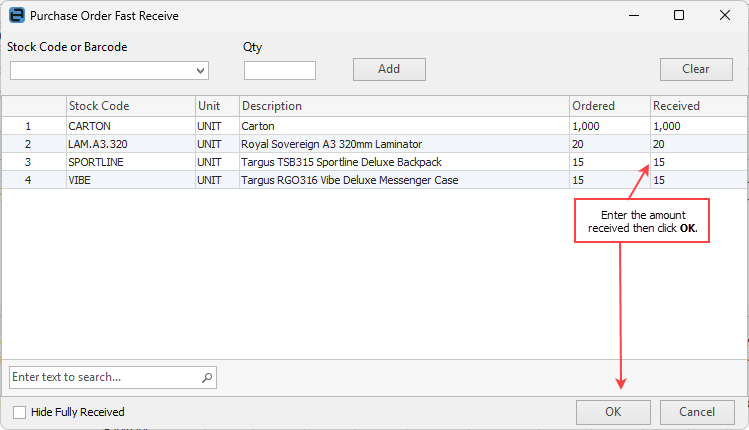
This will bring up the fast receive window, where you can enter the amount received for all lines either directly as below:
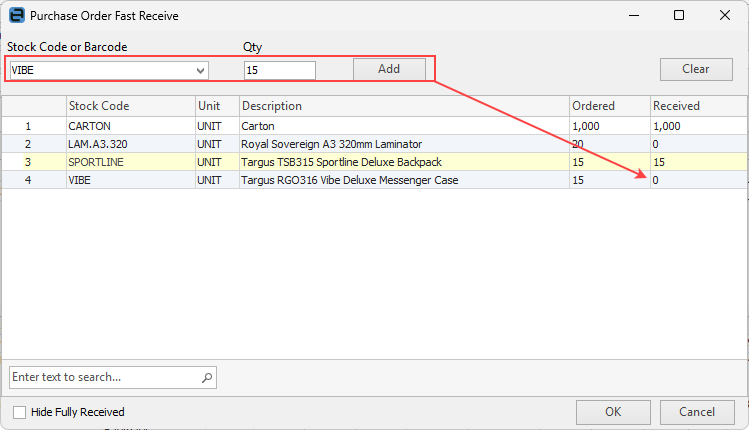
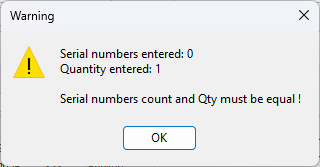
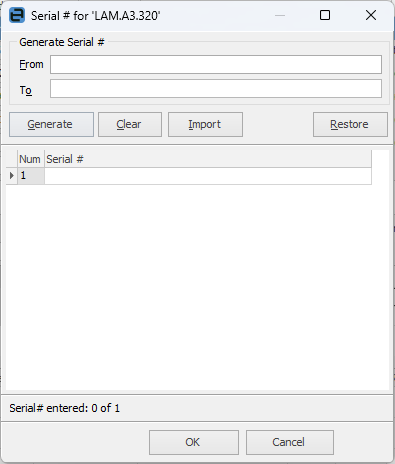
or, you can enter a stock code or scan a barcode (if serialised or attributed stock a further window will pop up to fill in these details first), add the quantity, and Jim2 will locate the stock and update the received quantity:
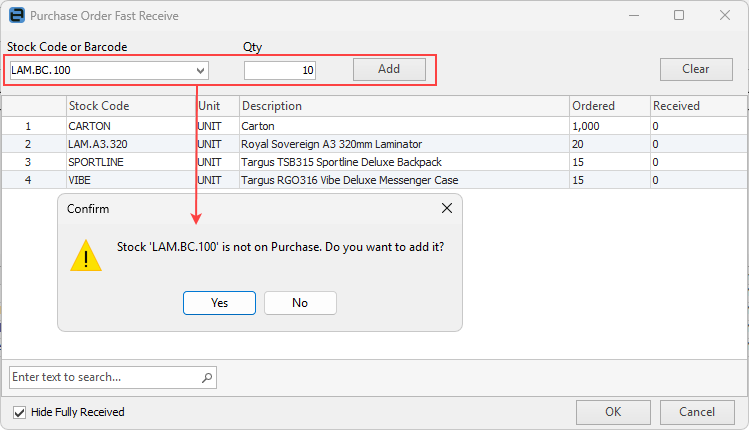
You can also add new stock into the purchase order if it required:
 |

1.Enter the stock grid on the purchase order to be able to add the quantity supplied from the vendor in the Received field of the stock grid by either: ▪Pressing the F4 function key and tabbing to the Received field, or ▪Position the cursor in the Received field. 2.Enter the quantity supplied from the vendor.
3.Enter the Vend Inv Date and (required) in the header and change the status to Received. You are required to enter something in the Vend Inv# field as well – it can be anything, and can be changed to the vendor invoice number once received.
4.Once the invoice is received, enter the Vend Inv#, change the Vend Inv Date to match the vendor invoice and Finish the purchase order. 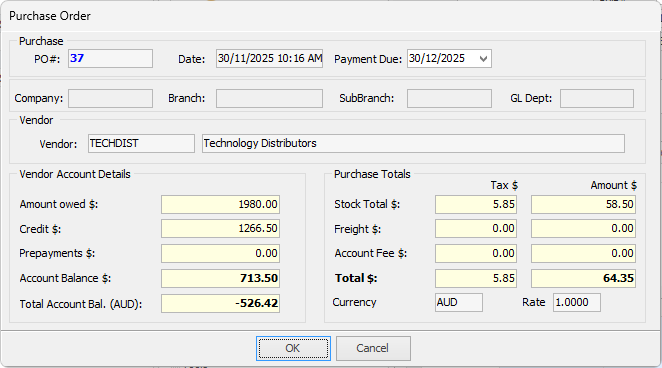 3.A message will appear, asking to confirm whether the total figures in this purchase order match the vendor invoice. This feature is extremely useful when vendors calculate tax amounts differently, for example at line level or overall.
|
Further information
Add an Amount to a PO when Finished at $0
Add Comments to a Purchase/Expense Order
Add Freight to a Purchase Order
Enter Progress Payments on Purchase Orders
Export a Purchase Report to Spreadsheet
Fix Incorrect Pricing after PO Finished
Fix Incorrect Vendor on Purchase Order
Handle Employee Reimbursements
Handle a Credit for Freight Charged
Link a Job to a Purchase Order
Link Expenses to a Purchase Order
Print a Purchase/Expense Order
Record One Invoice Number on Multiple POs
Record Overseas Purchases, GST, Import Costs