To purchase consignment stock, bring stock in on a Consign. In purchase order type. This puts the stock into the system to track quantities. When placing the Consign.In on a status of Finish a vendor invoice number and date is required. If you don't have that information, you can enter anything in the Vend Inv# field and a date will also be required.
|
Review Override FIFO option under Tools > Options > Stock, to determine whether Consign In or normal stock has been used in the invoiced jobs. This only applies to stock codes that are purchased on Consign In purchase orders and normal purchase orders.
Ticking the box tells Jim2 to use costs associated with normal purchase order stock before Consign In purchase order stock. |

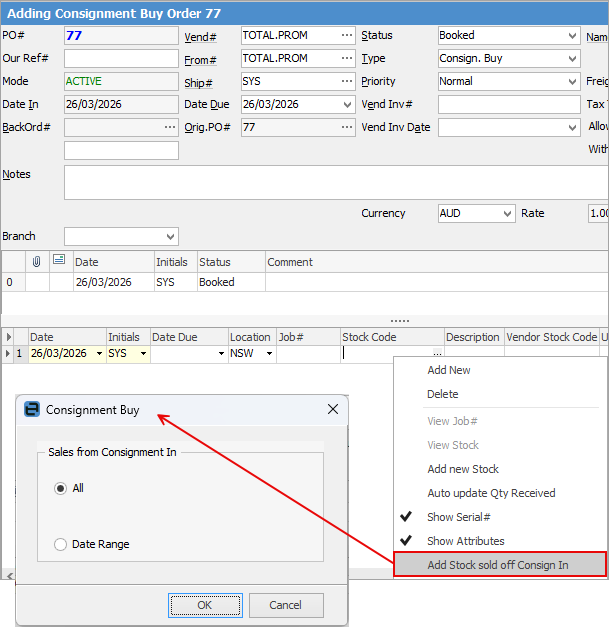
When ready to reconcile, raise a Consign. Buy purchase order. This is another type of purchase order. Raise it with the same vendor as the Consign. In purchase order. In the stock grid of the Consign. Buy purchase order, right click and select Add Stock sold off Consign In. It will automatically add all the consignment stock bought on a Consign. In and sold from that vendor.
|
Consign. In purchase orders only affect stock on hand and there is no effect on financials. Once a Consign. Buy is created the financial side will be affected. |

To purchase the consignment stock received on a Consign. In purchase order, create another purchase order with a type of Consign. Buy.
Enter the stock, quantity and pricing of the consignment stock to purchase, noting the original stock location that the consignment stock was received into (regardless of whether it has subsequently been transferred).
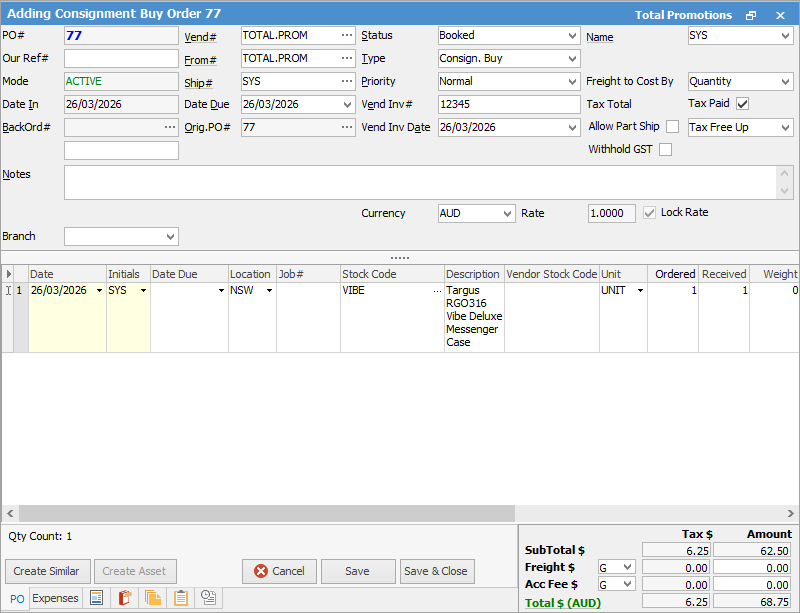
It is possible purchase more or less than the consignment stock that has been sold, but no more than the total amount of consignment stock that has been received and not purchased. Once the Consign. Buy purchase order is placed on Finish, all related consignment stock will be moved to the Consign. Buy purchase order. At this point, creditors will be updated and any COGS journals related to the sale of the consignment stock will automatically be generated.
|
Some letters in the field names within the header are underlined, eg. Vend#. Using Alt+ the underlined letter will jump to the field beside that heading. |


Consign. In and Consign. Buy can easily be identified by their type on the stock's Stats, Buying and Transactions tabs.
 Stock Transactions tab shown here
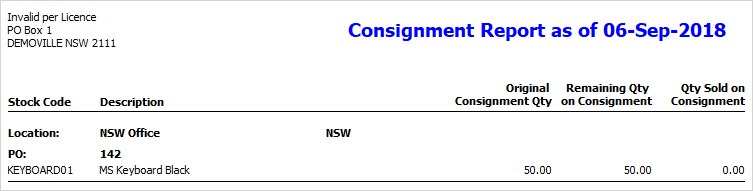
A consignment stock report allows easy reconciliation of stock on consignment. This report, called Stock List Consignment Required Report, can be printed from a Stock List.
 |
Once the stock has been brought in to Jim2 on a Consign. In purchase order and finished, at the required date each month: ▪Add a purchase order and select Type – Consign. Buy.  ▪Right click in the stock grid and select Add Stock Sold off Consign In. 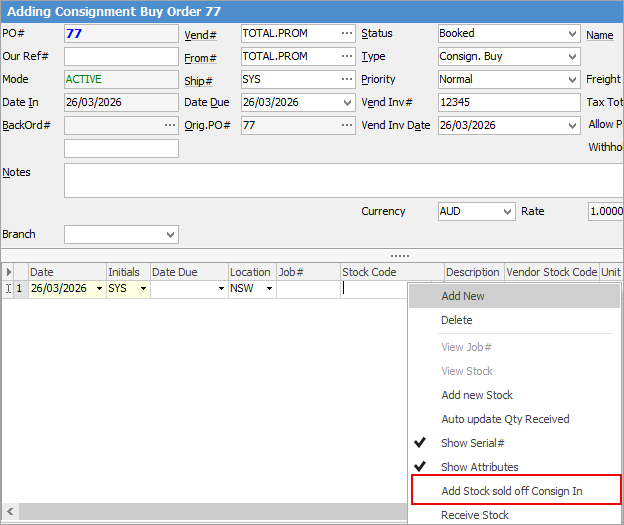 ▪Select the required criteria (All or Date Range), then select OK. 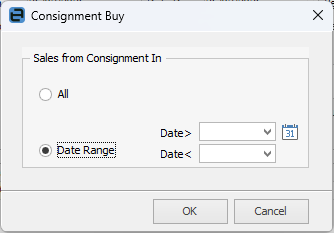 ▪The stock grid will automatically populate with what has been sold from Consign. In purchase orders.
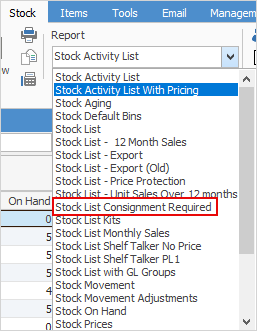
Cross check the information with the Stock List Consignment Required report: ▪Create a Stock List that contains all stock records that are purchased on consignment. Perhaps create a non report group and tag all relevant records to the group to allow for ease of filtering the Stock List. ▪Select the Stock List Consignment Required from the Report drop down list and preview/print it.
|
Further information
Add an Amount to a PO when Finished at $0
Add Comments to a Purchase/Expense Order
Add Freight to a Purchase Order
Enter Progress Payments on Purchase Orders
Export a Purchase Report to Spreadsheet
Fix Incorrect Pricing after PO Finished
Fix Incorrect Vendor on Purchase Order
Handle Employee Reimbursements
Handle a Credit for Freight Charged
Link a Job to a Purchase Order
Link Expenses to a Purchase Order
Print a Purchase/Expense Order
Record One Invoice Number on Multiple POs
Record Overseas Purchases, GST, Import Costs