There are two ways to correct an incorrect vendor (creditor) on a purchase order.
It’s important that both the upward and downward adjustments are applied to the same GL account, and are dated the same as the vendor invoice entered on the incorrect purchase order. 1.On the incorrect creditor, perform a creditors adjustment down to add a credit matching the full purchase order value.
2.On the correct creditor, perform a creditors adjustment up to increase the value by the same amount. Ensure this references the correct vendor invoice number.
|

 | Create a correct purchase order and return to vendor for original purchase order |
1.Use Create Similar to create a second purchase order – ensure Stock is ticked in the pop up to copy over the stock grid, including pricing. 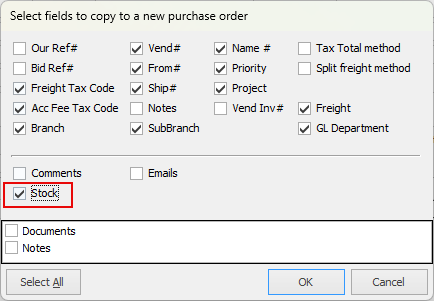 2.Change the vendor to the correct one and ensure the stock items and pricing exactly match the original (incorrect) purchase order. If correct, put to FINISH status. 3.You will now have two completed purchase orders: ▪PO A – has the incorrect vendor. ▪PO B – has the correct vendor. 4.Create a Return to Vendor referencing PO B, then change the vendor to match PO A.
▪Select all stock and check to ensure the price matches the purchase order. If correct, put the return to vendor to FINISH status. 5.You now have a credit on the wrong vendor’s creditor record, which will need to be allocated to clear off PO A, and a payable PO (B) on the correct vendor. The stock receipted again on PO B will be removed from your Jim2 database and no longer be affecting your stock on hand.
|

Further information
Add an Amount to a PO when Finished at $0
Add Comments to a Purchase/Expense Order
Add Freight to a Purchase Order
Enter Progress Payments on Purchase Orders
Export a Purchase Report to Spreadsheet
Fix Incorrect Pricing after PO Finished
Handle Employee Reimbursements
Handle a Credit for Freight Charged
Link a Job to a Purchase Order
Link Expenses to a Purchase Order
Print a Purchase/Expense Order
Record One Invoice Number on Multiple POs
Record Overseas Purchases, GST, Import Costs