The expenses grid of an expense order is designed to record and calculate the quantity and cost price of all the expenses attached to the cost of stock within a purchase which are not known at time of receiving the stock. These expenses can be distributed over the entire purchase order or at stock line level.
Both expense orders and negative expense orders can be entered into Jim2, and both of these types can be applied to purchase orders. If any expense order has a positive and negative value, and they balance out to $0 value, no creditor entry will be created.
When an expense order is linked to a purchase order, the amount is journalled to the Expenses on Purchases GL account. Once the linked purchase order is finished, this figure is moved to the relevant Stock on Hand GL account.
|
Note: When linking an expense order to an existing purchase order where Branches are in use, Jim2 uses the Branch on the existing purchase order, so Branch is not required on the expense order. |

Create an expense order as per the instructions here. When in the expense grid, please follow the instructions below:
1.Enter the purchase order number into the PO # field. Go direct to the linked purchase order by right clicking and choosing View Purchase Order#.

If expenses are attached to the cost of stock which are not known at the time of receiving the stock, add it to a purchase order by entering the purchase order number in the PO # field of the expense grid. When adding the purchase order number to the expense order, this will automatically allocate the expense to the stock in the purchase order (ie. increase the COGS on the purchase order) once the status of the expense order is Finish. Expand or reduce the number of fields viewed in the expense grid by selecting the arrowhead  on the top left-hand corner of the expense grid.
2.To add expenses to a purchase order, move to the Acc.Code field of the expense grid and select expenses in one of the following ways:
▪Click the ellipsis (...), then select the general ledger account.
▪Start to enter an account code in the field – Jim2 intuitive type will begin to pre-empt the choice of general ledger accounts.
Once the Expense general ledger account has been selected, the Description field will populate.
3.Enter the quantity of the expense ordered from the vendor. This will be used when calculating the totals.
|
When entering a negative expense order, the quantity is entered as a positive number but the dollar values are entered as negative values. |
4.Enter either the tax free or tax paid price of the expense. When entering a negative expense order, enter these dollar values as negatives.
5.Now the Tax Code field may have already been filled from either the default on that general ledger account or the vendor selected is Tax Free, in which case the tax free code (specified in Purchase Options) will be used. If not, select the correct tax code.
|
Importing goods requires a Lump Sum GST value to be entered – usually a period of time after the stock is received relating to the importing of the goods. In this case the original purchase order would be entered using the X tax code (exclude on GST/BAS reports). When the paperwork is received relating to this Lump Sum GST, it will need to be added through an expense order using the GST Liability general ledger accounts – this line of an expense order cannot be linked to a purchase order.
When selecting either of these tax accounts, only the following tax codes are options: Y = Lump Sum Other Acquisition G11 Z = Lump Sum Capital Acquisition G10 X = Exclude from GST Reports |


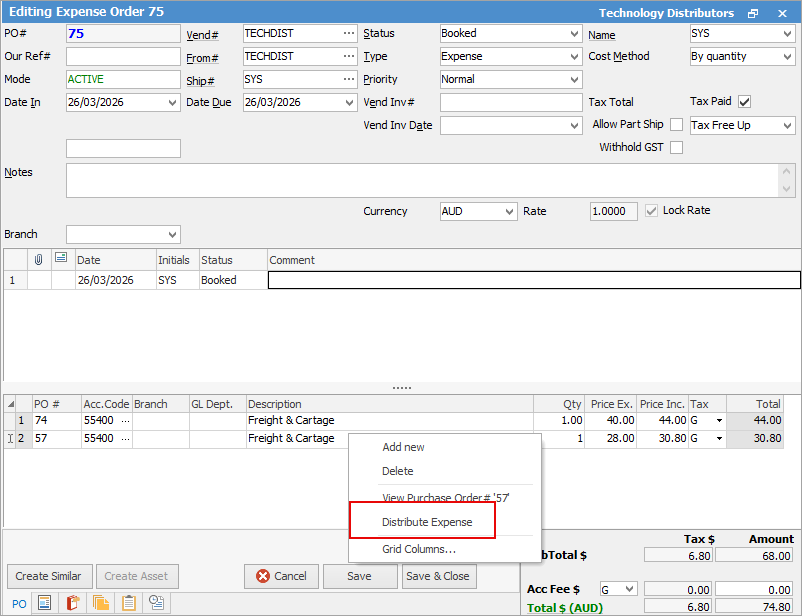
Following on from the above, expenses can be distributed on individual lines of the expense order. Once the grid has been populated with purchase order numbers and account codes, right click within the Description field and select Distribute Expense.
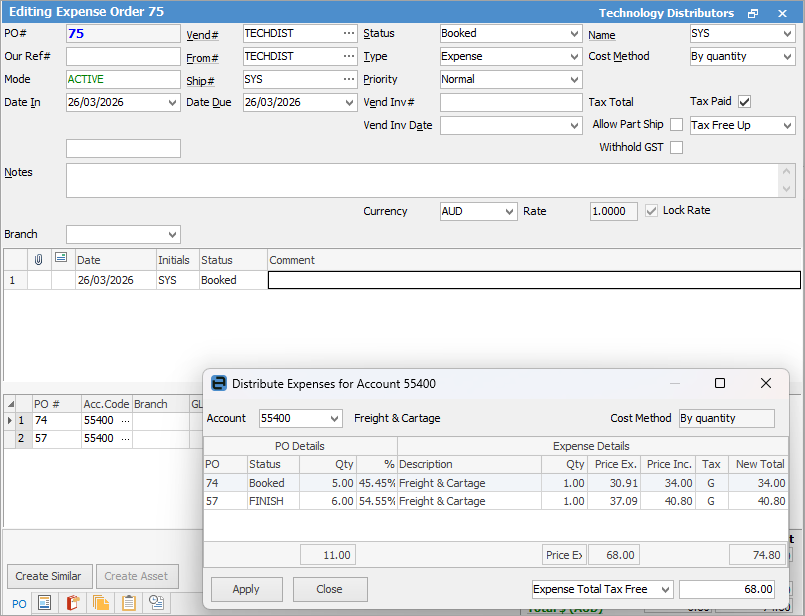
A screen will appear showing the lines within the grid and the percentage of the cost being apportioned. (In the example below, the percentage is based on what is set up in Tools > Options > Purchases > Default Freight split method. This can apply to all lines with the same account code. The account code can be changed within the pop-up, allowing application to more than one account.
Any linked expenses can be seen in the Expenses tab at the bottom of a purchase order.
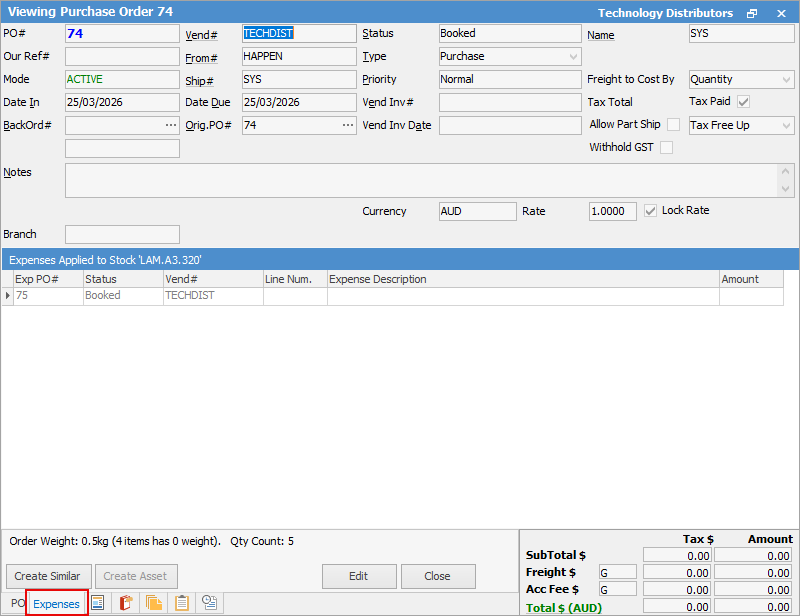
The linked expense is displayed either for the full purchase order or at a stock line level where a quantity of stock has been received – if 0 has been received, there is no linked expense.
Select a line of stock, then look at the Expenses tab to view the linked expense per unit of stock, eg. if the quantity received is 1 unit, the linked expense shows the expense per 1 unit. This expense also updates the COGS field in the stock line on the purchase order.
|
For further information on transactions relating to imported goods, refer to the section on Handling Imported Goods and Import Charges.
Further information
Add an Amount to a PO when Finished at $0
Add Comments to a Purchase/Expense Order
Add Freight to a Purchase Order
Enter Progress Payments on Purchase Orders
Export a Purchase Report to Spreadsheet
Fix Incorrect Pricing after PO Finished
Fix Incorrect Vendor on Purchase Order
Handle Employee Reimbursements
Handle a Credit for Freight Charged
Link a Job to a Purchase Order
Print a Purchase/Expense Order
Record One Invoice Number on Multiple POs
Record Overseas Purchases, GST, Import Costs