There are two ways you can export a purchase or expense order report to a spreadsheet.
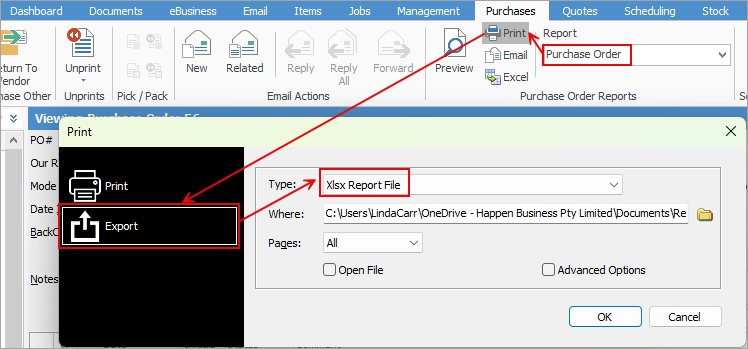
1.With the purchase/expense open, select the appropriate report in the ribbon, then select Print. In the Print dialog box, change to Export and select the Xlsx Report File in the Type field. This can then be saved locally.
2.With the purchase/expense order open, select the appropriate report in the ribbon, then select the Excel icon beside it. This will show each report pipeline in a separate sheet, ie. PO, Po stock, logo (and CardFile in the case of an expense order).
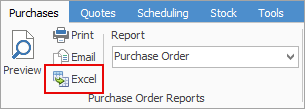
You can use the Excel icon to produce reports directly to Excel. Permission for use of this is based on security since it accesses the report for the information.
Further information
Add an Amount to a PO when Finished at $0
Add Comments to a Purchase/Expense Order
Add Freight to a Purchase Order
Enter Progress Payments on Purchase Orders
Fix Incorrect Pricing after PO Finished
Fix Incorrect Vendor on Purchase Order
Handle Employee Reimbursements
Handle a Credit for Freight Charged
Link a Job to a Purchase Order
Link Expenses to a Purchase Order
Print a Purchase/Expense Order
Record One Invoice Number on Multiple POs
Record Overseas Purchases, GST, Import Costs