|
Note: If the Create Purchase Order List button is greyed out there are two reasons for this: 1.Jim2 only allows 25 lists per object. If there are already 25 lists in the Nav Tree, a list will need to be closed to allow creation of a new list. 2.The user's security does not allow them to create the list. |

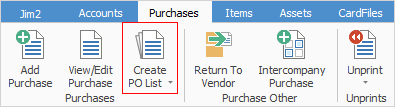
1.Select the Create PO List icon in either one of these ways:
▪Go to the Purchases tab of the ribbon, then select Create PO List.
▪In the Nav Tree, right click Purchases and select Create PO List.
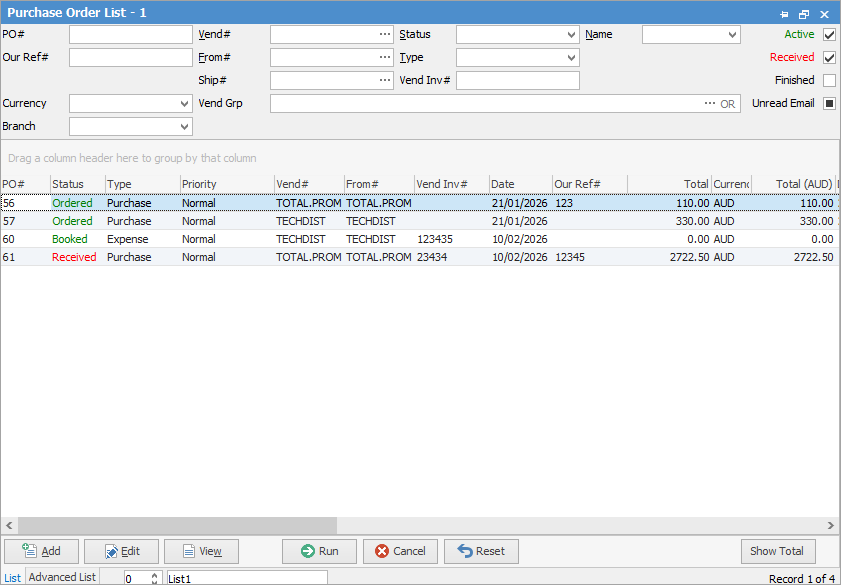
2.The purchase order list is displayed. Use any of the fields in List or Advanced List tabs (bottom left of screen) as the search criteria. When generating a purchase order list using a PO# as a search criterion, that purchase order plus any related back orders will be displayed.
|
Some letters in the field names within the header are underlined, eg. Vend#. Using Alt+ the underlined letter will jump to the field beside that heading. |

|
On the right-hand side of the Groups field selection within the list is the word OR. Clicking this wording will change it to &. This relates to how to use groups within the search. To be able to select two groups and find things that are in both groups, use the & option. To search two groups and find anything that is in either one of those groups, use the OR option. Double clicking on the words Card Grp at the beginning of the Card Grp field will turn the field green to indicate that group selection is inverted. For example, select cards that are not in these groups. |
3.Once the search criteria has been chosen, select Run and the query will be executed. The resulting list will appear.
|
Any back order purchases in the list will be displayed with the PO # field coloured yellow. |
4.Name and pin the lists so that they represent what is being searched for – this helps the user if they have multiple lists running at the same time.
Further information
Add an Amount to a PO when Finished at $0
Add Comments to a Purchase/Expense Order
Add Freight to a Purchase Order
Enter Progress Payments on Purchase Orders
Export a Purchase Report to Spreadsheet
Fix Incorrect Pricing after PO Finished
Fix Incorrect Vendor on Purchase Order
Handle Employee Reimbursements
Handle a Credit for Freight Charged
Link a Job to a Purchase Order
Link Expenses to a Purchase Order
Print a Purchase/Expense Order
Record One Invoice Number on Multiple POs
Record Overseas Purchases, GST, Import Costs