It is important that purchase and expense orders are entered correctly. This includes linking expenses to specific purchase orders to ensure correct cost of goods is calculated for imported stock.
When purchasing from overseas vendors, the tax code is normally driven by the Vendor, not the stock code, as the stock code can theoretically be purchased from multiple suppliers, both local and overseas.
So the stock code will remain G, but on the purchase order, it will be overridden by the Vendors tax rules.
Purchases from overseas suppliers may require a bulk GST payment. This GST payment, along with other associated costs, is usually made to a customs agent. In these circumstances, there are two Jim2 orders raised:
▪Jim2 purchase order for the stock,
▪Jim2 expense order for the bulk GST and other import charges.

The purchase order is raised against the overseas supplier to record the cost of the stock provided. This purchase order is only used for charges payable to the overseas supplier.
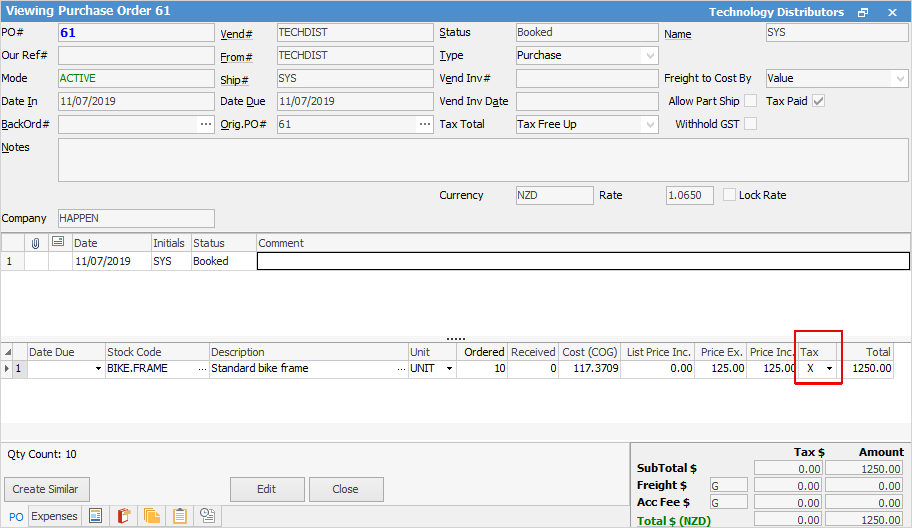
Where the purchase is subject to a bulk GST payment, the tax code used for each line of stock in the purchase order is tax code X (see below).
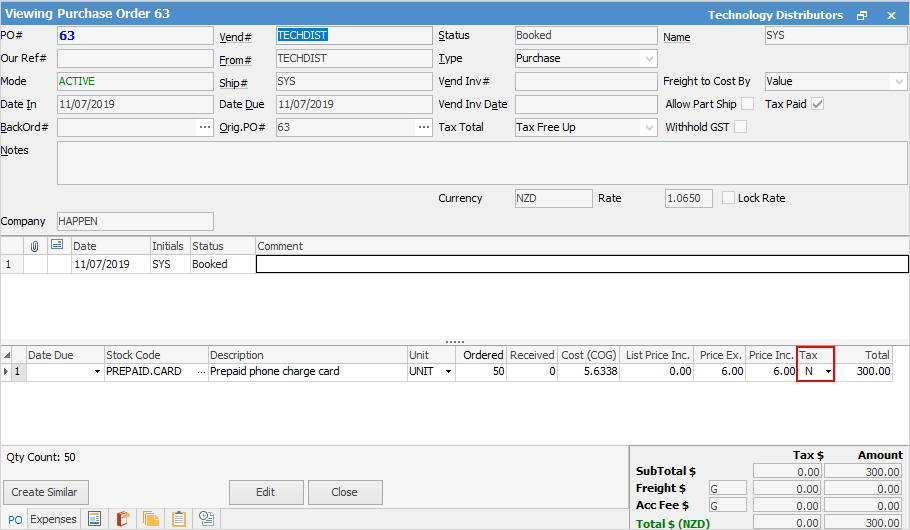
There are circumstances where purchases from overseas suppliers may not be subject to GST. This is usually the case where the purchase has not needed to pass through a customs agent. Where the purchase is not subject to GST, the tax code used for each line of stock in the purchase order is tax code N (see below). |
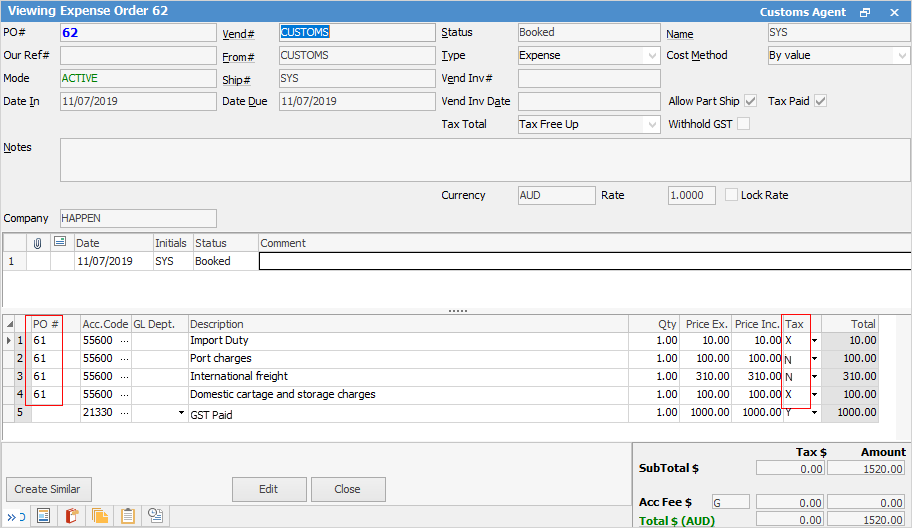
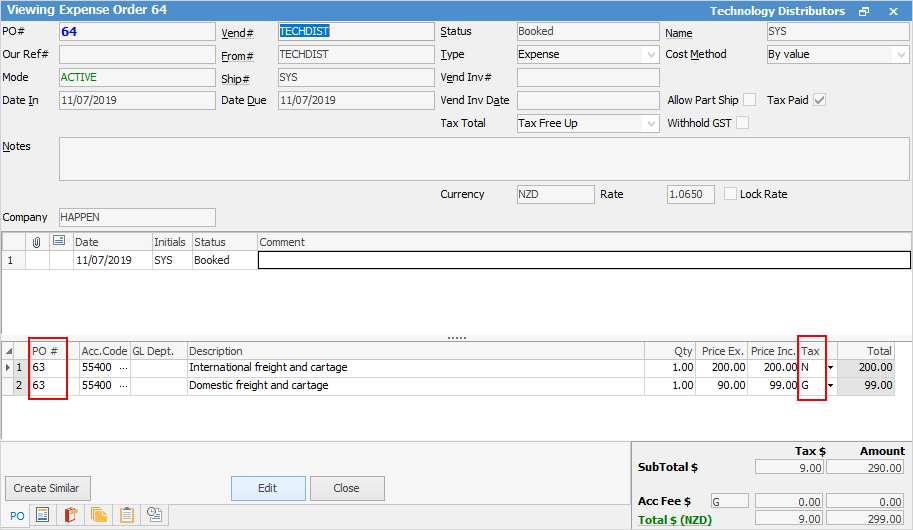
Linked to the purchase order will be an expense order. This expense order will include lines for associated import costs. Each line of associated import costs is then linked to the purchase order for the stock.
An expense order may also have a line to record the bulk GST payment.
|

Jim2 tax codes and how they apply to overseas purchases:
Charge or Expense |
Tax Code |
|---|---|
Overseas supplier invoices for stock |
X |
Import duty |
X |
Port charges without GST |
N |
Tradegate charges with GST |
G |
International freight charges |
N |
Domestic cartage and storage charges |
G |
Bulk GST on stock imports |
Y |
Bulk GST on capital acquisitions (equipment) |
Z |
Australian Government charges |
If this expense is reported to the ATO in the BAS, tax code is N. If not reported, tax code is X |
For further information on tax codes, see here.
Example of a purchase order raised for an overseas supplier where the goods have passed through a customs agent.
Example of an expense order raised for associated import costs and bulk GST. Note the link to purchase order 61, except for the line relating to the GST Paid. The GST Paid GL account is the one to be used, however you can change the Description on that line if desired.
|
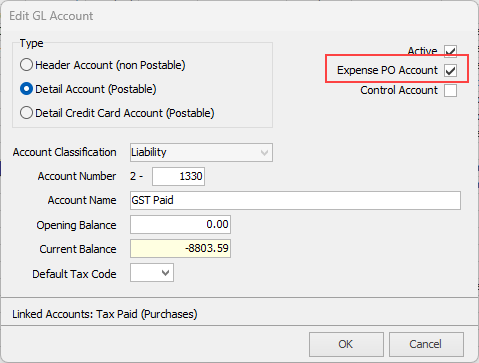
Note: Ensure that the GST Paid account is ticked as an Expense PO Account first:
 |
|
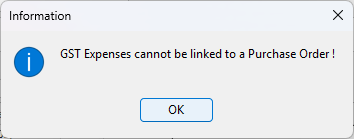
Note: GST expenses cannot be linked to a purchase order. The following message will appear if a PO# is entered:
 |
Example of purchase order raised for an overseas supplier where there is no requirement for a GST payment.
Example of a linked expense order raised for related freight costs (linking lines on expense order 64 to stock codes on purchase order 63). Note the use of '63' in the PO# field on the expense order.
Further information
Add an Amount to a PO when Finished at $0
Add Comments to a Purchase/Expense Order
Add Freight to a Purchase Order
Enter Progress Payments on Purchase Orders
Export a Purchase Report to Spreadsheet
Fix Incorrect Pricing after PO Finished
Fix Incorrect Vendor on Purchase Order
Handle Employee Reimbursements
Handle a Credit for Freight Charged
Link a Job to a Purchase Order
Link Expenses to a Purchase Order
Print a Purchase/Expense Order
Record One Invoice Number on Multiple POs