There is a security setting that stops users from being able to edit other users' comments. This does not stop them from adding a comment and changing the initials within that comment to someone else.

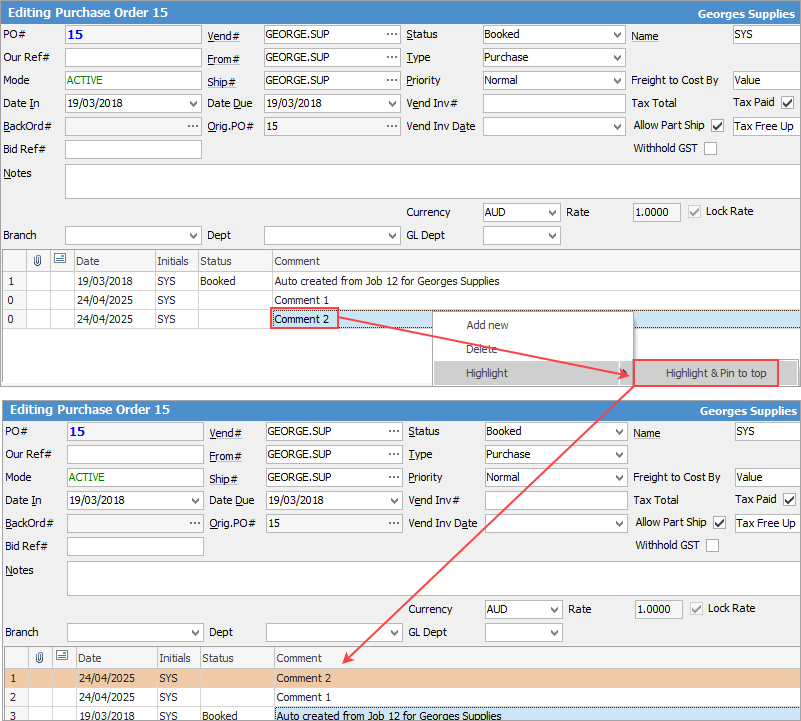
In Edit mode, you can click on any comment line and select Highlight & Pin to top. This will bring that line to the top of the grid and colour the background orange.
1.Enter the Comment grid by either:
▪Using the F3 function key, or
▪Clicking in the Comment field.
2.Enter any comment in the Comment field – this is a multi-line text field with word wrap (limited to 8,000 characters).
|
It is not necessary to be in Edit mode to add a comment. Right click in the Comment field and select Add New. This also applies to finished jobs. Comments can be added at any time to the Comment grid by moving to the top comment in the grid and pressing the Insert key on the keyboard. Such comments need not necessarily have a status, but are automatically stamped with the date, time and initials. These automatic values can be changed at any time by choosing from the drop down list to the right of the Date and Initials fields.
The comments can be reordered in the grid, but only from newest to oldest, by selecting the up or down arrow on the top left-hand corner of the Comment grid. |

|
A number of functions are available when right clicking within the stock grid. For more information see the Purchase/Expense Comment grid section. |
|
By default, only the creation date of a comment is shown, but the associated time can be viewed by hovering over the Date field. The time will then appear, as these form part of the secure quality record for that particular expense.
 |

Further information
Add an Amount to a PO when Finished at $0
Add Freight to a Purchase Order
Enter Progress Payments on Purchase Orders
Export a Purchase Report to Spreadsheet
Fix Incorrect Pricing after PO Finished
Fix Incorrect Vendor on Purchase Order
Handle Employee Reimbursements
Handle a Credit for Freight Charged
Link a Job to a Purchase Order
Link Expenses to a Purchase Order
Print a Purchase/Expense Order
Record One Invoice Number on Multiple POs
Record Overseas Purchases, GST, Import Costs