Add a negative expense order either by linking it to the original purchase order or by posting to a specific general ledger account.

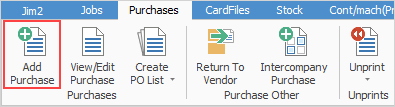
On the ribbon, go to Purchases > Add Purchase.
1.Choose Expense from the drop down list in the Type field of the header. Some fields in the header and other areas of the form will be added/removed as appropriate, and Adding Purchase Order xxx in the header will change to Adding Expense Order xxx.
2.Select the vendor. If there is no cardfile for the vendor, when in the Cust# field use F5 select Quick CardFile Add to enter a new cardfile. This can then be used on the current expense order. 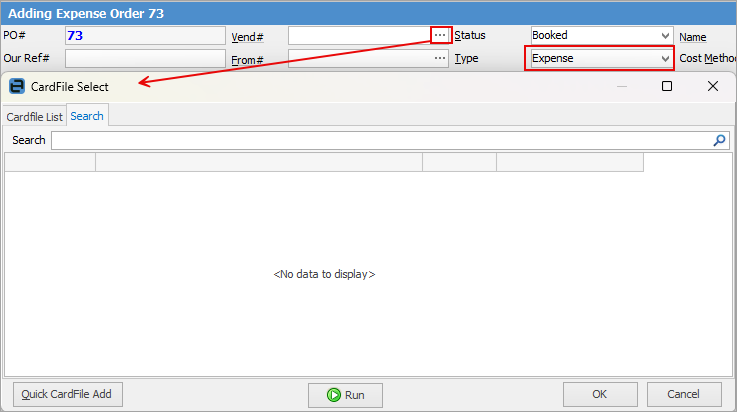
3.If required, enter a specific message in the Notes field in the Expense Order header. 4.Now add comments or stock to this expense. The F3 function key will move to the Comment grid and the F4 function key will move to the expenses grid. 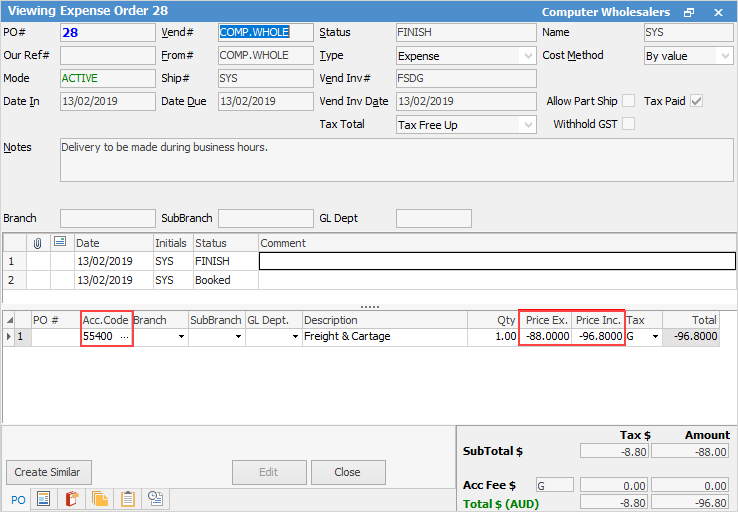
5.In the expenses grid enter the account code of the original purchase, then enter the price using the minus (-) before the amount. This will create a negative expense order.
|


|
Note: The Create Asset button is used more by Managed Print Services as it is used to manage machines (ie. photocopiers) in the field. |
On the ribbon, go to Purchases > Add Purchase. 1.Choose Expense from the drop down list in the Type field of the header. Some fields in the header and other areas of the form will be added/removed as appropriate, and Adding Purchase Order xxx in the header will change to Adding Expense Order xxx.
2.Select the Vendor.
3.If required, enter a specific message in the Notes field in the header. 3.Now add comments/stock to this expense. The F3 function key will move to the Comment grid and the F4 function key will move to the expenses grid. 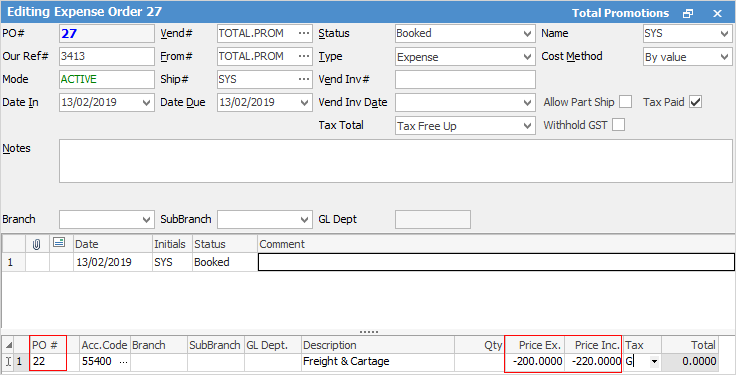 5.In the expenses grid enter the PO# of the original purchase, then enter the price using the minus (-) before the amount. This will create a negative expense order.
When linking the negative expense order to the purchase order, the general ledger account selected will not be impacted – it is a mandatory field on expense orders. |
Further information
Add an Amount to a PO when Finished at $0
Add Comments to a Purchase/Expense Order
Add Freight to a Purchase Order
Enter Progress Payments on Purchase Orders
Export a Purchase Report to Spreadsheet
Fix Incorrect Pricing after PO Finished
Fix Incorrect Vendor on Purchase Order
Handle Employee Reimbursements
Handle a Credit for Freight Charged
Link a Job to a Purchase Order
Link Expenses to a Purchase Order
Print a Purchase/Expense Order
Record One Invoice Number on Multiple POs
Record Overseas Purchases, GST, Import Costs