This information relates to both Progress Claims and Donations, but can be used in various ways, eg. an insurance excess, or for progress payments on a job.
Using journal stock allows invoicing progress claims against a project (job or series of jobs), then reversing the value of the progress claims on the final invoice. This will show the remaining balance owing against the final invoice (project), while recording all the costs and income against the correct general ledger accounts.
Accounts reporting for progress claims
Note that report progress claims as either income or liability. The Stock GL Group defines whether the value is deemed income or liability.

1.On the ribbon, go to Accounts > General Ledger and add a new income general ledger account (4-XXXX Progress Claims) and COGS general ledger account (5-XXXX Progress Claims). 2.On the ribbon, go to Tools > Setups > Accounting > Stock GL Groups and add a new stock GL group, Type – Non depleting, Journal and call it Progress Claims – Income. Link this stock GL group to the new 5-XXXX Progress Claims and new 4-XXXX Progress Claims accounts, and save. 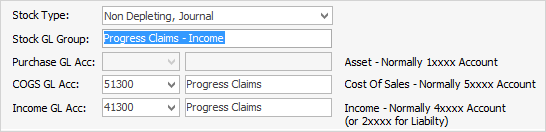 |
1.On the ribbon, go to Accounts > General Ledger and add a new Liability general ledger account (2-XXXX Progress Claims) and COGS general ledger account (5-XXXX Progress Claims). 1.On the ribbon, go to Tools > Setups > Stock GL Groups and add a new Stock GL Group, Type – Non depleting, Journal and call it Progress Claims – Liability. Link this Stock GL Group to the new 5-XXXX Progress Claims and new 2-XXXX Progress Claims accounts, and save. 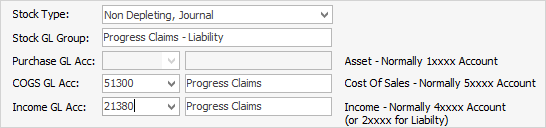 |
1.Add a new stock record, eg. PROGRESS.CLAIM.I (Income), or PROGRESS.CLAIM.L (Liability), Type – Journal. Select the new Stock GL Group and enter information in the Description field, eg. Progress Claim #1, use tax code G, as GST is reportable. This stock record can also be assigned to a stock group. 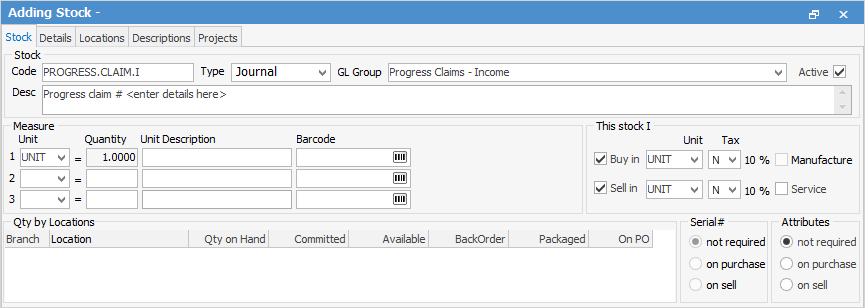 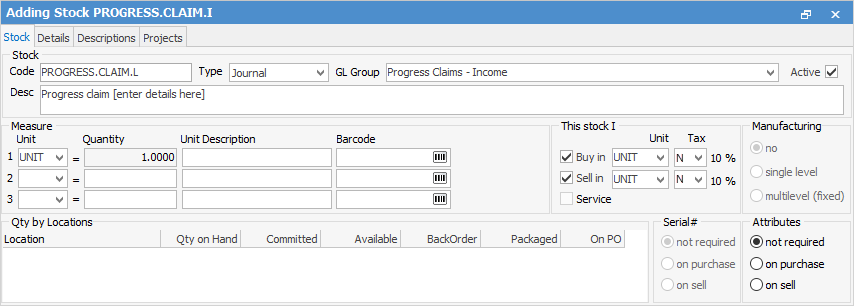 2.For each progress claim, add a sales or billing job, add the PROGRESS.CLAIM stock and description, quantity 1, and whatever amount being charged on the claim. Use the Cust.Ref# field to enter the customer's purchase order to tie all the jobs together. 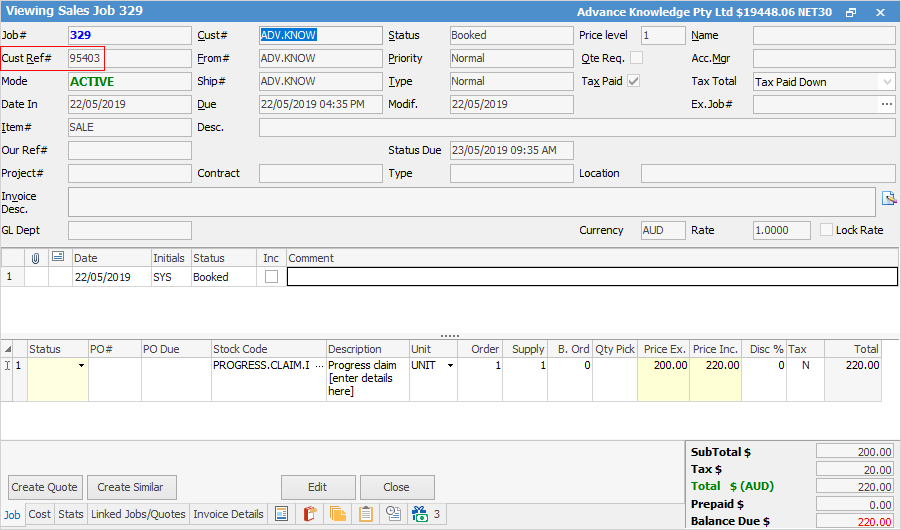 3.On the final job, add the PROGRESS.CLAIM stock as the last line of stock, quantity 1 and put a negative value against it so the overall job total is the balance owing after deducting the previous progress claims, then invoice the job. 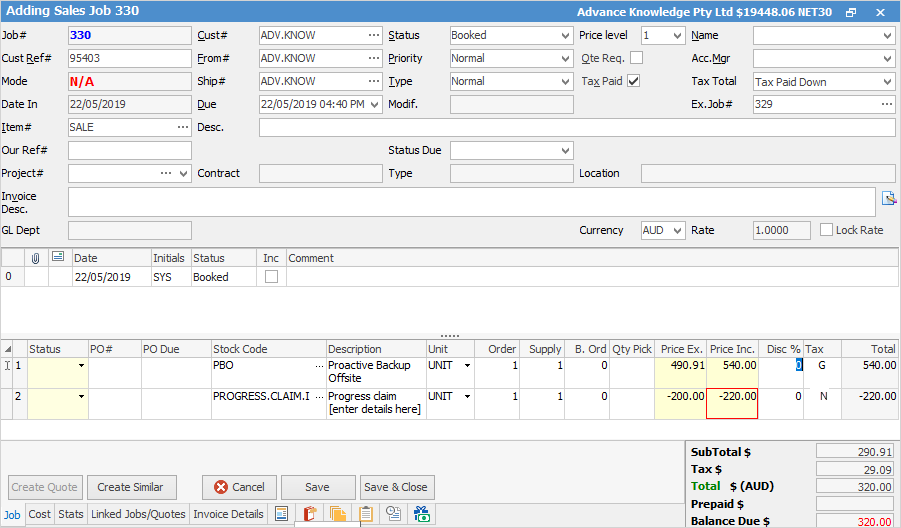 4.The overall sale will report as usual, but there will also be a reversing entry against the income account in the linked Progress Claim GL Group account.
|

Further information
Add Stock to Job When Insufficient Stock
Auto Create Purchase Orders from Jobs
Charge Customer a Re-stocking Fee
Create a Job from a Similar or Previous Job
Create a Template for Recurring Jobs
Credit an Overcharged Customer
Export a Job Report to Spreadsheet
Export Labour Hours from a Job
Select Serial Numbers on a Job
Stock Availability Allocation Process by List
Stock Availability by Location on the Fly