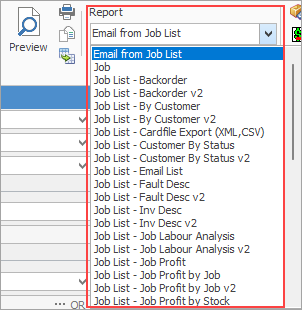
Not all reports are showing in this image. See below for the full list.
You can use the Excel icon to produce reports directly to Excel. Permission for use of this is based on security since it accesses the report for the information.
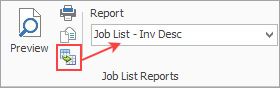
When Excel is selected, it will open spreadsheet windows and populate it with raw data from the selected report. Each report pipeline with be represented in a separate sheet, eg. Job, JobComments, JobStock etc. This will produce a much more comprehensive report in spreadsheet format for all these reports.
Report |
Explanation |
||
|---|---|---|---|
Email from Job List |
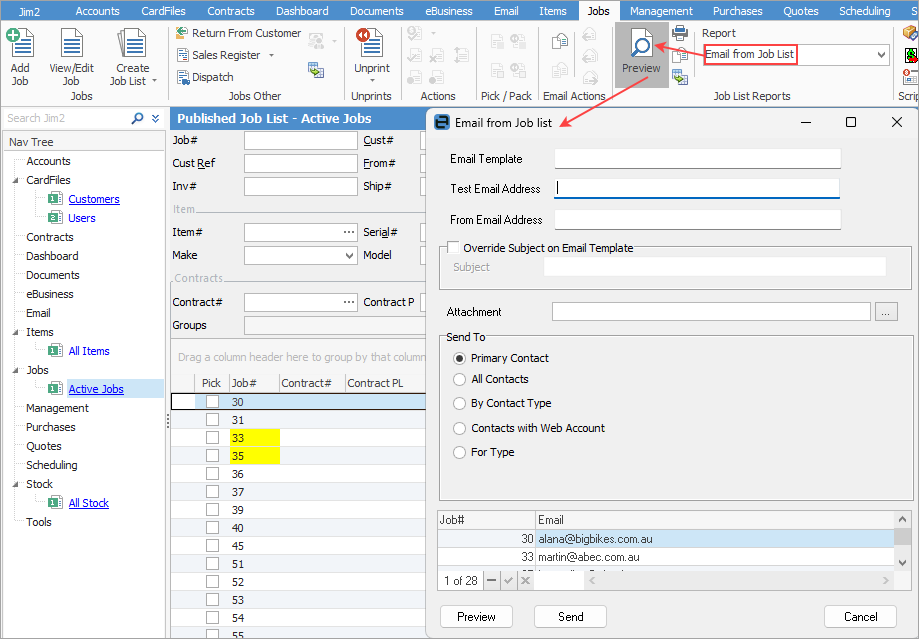
This allows sending emails to a group based on products purchased, for example. See Bulk Email from a List for more information.
 |
||
Job List – Backorder v2 |
This will produce a report for all jobs on back order. |
||
Job List – By Customer v2 |
Produces a list of all jobs grouped by customer. |
||
Job List – Cardfile Export (XML,CSV) |
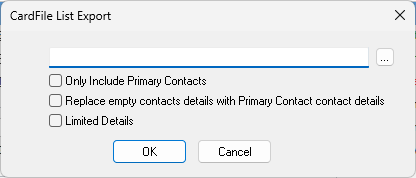
This will produce a spreadsheet of all cardfiles for all the jobs in the list. This information can be further filtered here.
 |
||
Job List – Customer By Status v2 |
This will produce a report of all customer jobs based on their status. |
||
Job List – email list |
This will produce a spreadsheet with all customers in the list's name and email details. |
||
Job List – Fault Desc |
This will produce a report showing all fault descriptions on jobs. |
||
Job List – Inv Desc |
This will produce a report showing all invoice descriptions on jobs. |
||
Job List – Job Labour Analysis |
This will produce a spreadsheet with detailed information on actual and billed labour. Also includes totals a the bottom of the report. |
||
Job List – Job Profit by Job v2 |
Once filtered based on below, this will produce a report showing profit on each job in the list.
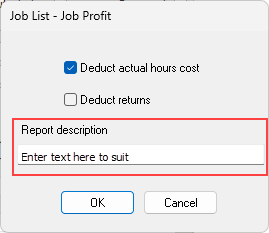
This report will also show actual and billable hours. The text entered in the Report description field will appear in the header of the report.
|
||
Job List – Job Profit by Stock v2 |
This will produce a job profit report based on stock within the jobs. This report can be further filtered here prior to previewing or printing:
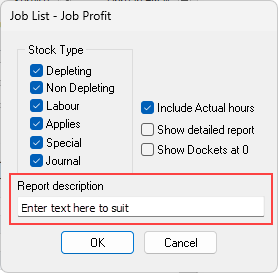
The text entered in the Report description field will appear in the header of the report.
|
||
Job List – Job Profit v2 |
This will produce a report on job profit for all jobs in the list. This report can be further filtered here prior to previewing or printing:
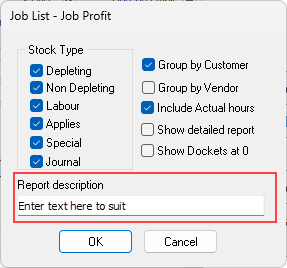
This report will include all transactions including both cost and sell pricing. The text entered in the Report description field will appear in the header of the report.
|
||
Job List – Machine Response Times |
This will produce a report (for Managed Print Services purposes) detailing response times. This report can be further filtered here prior to previewing or printing, filtering to ignore labour and/or using a starting status:
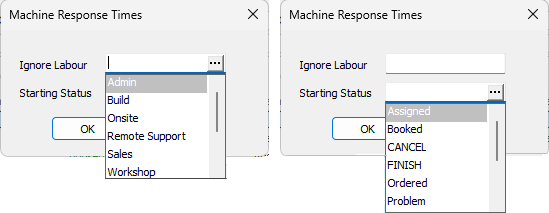
Time calculations are based on the working days configured in Options. ▪Company Response Time: starting time of earliest actual labour logged on the job. ▪Response Hours: number of working hours between date added and company response time. ▪Machine Response Days: as per the Req Days on the contract. ▪Machine Response Hours: as per the Req Hours on the contract. ▪Difference: variance between the Response Hours and Machine Response Hours. 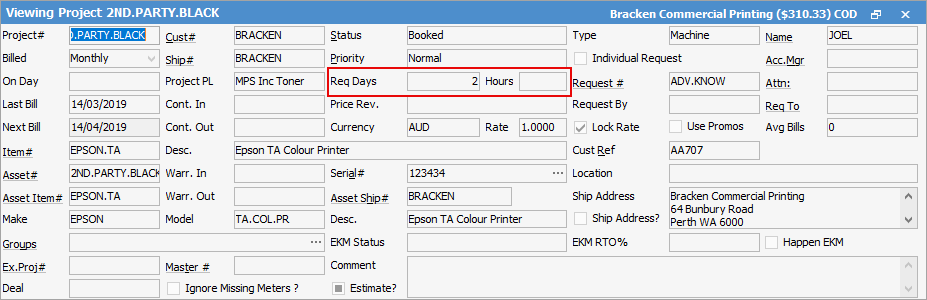 ▪Booked Start Time: the date/time of the first booked status listed in the job comments – usually the same as Cont. In date/time. ▪Tech Resp Time: number of working hours between booked start time and company response time. ▪Last Booked Start Time: the date/time of the last Booked status listed in the job comments – will be added if job is moved from another status back to Booked. ▪Last Tech Labour Time: starting time of last actual labour logged on the job. ▪Last Tech Resp Time: number of working hours between last booked start time and last tech labour time. ▪Finish Time: end time of the last actual labour logged on the job – shows once job is moved to finish status. |
||
Job List – Meter Charges Report |
This will produce a report (for Managed Print Services purposes) detailing meter charges, including reads. |
||
Job List – Meter Reading Report |
This will produce a report (for Managed Print Services purposes) detailing current and previous meter reads. |
||
Job List – Meter Reads (XLSX) |
This will produce a report (for Managed Print Services purposes) detailing contract, Asset, meter types, meter reads, etc. |
||
Job List – Parts Spent |
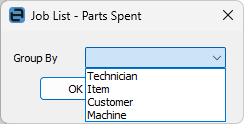
This will produce a detailed spreadsheet on quantity and cost of parts spent per job based on the Group By selection. This report can be further filtered here prior to previewing or printing:
 |
||
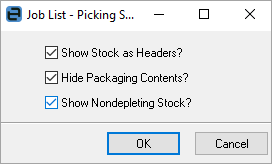
This will produce individual job picking slips for all jobs in the list that have the Pick box ticked.
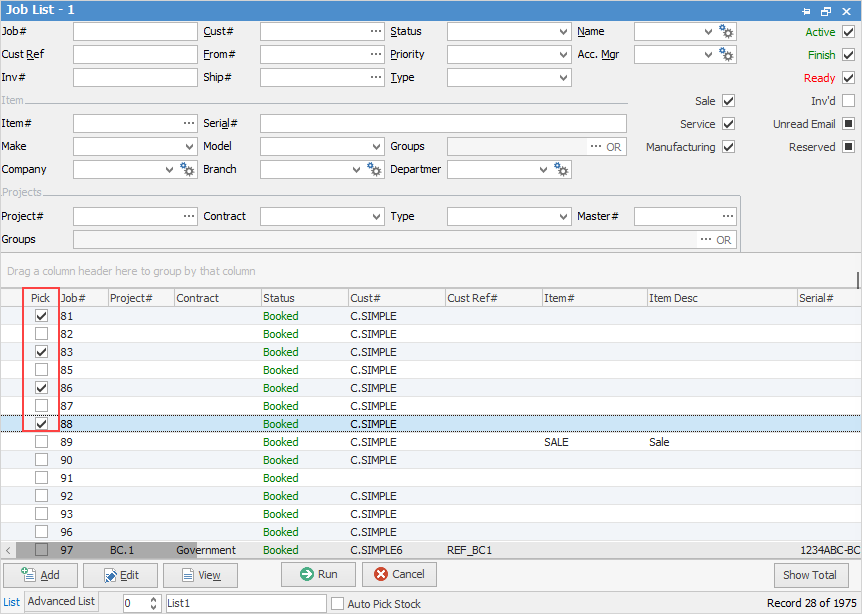
The Picking Slip will also show weight, if it appears on the job.
|
|||
Job List – Required Stock for Jobs |
This will produce a report showing all stock required for jobs. Filter the list further here by selecting a specific vendor and choosing to summarise stock, along with all locations.
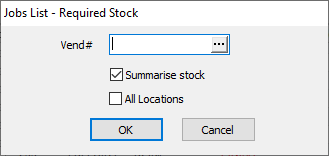
Summarise stock will show one line for each stock object. If left unticked, the report will show each job the stock is used on. |
||
Job List – Stock On Back order |
This will produce a spreadsheet showing all stock on back order for all jobs. |
||
Job Ticked Comm Only v2 |
If Inc is ticked in the Comment grid of a job, this report will show those comments on the job report.
 |
||
Job Total By Customer v2 |
This will produce a report showing the total for all jobs by customer. |
||
Job Total By Item v2 |
This will produce a report showing the total for all jobs by Item. |
||
Job Total By Name v2 |
This will produce a report showing the total for all jobs by name (username chosen on the individual jobs). |
||
Job Total By Type v2 |
This will produce a report showing the total for all jobs by job type. |
||
Job v2 |
This will produce a job report for the first job in the list. |
||
Proforma Invoice v2 |
This will produce a proforma invoice. |
||
Stock Sold By Customer and Stock Type |
This will produce a report showing stock on jobs by customer. |
||
Stock Sold By Name and Stock Type |
This will produce a report showing stock type sold by name (username chosen on the job), as well as stock type. |
||
Stock Sold By Stock Type |
This will produce stock sold by stock type. |

Further information