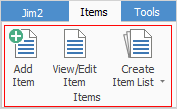
This section explains the function of Items within the work process, and the interaction of other Jim2 Projects in managing the information maintained within an Item.
•The Item in a job/Project interacts with the stock and can be assigned as the responsibility of single or multiple users.
•An Item is used as a means of automating various functions within the system, including tracking and reporting.
•An Item can be set up with related stock, so the user is prompted to add the related stock to a job.
•The Item describes what is to be serviced in a service job, etc.
•An Item represents the prime objective of a job/Project.
•A list of Items the company uses will show areas of competence, ie. the capability to sell, service or manufacture an Item.
The types of Items you may wish to set up would be , SUBSCRIPTIONS, MS.BILLING, etc. with a description of Managed Service Billing, and a job type of Sales. For service-related managed services jobs, create additional Items like IT SERVICES, MS.ONSITE, MS.GOLD.ONSITE, etc. with a job type of Service, eg.
 |
Consider what sort of Items pass through the workflow and how to differentiate between them in a meaningful way. Remember, Items represent the prime objective of a job. |
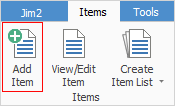
1.On the ribbon, go to Items > Add Item. The Adding new Item form is displayed.
 |
Some fields will have information defaulted into them automatically by Jim2. This default information can be overridden by entering text in the field. |
|
Only Sales and Service Items can be created from the Add Item selection. Manufacturing Items are automatically created by Jim2 when creating manufacturing stock. |
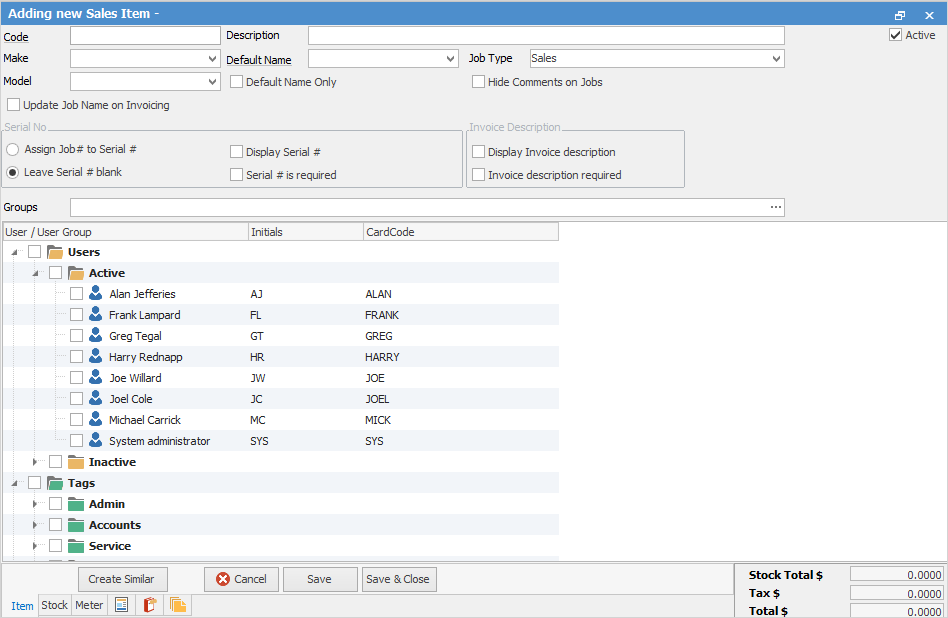
2.Enter a code that will easily identify this Item.
At this stage the Item can be saved, although Jim2 will warn that the the Description, Make and Model fields should be completed. These can be added later, if necessary.
3.Enter the description of this Item in the Description field.
4.If required, either enter or choose from the drop down options, to enter the make and model of the Item in the Make and Model fields.
|
Make and Model fields are free type fields. The drop down options for both build up over time when new makes and models are added. |
5.Enter the name of the user who is primarily responsible for selling or servicing this Item, depending on the job type. If there is only one person capable of this function, tick Default Name Only as well.
|
If no names are ticked, all users will be available in the Name field in jobs and quotes. However, if any usernames are ticked, they will be the only ones that appear in the drop down options in the Name field in jobs and quotes. |
6.In the Job Type of the Item header, choose whether this Item relates to a sales or service job from the drop down options.
|
If the Item relates to a sales job, an additional checkbox (Update Job Name on Invoicing) is available. This will update the Name on the job to the person invoicing the job. This would be used in a sales environment where commission is paid and the person who added the job is not necessarily the person who should be credited with the sale. Enable Invoice Authentication Required in Retail Options for this to work correctly. |
7.In the Serial Number section of the Item header, make selections that apply to this Item.
8.In the Invoice Description section of the Item header, tick the boxes to have an invoice description for this Item, and whether to display that description.
Right click options in the Nav Tree
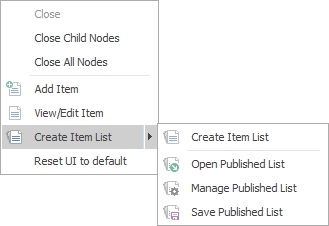
After the top 3 (which are self explanatory), these options mirror what is on the ribbon in the Items tab, except for the last tab, which will reset all tabs to default.
Further information