You can use the Microsoft Authenticator for easy, secure passwordless sign-in to Jim2Cloud.
▪Open the Microsoft Authenticator app on your mobile device.
▪Select your @Jim2Cloud account from the list of configured accounts.
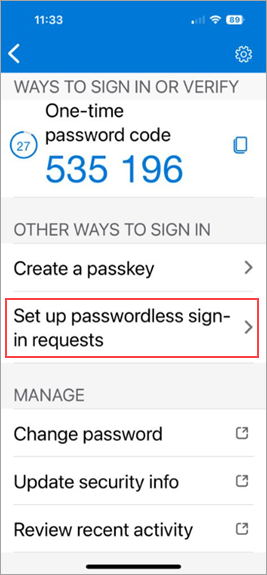
▪Under Other Ways to Sign in, select the option Set up passwordless sign-in requests.
▪If prompted, enter your Jim2Cloud password.
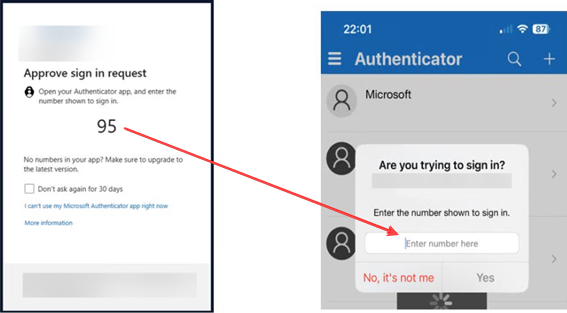
▪You will receive a Multi-Factor Authentication (MFA) notification. Complete the MFA request.
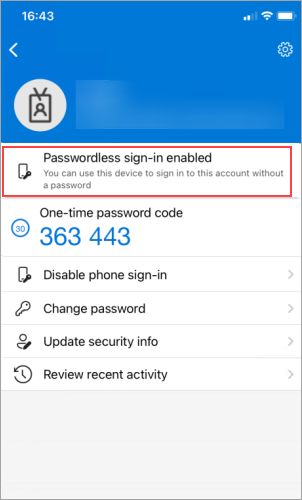
▪You should now see "Passwordless sign-in enabled", indicating that the onboarding process has succeeded.
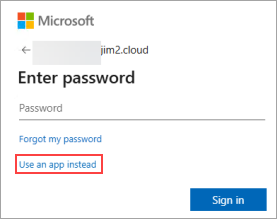
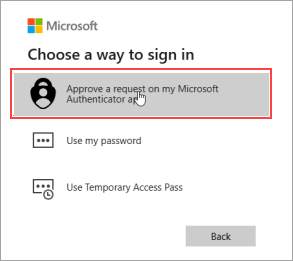
▪Once registration is complete, the next time you log in to your Jim2Cloud user account, select Use an app instead when prompted for your password and follow the prompts.
Further information