To add more than one Item at a time on a regular basis, speed up the entry process by setting up an option which, when a newly created Item is saved, will automatically open another Add new Item screen.
To do so:
1.On the ribbon, go to Tools > Options > General.
2.Tick Item in Continuously adding in and click OK.
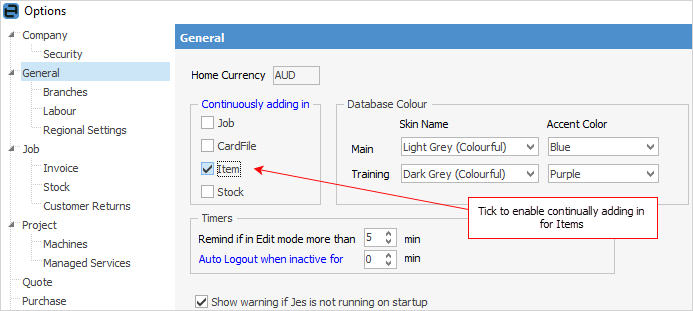
With this option set, once an Item has been entered and saved, another Adding new Item screen will automatically open. Simply click Cancel to close.
This option can be turned off at any time.
Further information