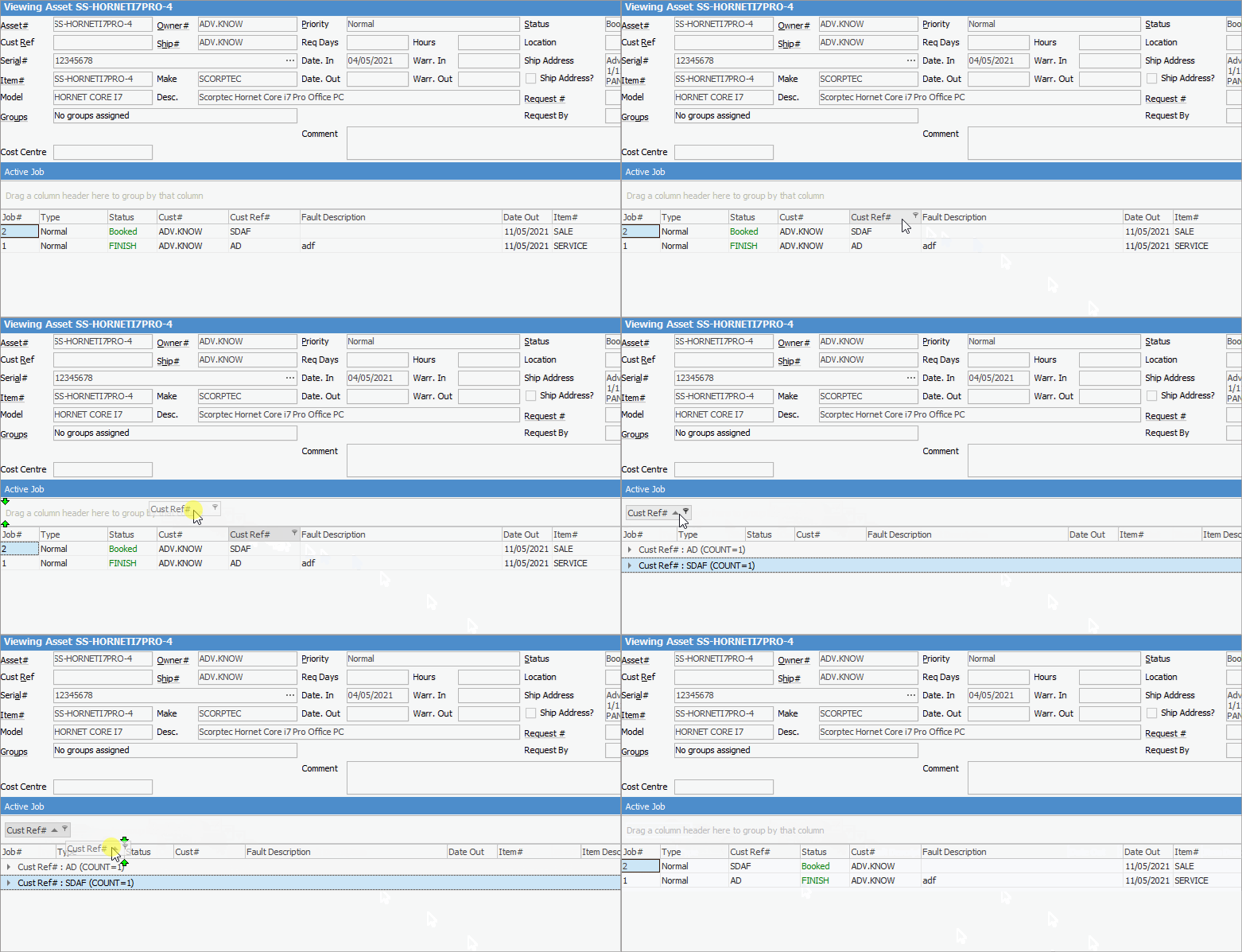
On each tab, you can the order the columns by clicking and dragging the column header to a new position, then right click in the grid and click Save Layout. You can also drag a heading into the grey area at the top and put it back into the header of the grid to replace it.
Each tab is explained in detail below.

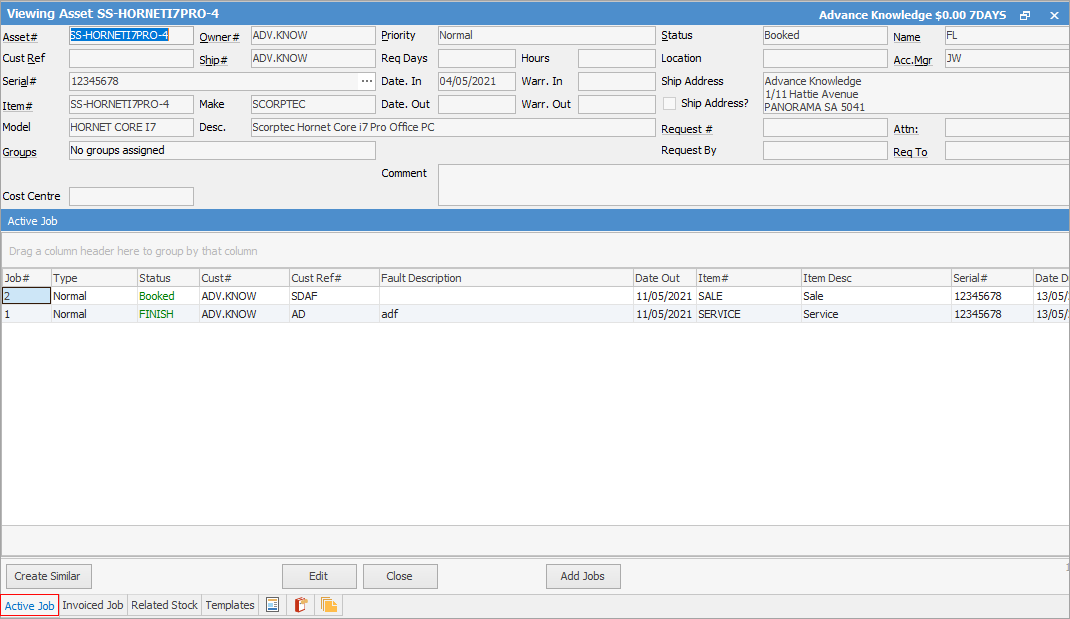 Not all columns are showing in this image
|
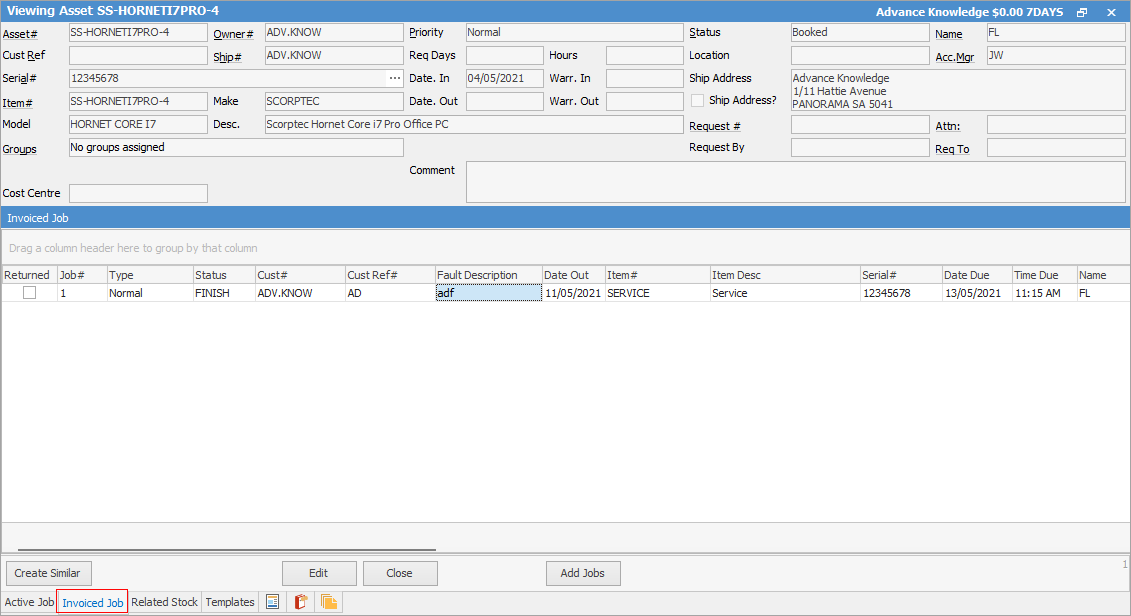 Not all fields are showing in this image
|
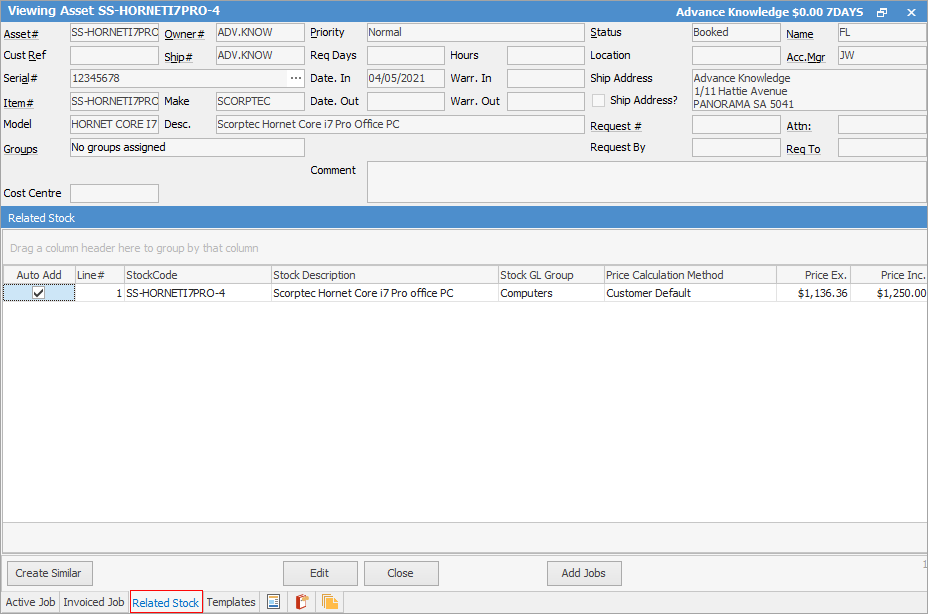
|
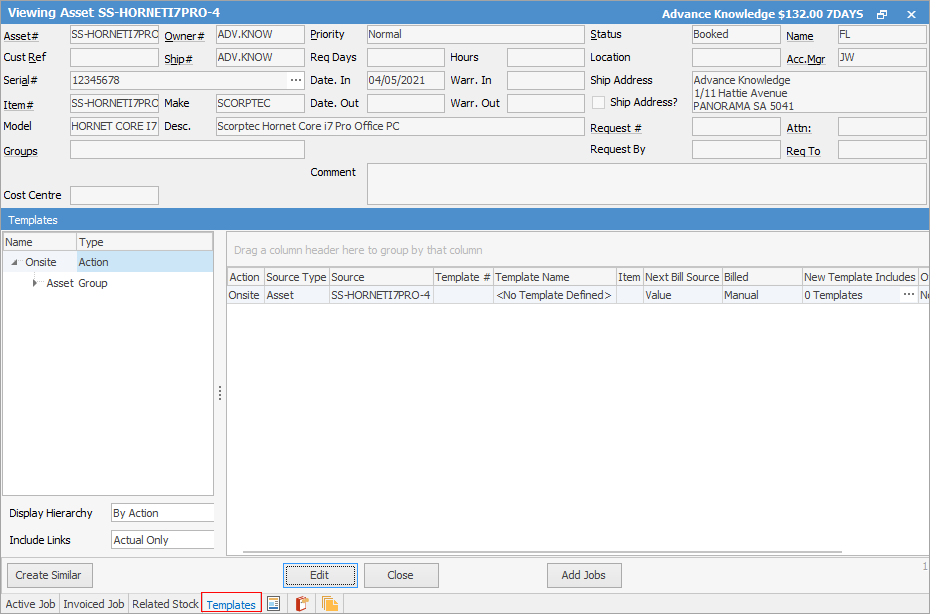 Not all columns are showing in this image
This tab displays all templates in use by this Asset. See Project Templates for more detailed information. |
The tabs that are common to many objects are explained below.
Tab |
Explanation |
|---|---|
 |
This tab displays any documents attached to this project, eg. a signed delivery note. |
 |
This tab will display all watchouts related to this project, and allows addition of new watchouts. |
 |
This tab will display all notes related to the project, including the contact that the note is related to. New notes can be added here. |
Further information