The Asset list is a very powerful search function within Jim2. Users can define their own Asset responsibilities by creating lists that apply to their specific function. For example, generate a list of all active Assets in your name, or using a status to see where the Asset is up to.
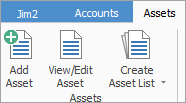
Asset lists run live in the Nav Tree, and will be refreshed at regular intervals (depending on how many minutes are stipulated) as Assets are updated across the network. Name and pin the lists so they represent what is being searched for. This helps if there are multiple lists running at the same time.
Configuring an Asset list can be performed from either a standard List or using the Advanced List option. List or Advanced List can be selected at the bottom of the Asset List screen.
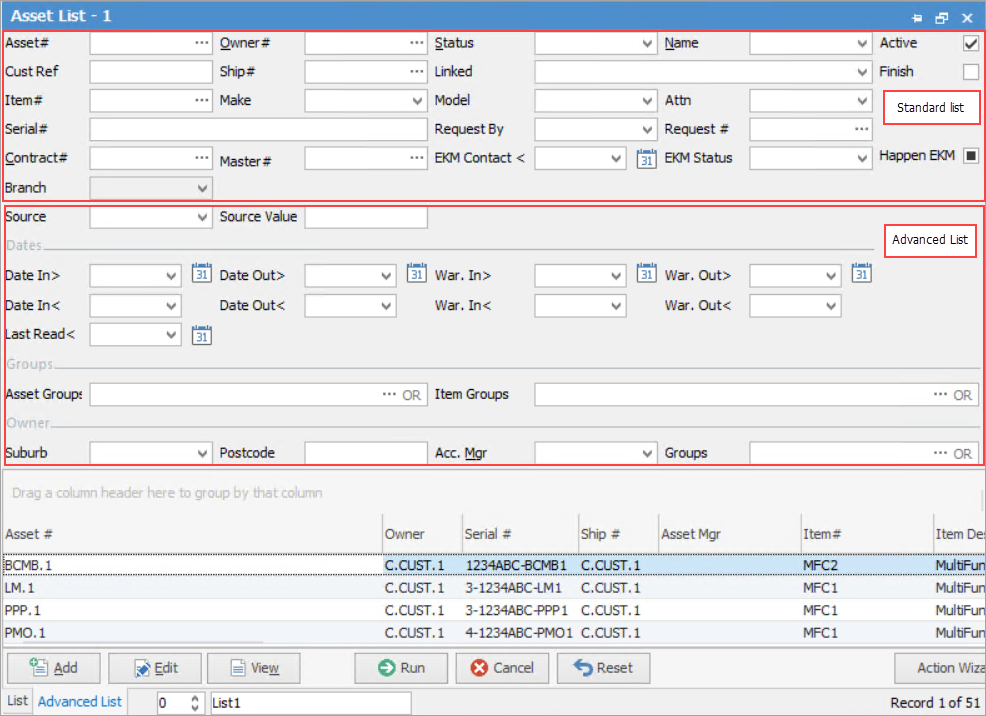
See here for information on the use of the Reset button.
Sorting, searching and grouping are available as per other lists in Jim2. You can drag a heading into a new position in the grid, then right click in the grid and select Save Layout.
Select the column header in the grid to sort, then drag it to the Group By area to group. Drag the header back to the grid to replace it.
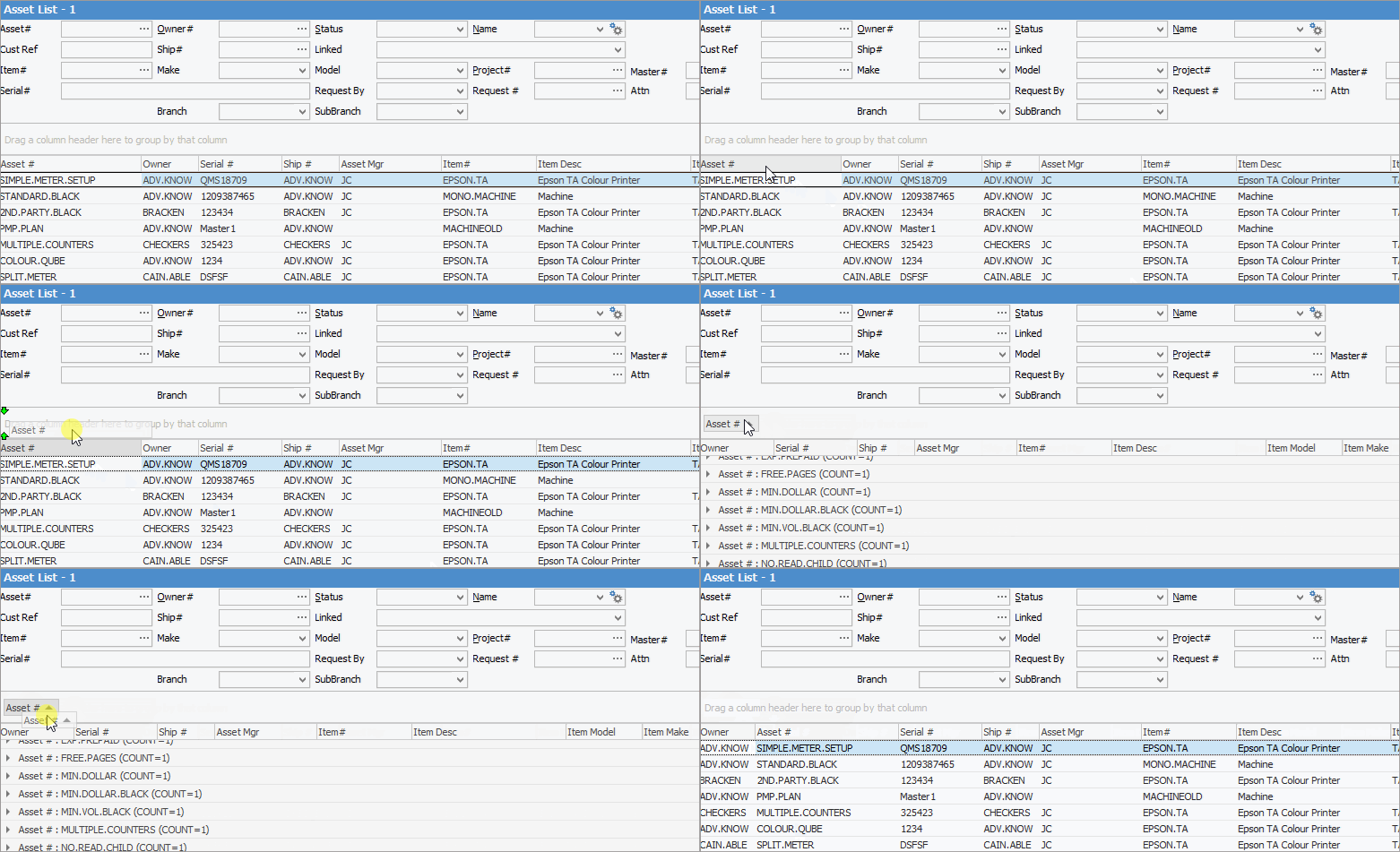
To view or edit any of the Assets within the list, double click or use the F2 function key on any of the fields relating to the Asset to be displayed.

Field |
Explanation/Usage |
|---|---|
Asset# |
The Asset number. You can enter an Asset number here to produce a list for only that Asset. |
Owner# |
The card code of the customer the Asset is for. You can enter a card code here to produce a list for only that customer. |
Status |
Select a Status to produce a list of all Assets on this status. |
Name |
Select a user name here to produce a list of all Assets for that user. |
Active |
Tick to show only active Assets. |
Cust Ref |
Enter a customer reference number here to produce a list for that reference number |
Ship# |
Select the card code where the Asset is physically situated to produce a list of Assets for that card code. |
Linked |
This field relates more to managed print services and the following choices are available:
 |
Finish |
Tick to show only finished Assets. |
Item# |
Enter an Item number here to produce a list of all Assets using that Item number. |
Make/Model |
Selecting a Make and/or Model will produce a list of all Assets for that type. |
Project# |
Entering a project number here will produce a list of all Assets related to that project. |
Master# |
Entering a master project number will produce a list of all Assets related to that master project, including linked child projects. |
Serial# |
Enter a serial number to produce a list of Assets with that serial number. |
Request By |
This field relates to the way a request for meter reads is performed, and is used by managed print services. |
Request# |
The card code used for the Request By above. |
Attn |
The person on the Request# card code to contact for the Request By method. |
Branch/SubBranch |
If using Branches, select Branch/SubBranch to refine the list to those only. |
|
Some letters in the field names within the header are underlined, eg. Owner#. Using Alt+ the underlined letter will jump to the field beside that heading. |

Item |
Explanation/Usage |
|---|---|
Date In > Date Out > |
Enter start/end dates after a specific date to refine your list. |
War. In > War. Out > |
Enter warranty start/end dates after a specific date to refine your list. |
Cont. In < Cont. Out < |
Enter contract start/end dates prior to a specific date. |
War. In > War. Out > |
Enter warranty start/end dates prior a specific date to refine your list. |
Last Read < |
The date of last read prior to this date. This is related more to managed print services providers. |
Asset Groups |
Select an Asset group to refine within that group only. |
Item Groups |
Select Item group to refine within that group only. |
Owner Suburb |
Select a suburb to refine the list to that suburb only |
Acc.Mgr |
Selecting a user name here will refine the list for that user only. |
Groups |
Select cardfile report/non report groups as desired. |
|
On the right-hand side of the Groups selection within the list is the word OR. Clicking this wording will change it to &. This relates to how to use groups within the search. To be able to select two groups and find things that are in both groups, use the & option. To search two groups and find anything that is in either one of those groups, use the OR option. Double clicking on the words Card Grp at the beginning of the Card Grp field will turn the field green to indicate that group selection is inverted. For example, select cards that are not in these groups. |

This section explains the field headings in the Assset list. Refer to Lists for details on sorting, naming, grouping, etc. The headings may not be strictly in this order, and there are a number of headings that relate to managed print services only.
|
|
When viewing an Asset from a list, click the arrow in the Quick Access toolbar for the next/previous Asset in that list:
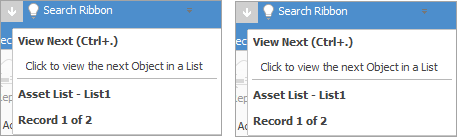
Shortcut keys: Ctrl+. moves to the next object in the list Ctrl+, Moves to the previous object in the list |
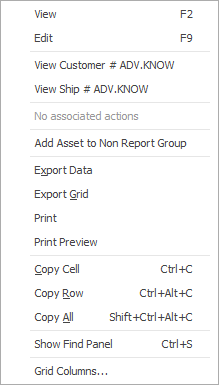
If user security allows it, right click within the grid, select Export Data and save the list information as an XLSX file.
|

Right click options in the Nav Tree
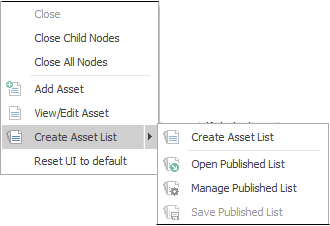
After the top 3 (which are self explanatory), these options mirror what is on the ribbon in the Assets tab, except for the last tab, which will Reset to Default all tabs.
Further information