|
The CardFile List allows access to all types of cardfiles. By default, lists are named List1, List2, etc. however, names can be entered for the lists that clearly show what is being searched for, or what a list is displaying. This helps if there are multiple lists running at the same time.
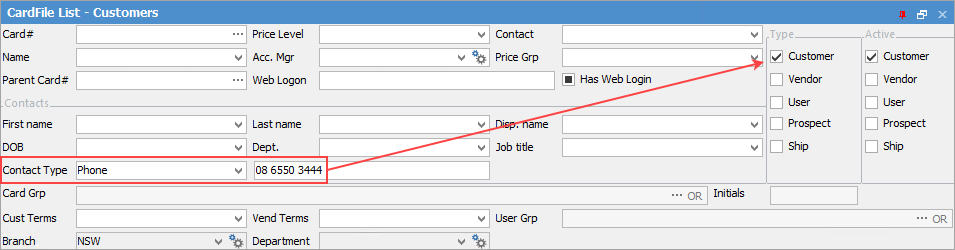
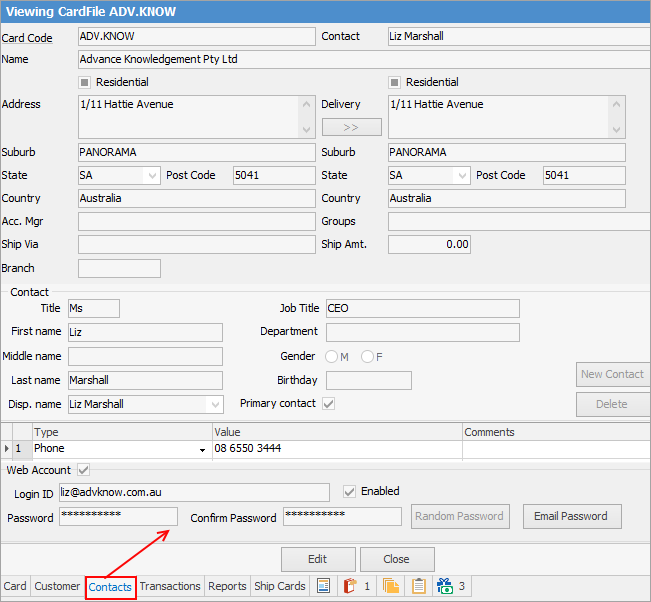
A simple example of how powerful the list is: in the header of the list, select Contact Type Phone then enter the phone number in the Contact Type Value field. Run the list, and the cardfile containing that phone number will appear in the list.
|
|
The CardFile List can collate information from the card records in real time for cross reference, and also use archived data. Jim2 allows searches by any combination of cardfile type and their active/inactive status by ticking the relevant boxes.
|
There are two different styles of CardFile List:
▪List (showing the fields and checkboxes in the header).
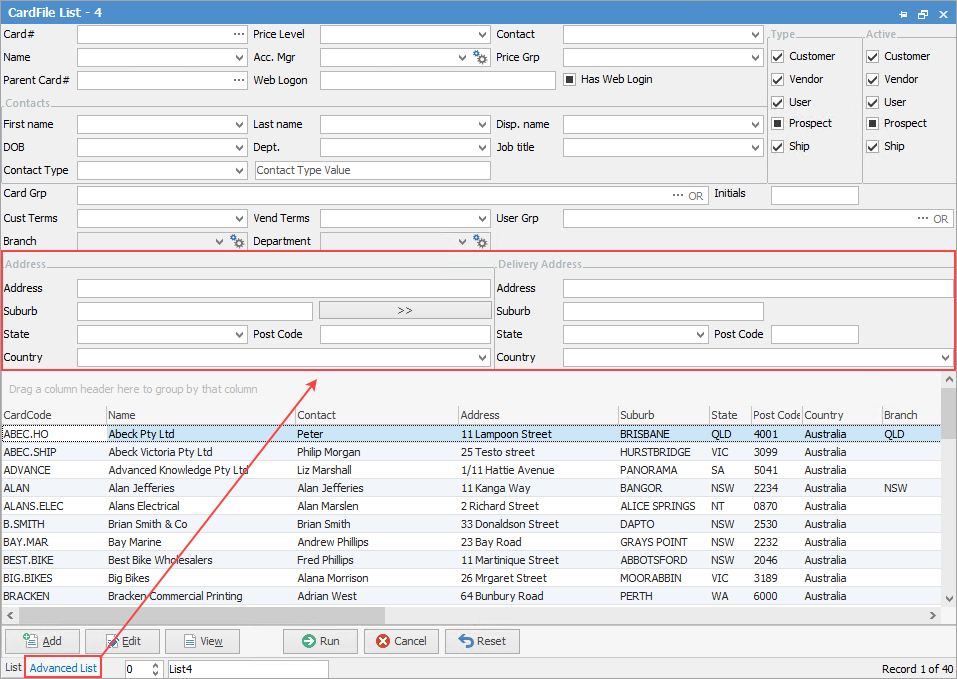
▪Advanced List (tab on the footer), which adds the fields highlighted below.
The List tab with its fields and checkboxes is the default view. The Advanced List tab provides several more fields to search on. Within this screen, enter data into the following fields in any combination, then click Run to generate the CardFile List.
|
|
|
|
CardFile (fields)
|
Card#
|
Customer card code. This will bring up only the customer with that card code in the list.
|
Price Level
|
Cardfile price level. This will bring up a list of customers that only have the price level chosen here.
|
Contact
|
Cardfile(s) which have the contact name entered here.
|
Name
|
Cardfile(s) with the name (customer/vendor, etc.) entered here.
|
Acc. Mgr
|
Cardfile(s) with the account manager entered here.
|
Price Group
|
Cardfile(s) with this price group selected. Price Groups are used for exceptions. For example, this customer has retail pricing on machines, but has wholesale pricing for toners.
|
|
Parent Card#
|
Parent card code will produce a list of ship cardfiles for that parent code.
|
|
Web Logon
|
Login ID (located on a customer card).
|
|
Has Web Login
|
Ticked will produce a list of all cardfiles with web logins.
|
Type/Active
|
Customer
|
Tick this box to show customers only in the list.
|
Vendors
|
Tick this box to show vendors only in the list.
|
User
|
Tick this box to show all Jim2 users within the company,
|
Prospect
|
Tick this box to show prospects only in the list.
|
|
Note: This may be named something different, based on what has been set up in CardFile Options.
|
|
Ship
|
Tick this box to show all Ship cardfiles – shipping addresses of companies, ie. the physical delivery address of the Ship company is different to what's on their parent cardfile.
|
Parent Card#
|
Click the ellipsis [...] to select the parent card of this ship card, if Ship is ticked.
|
Note: More than one type can be selected.
|

|
Ticked
|
Search only for a cardfile type that's active.
|

|
Unticked
|
Search only for a cardfile type that's inactive.
|

|
Either
|
Search for a cardfile type that's either active or inactive.
|
|
|
|
|
Contacts
|
First Name
|
Cardfile(s) containing a contact with the entered first name.
|
Last Name
|
Cardfile(s) containing a contact with the entered last name.
|
Disp. Name
|
Cardfile(s) containing a contact with the entered display name.
|
DOB
|
Enter the birth date of the contact to be searched for.
|
Department
|
Cardfile(s) containing a contact with the entered department.
|
Job Title
|
Cardfile(s) containing a contact with the entered job title.
|
Contact Type
|
Enter the contact type (phone, email, etc.) for searching.
|
Contact Type Value
|
Cardfile(s) containing a contact with the entered values (phone number, email address, etc.).
|
Groups
|
Card Grp
|
Returns cardfile(s) within the selected group or groups. See  below for more information on the use of this field. below for more information on the use of this field.
|
User Grp
|
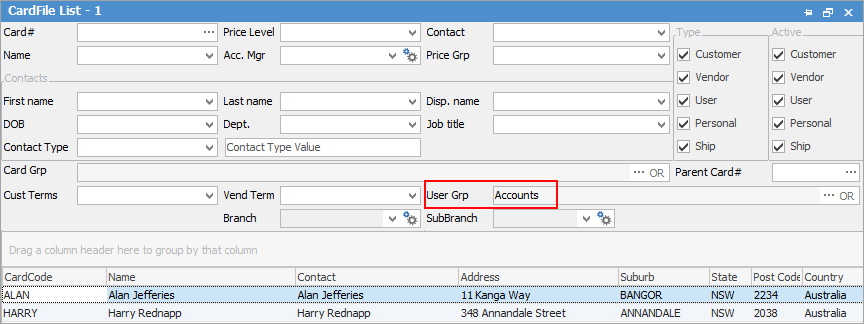
Returns cardfiles within the select user group or groups.
|
|
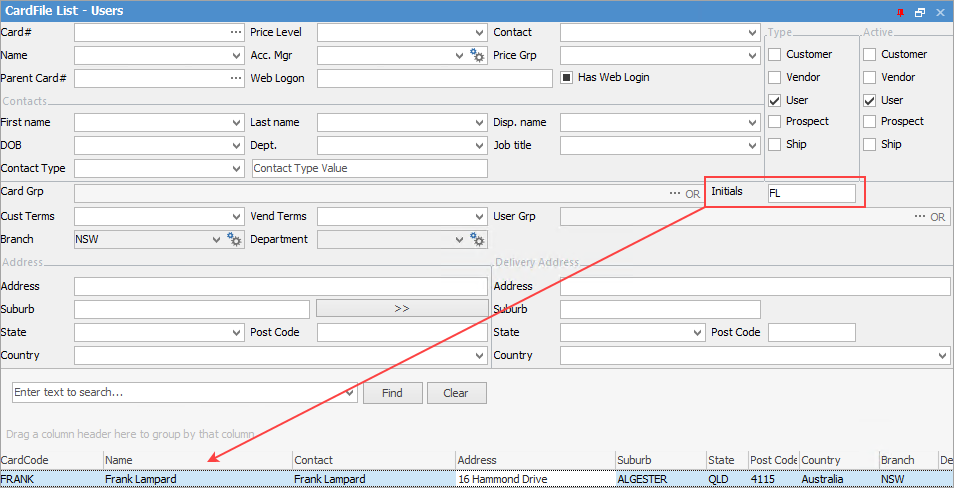
Initials
|
Allows entry of a user's initials to further refine the list:
|
|
Note: This filter is only used when the User is ticked in the list. It will not work for Customer, Vendor, etc.
|
|
Customer Terms
|
Cust Terms
|
Cardfile(s) with the customer terms entered in this field.
|
Vendor Terms
|
Vend Terms
|
Cardfile(s) with the vendor terms entered in this field.
|
Branch, Sub-Branch and GL Dept
(optional)
|
Branch
|
Cardfile(s) with this branch name (only if the business uses branches).
|
Sub-Branch
|
Cardfile(s) with this sub-branch name (only if the the uses sub-branches).
|
GL Dept
|
Cardfile(s) with this GL Department name (only if the business uses GL Departments).
|
|
|
On the right-hand side of the Card Grp selection within the list is the word OR. Clicking on this wording will change it to &. This relates to how to use groups within the search. To be able to select two groups and find things that are in both groups, use the & option. To search two groups and find anything that is in either one of those groups, use the OR option. Double clicking on the words Card Grp at the beginning of the Card Grp field will turn the field green to indicate that group selection is inverted. For example, select cards that are not in these groups.
|
The Advanced List will allow searching by the following criteria, in combination with any of the fields above:
|
|
|
|
Address
|
Address
|
Cardfile(s) with all or part of this entered address.
|
Suburb
|
Cardfile(s) with this entered suburb.
|
State
|
Cardfile(s) with this entered state.
|
Postcode
|
Cardfile(s) with this entered postcode.
|
Country
|
Cardfile(s) with this entered country.
|
Delivery Address
|
Address
|
Cardfile(s) with all or part of this entered delivery address.
|
Suburb
|
Cardfile(s) with this entered delivery suburb.
|
State
|
Cardfile(s) with this entered delivery state.
|
Postcode
|
Cardfile(s) with this entered delivery postcode.
|
Country
|
Cardfile(s) with this entered delivery country.
|
|
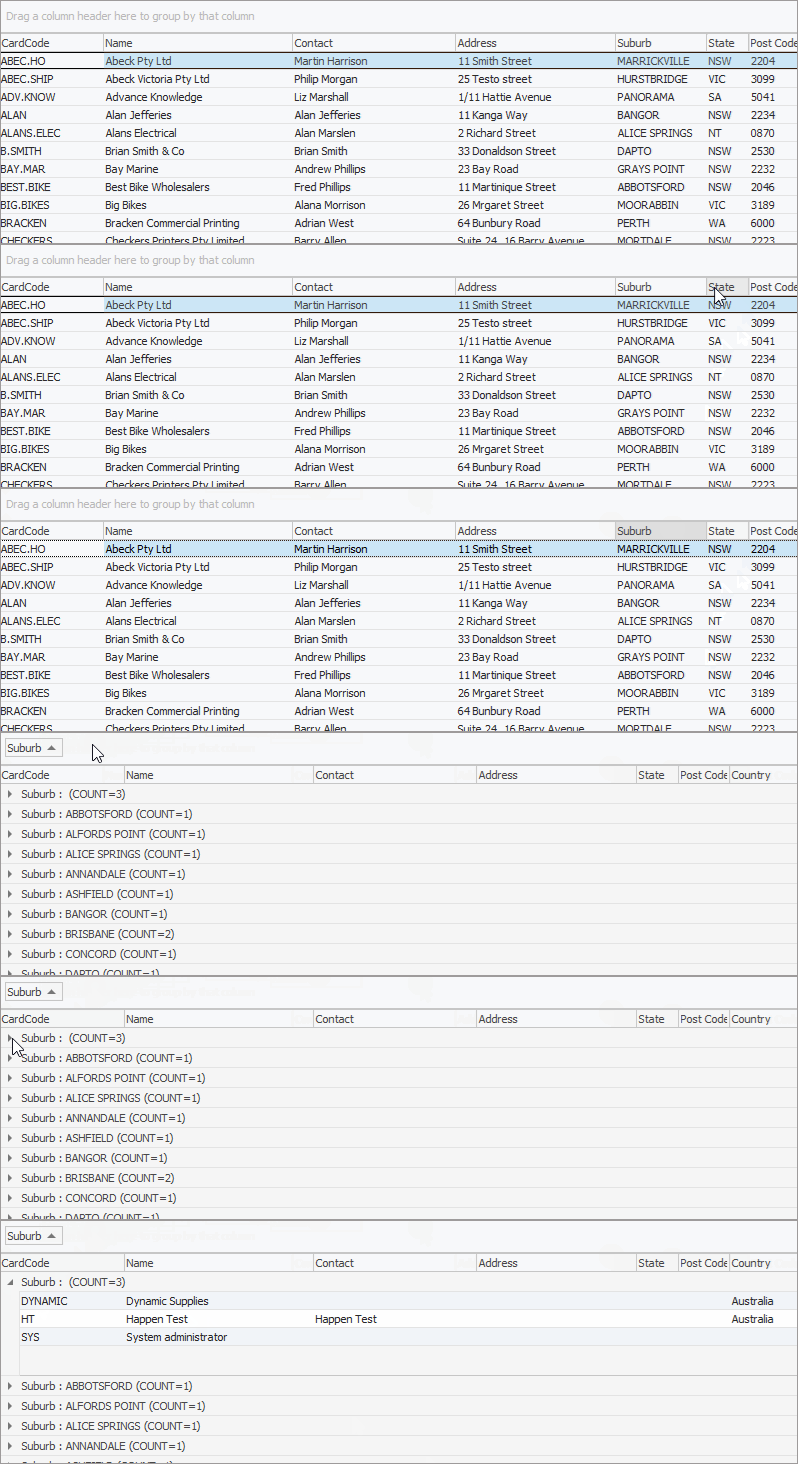
Using the above information fields, Jim2 produces a list in a format that can be sorted by dragging the column header of the list to the top of the list results table.
To view or edit any of the cardfiles within the list, double click, or use the F2 function key on any of the fields relating to the cardfile required to be displayed. There are also additional buttons at the bottom of this form, as explained below:
|
|
|
|
|
Use this to add a new cardfile.
|
|
|
Use this to edit the currently highlighted cardfile in the list.
|
|
|
Use this to view the currently highlighted cardfile in the list.
|
|
|
This will run the list using any filters selected.
|
|
|
This will close the list.
|
|
|
See here for information on how Reset works.
|
|
|
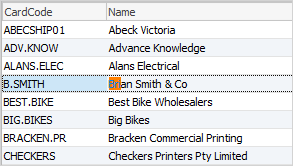
To run a quick search through the list, place the cursor in the relevant column and begin to type the word to be found. The first entry that qualifies will be highlighted, eg. typing Bri in the Name column will locate Brian, if that is the first relevant name. Using Ctrl+Down Arrow will go to the next match in the list.
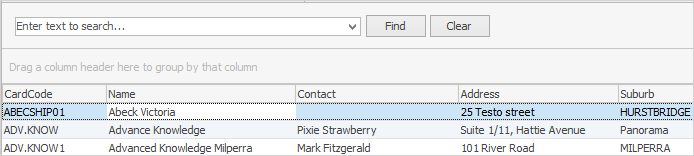
Right click in the grid and select Show Find Panel, where search terms can be entered (see the table below for more information).
|
|
|
The CardFile List allows adding multiple cardfiles to both Non Report and Region groups via right clicking in the grid. See Adding CardFiles to Groups for full details.
|
|
|
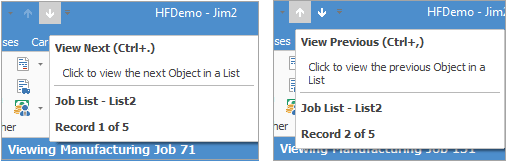
When viewing a cardfile from a list click the arrow in the quick access toolbar for the next/previous cardfile in that list:
Shortcut Keys:
Ctrl+. moves to the next object in the list
Ctrl+, moves to the previous object in the list
|
|
|
|
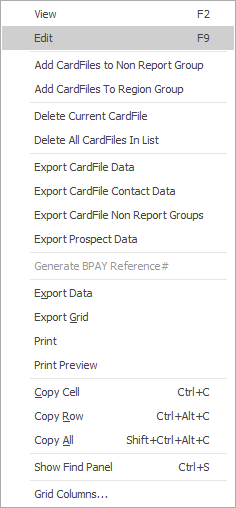
View
|
View the highlighted cardfile.
|
Edit
|
Edit the highlighted cardfile.
|
Add CardFiles to Non Report Group
|
Adds all cardfiles in the list to the non report group selected.
|
Add CardFiles to Region Group
|
Adds all cardfiles in the list to the region group selected.
|
Delete Current CardFile
|
Deletes the highlighted cardfile.
|
Delete All CardFiles in List
|
Deletes all cardfiles in the list.
|
Export CardFile Data
|
Exports the list to a spreadsheet.
|
Export CardFile Contact Data
|
Exports the list cardfile name and contact details to a spreadsheet .
|
Export CardFile Non Report Groups
|
Exports card code, name and non report group information to a spreadsheet.
|
Export Prospect Datqa
|
Exports the list to a spreadsheet.
|
Generate BPAY Reference#
|
Generates BPAY reference numbers for all cardfiles in the list. Only works on a Customer CardFile List.
|
Export Data
|
Exports data from the grid to a spreadsheet file.
|
Export Grid
|
Exports the grid to a spreadsheet. This is particularly useful if the grid has more than one header row, as it will export all header rows.
|
Print
|
Print the list.
|
Print Preview
|
Preview the list to be printed.
|
Copy Cell
|
Copy the highlighted cell.
|
Copy Row
|
Copy the entire highlighted row.
|
Copy All
|
Copy all, which can then be pasted into a spreadsheet
|
Show Find panel
|
Opens the Find panel:
|
|
The Find panel will remain in a pinned list but will disappear from an unpinned list on log off.
|
|
Grid Columns...
|
Allows adding more columns. Also allows removal of columns. Select the column to add, then drag it to the position required in the columns within the grid. To remove, click and drag to the Grid Columns... window, or drag down away from the header area.
|
|
|
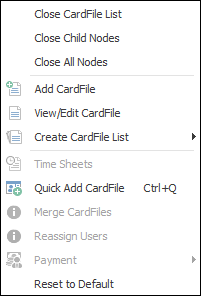
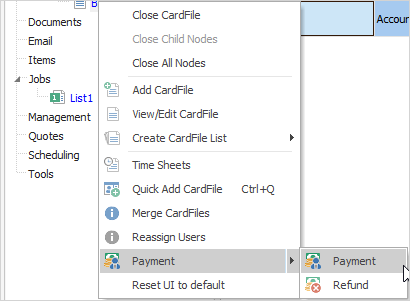
After the top 3 (which are self explanatory), these options mirror what is on the ribbon in the CardFiles tab, except for the last tab, which will reset all tabs to the default.
|
|
Payment within this right click list becomes selectable when a single cardfile is open. This is a very quick way to bring up the Payment or Refund screen for that customer/vendor instead of having to go to Debtors or Creditors..
Payment only allows taking of prepayments, and Refund only allows refundung a prepayment or return.
|
|
Further information
|