There are a couple of things to be aware of in relation to printing invoices.

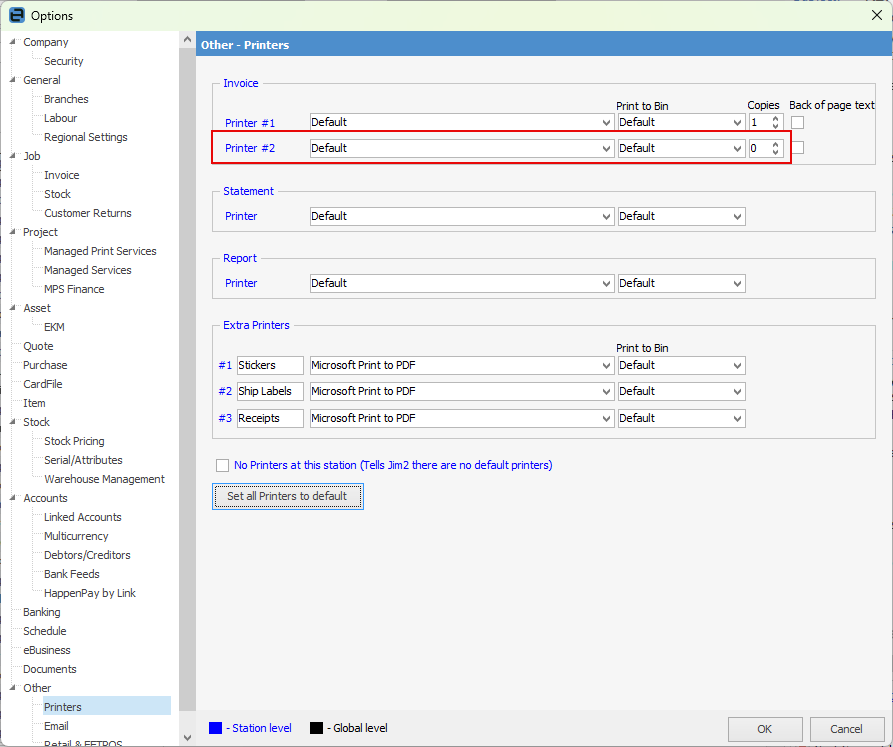
This is a setting in Tools > Options > Other > Printers. If Printer #2 has 1 Copy highlighted, this will print to both printers. Change the setting here to 0, and only one invoice will print.
 |
This is a setting in Tools > Options > Job > Invoice. As per below, ensure that Print Invoice after invoicing a job is ticked. If not ticked, no invoice will print or be sent via email.
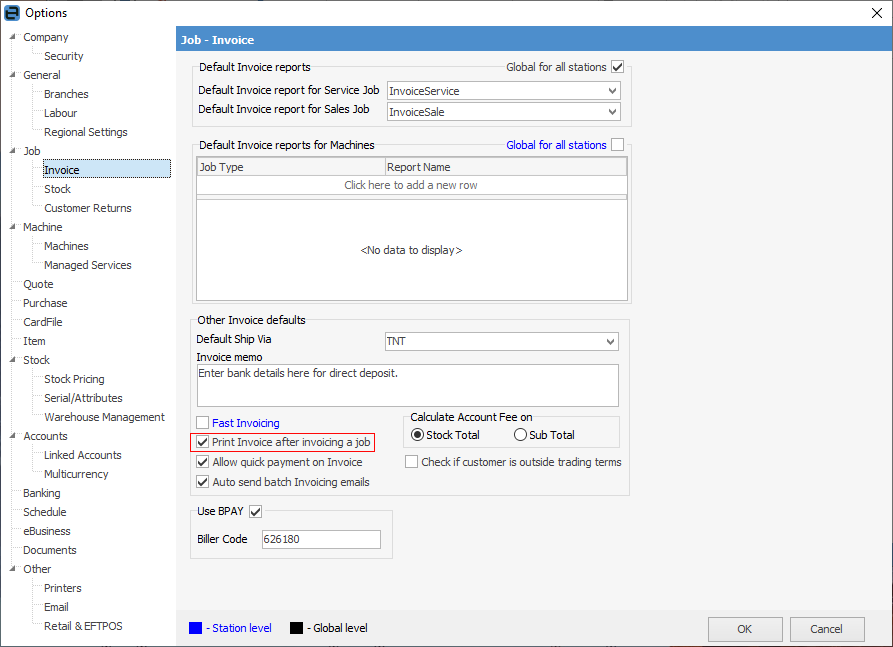
Further, if Printer 2 is set to print 1 copy, when emailing a hard copy will always be printed. Set this printer to 0 if a hard copy is not required. |
This usually indicates a problem with the invoice report, invoice script, printer configuration, or invoice data being processed during printing or previewing.
The issue is commonly related to: ▪invoice printing configuration ▪invoice report customisation ▪damaged or incompatible invoice layouts ▪printer settings ▪missing invoice data |
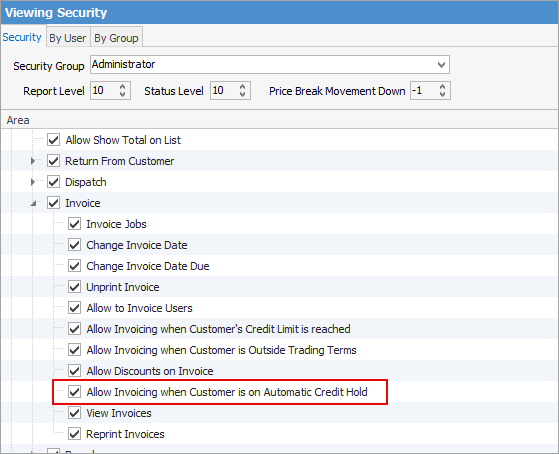
There is a security setting under Tools > Options > Job > Invoice to allow users to invoice customers on automatic credit hold.
|

Further Information
Default Invoice Report Options