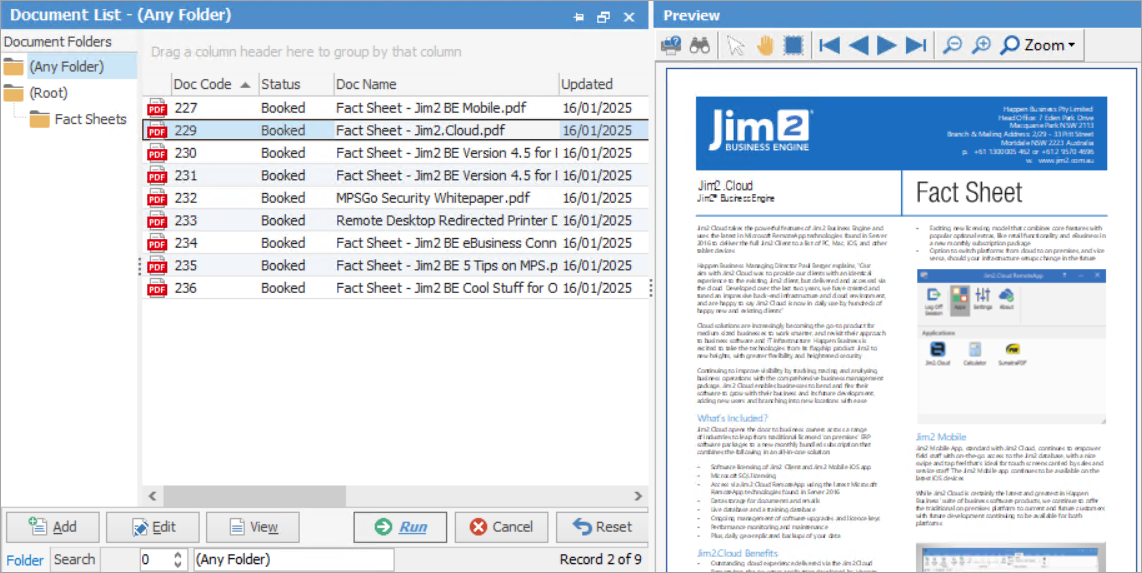
The Preview pane on the right–hand side of the screen displays a preview of the currently selected document in a document list. It also allows preview of the selected document within the Document tab of an object (depending on the type of document and whether the object has a preview pane).
 |
Note: The security level for the preview pane defaults to 5.
See here for setting security on which users can see preview panes. |
|
Note: You can enlarge the text in the preview pane by pressing the Ctrl key and using the mouse wheel to scroll up. Reverse of this will reduce it. |
 |
The built in previewer supports PDF, TXT, HTML, HTM, BMP, PNG, GIF, JPEG files, so other file types may not be able to be previewed. |
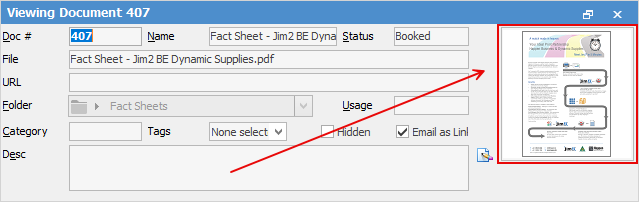
Double click on the smaller image to the right in the header and the document will open, ie. a PDF will open in a PDF viewer.
 |
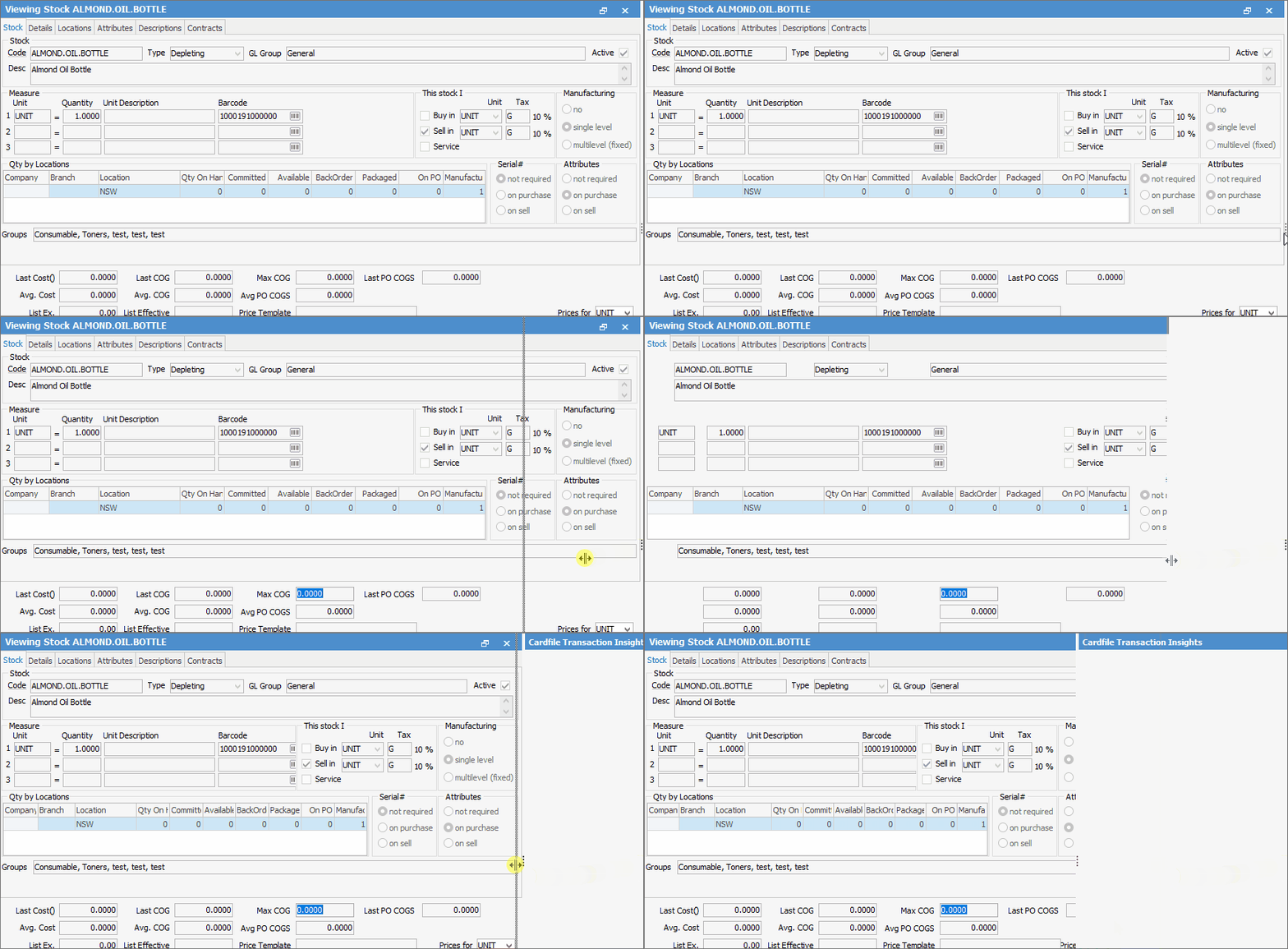
If the preview screen is not visible, click the Preview Pane icon
|
 in the bottom right-hand corner of the Jim2 screen, then use the pane splitter
  to enlarge the area for viewing. Scroll up and down to see other pages in the document using the scroll bar on the right. Double click the pane splitter and this will completely collapse/expand the preview screen.
Icons above the screen (only shows for certain types of documents, ie. it won't show for spreadsheet documents):
Icon |
Explanation |
|---|---|
 |
|
 |
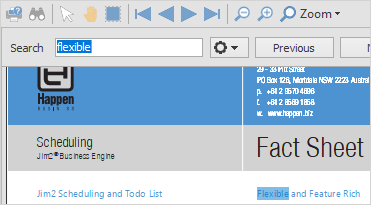
Displays the Search field to enter text for locating within the document.
 |
 |
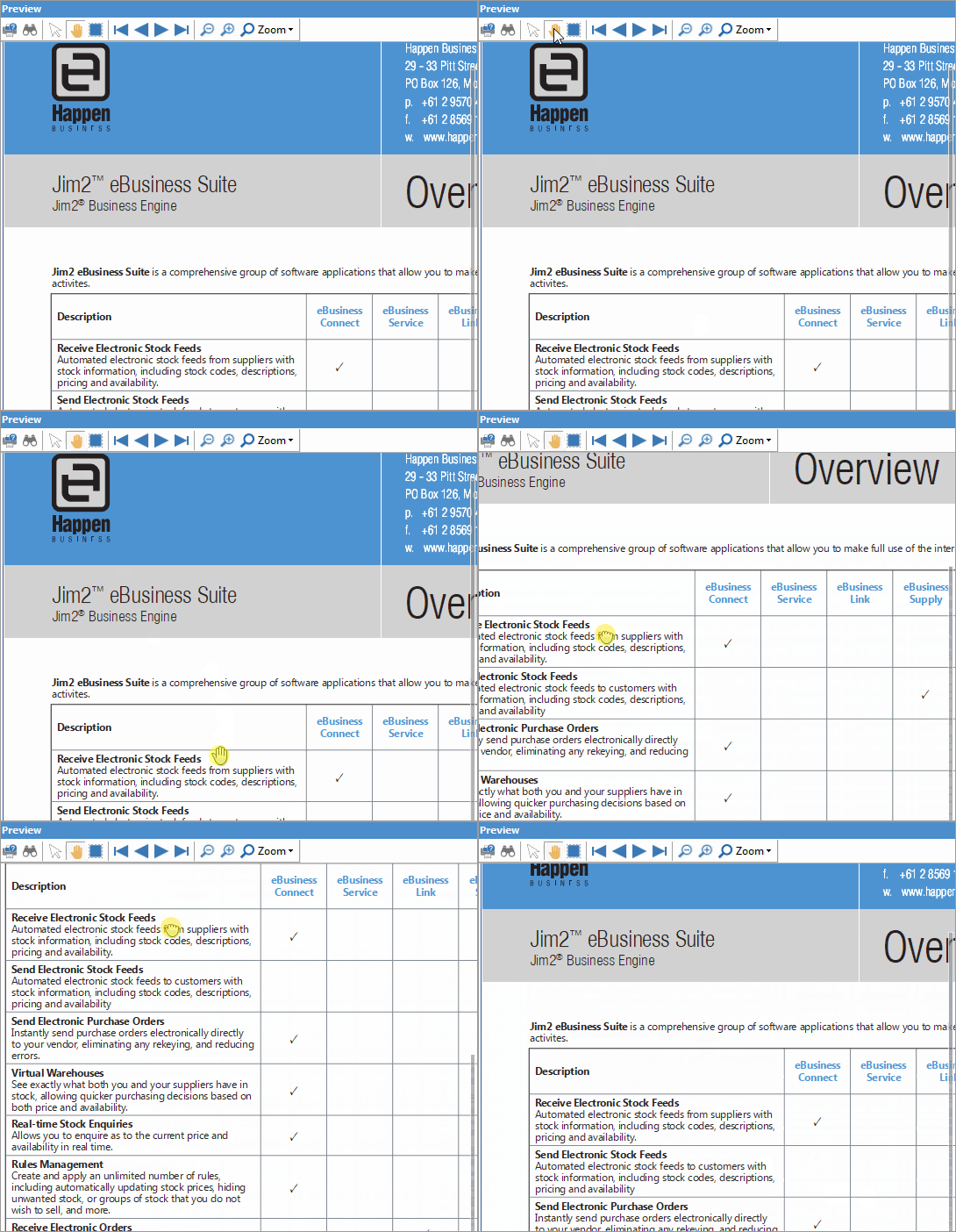
Arrow will show the cursor. Hand allows positioning in the document, and moving up and down through the document.
 |
 |
Select all text in the document. |
 |
Move forward or backward through the document, if more than one page. |
 |
Zoom options. |

The previewer natively supports the following file types:
Other file types All other file types, including Word, a spreadsheet, etc. are previewed via Windows File Explorer preview plugins. This means that Windows typically needs that application to be installed in order for that file to be available in the Jim2 Document Previewer. This is not generally an issue, as many viewers (eg. Word) are freely available to download. |
As some documents are previewed via Windows Explorer file preview plugins, it is possible that the actual plugin (provided by a third party) may be unstable, or even crash. In order to prevent an unstable third party file previewer from crashing the main Jim2 application, the document previewer is sand-boxed, meaning it runs independently of the main Jim2 application, and will restart as required should problems occur.
As an added benefit of sand-boxing the previewer in this way, the actual loading and previewing of documents does not affect the performance of Jim2.
In Windows Task Manager there may be one or more instances of Jim2 Previewer running when the previewer is active. This is normal, and they will automatically start and terminate as required. |
 |
Since all documents are stored within the Jim2 database, the Jim2 backup file size will increase accordingly. See Database Size Maintenance for more information. |
Further information