Following are vendor stock feeds supported:
Alloys |
Dynamic Supplies |
Leader Systems |
Synnex |
Bluechip Infotech |
Ingram Micro |
Multimedia Technology |
Techdata |
Dicker Data |
Konica Minolta |
Ricoh |
XiT |
See here for setting up vendor stock feeds.
 |
Note: the B2B module must be added and enabled to ensure emailing in of vendor feeds adheres to the rules that restrict the time of day they can be run. |
Formats supported are vendor specific, XML and CSV.
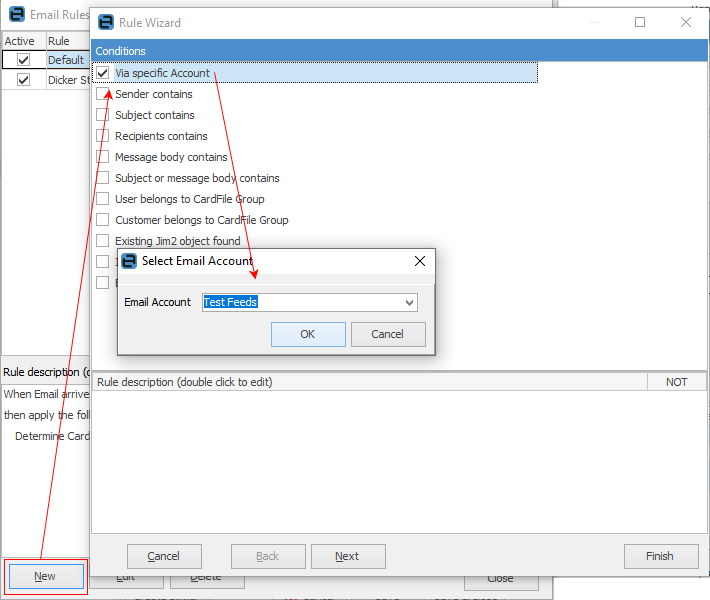
First, create an email rule for the stock feed. On the ribbon, go to Email > Email Rules.
Email rules need to be created for each vendor stock feed.

Click New, then Via Specific Account and enter the email account as set up via Jim2 Config Manager.
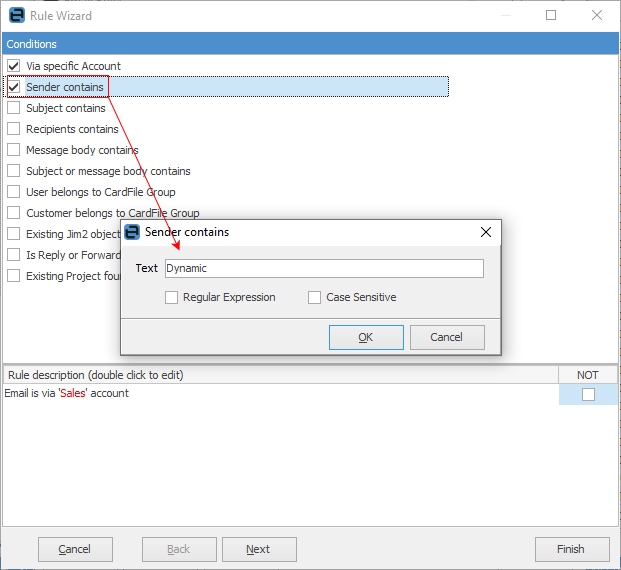
Then select Sender Contains, and enter the Text as set up via Config Manager.
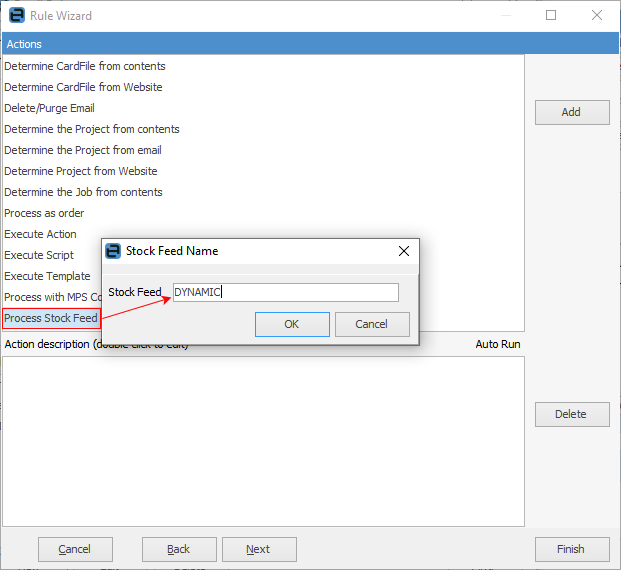
Click Next, then double click Process Stock Feed and enter the name as it appears in the StockFeed module in Jim2 Configuration manager.
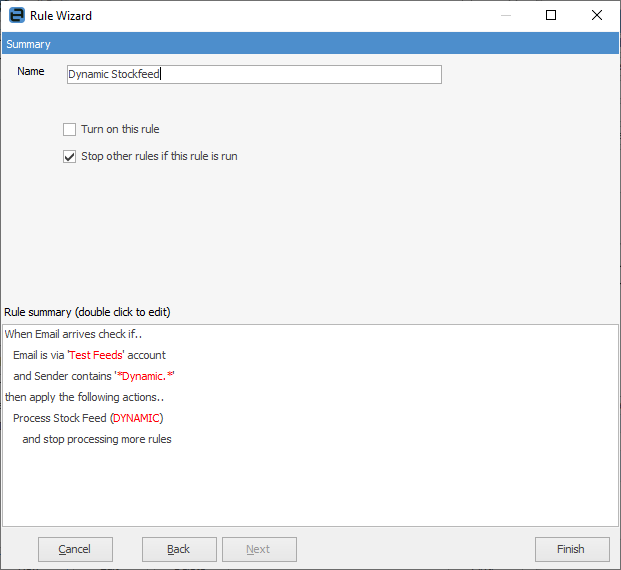
Click Next and name the email rule, tick Stop other rules if this rule is run, then select Finish.
Links are created during vendor feed processing based on the following from the feed:
▪manufacturer code and manufacturer brand – Jim2 stock code and brand
▪GTI (global trade item number) number – GTI number in Jim2
▪vendor stock code and vendor – vendor stock code and vendor on vendor stock code of Jim2 stock (Vendors tab in the stock footer).
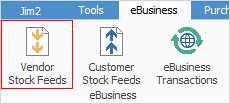
On the ribbon, go to eBusiness > Vendor Stock Feeds.
|
Vendor Stock Feeds also support multiple warehouses. |

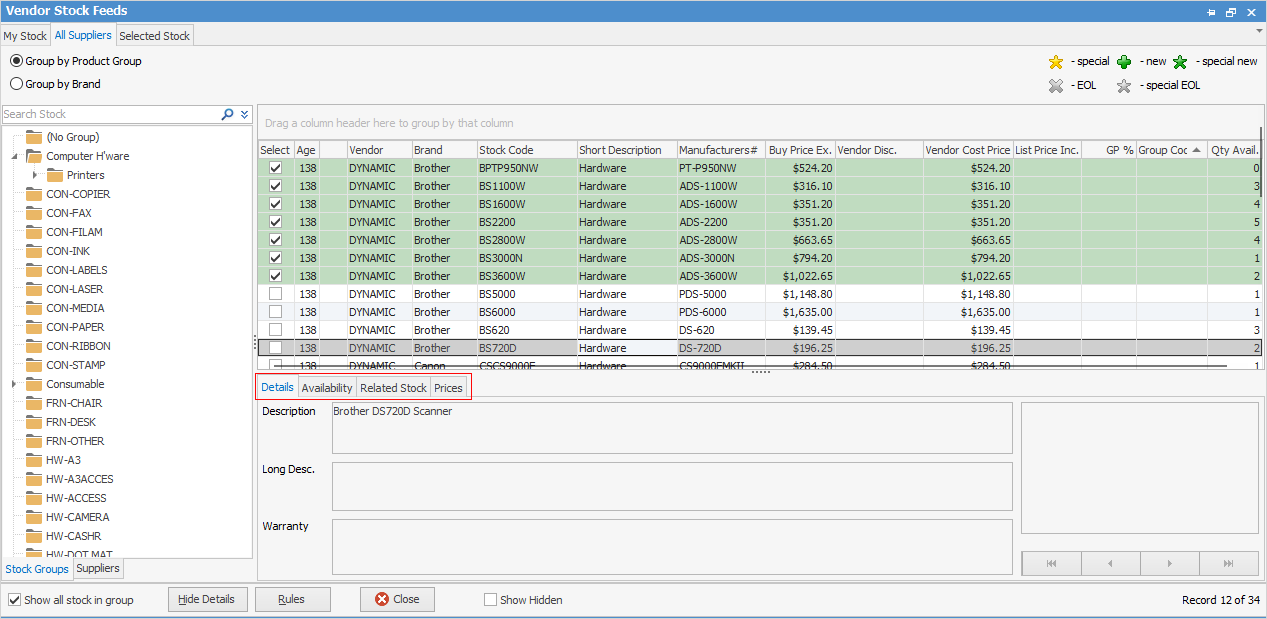
The Product Tree appears on the left-hand side of the screen. This tree is based on the stock grouping supplied in the feed from the vendor. In the case of My Stock, the grouping is based on the stock groups within the company's own stock. Selecting a stock group within the tree displays stock within that group in the stock grid to the right. Tick Show all stock in group at the bottom of the Product Tree. When ticked, all stock within the selected group and any stock in groups below this group will be displayed. |
Above the Product Tree are two radio buttons: Group by Product Group (the default) and Group by Brand. These allow for choosing how to display the Product Tree, either by a specific brand and its particular product groups, or by a general product group. Either way, the brand will be displayed in the stock grid. |
Directly above the Product Tree is the Search Stock field. To search vendor stock, enter text into the Search Stock field and select the Search icon
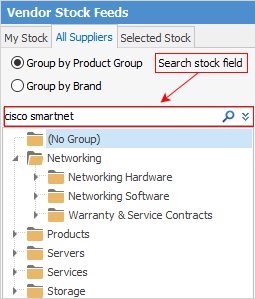
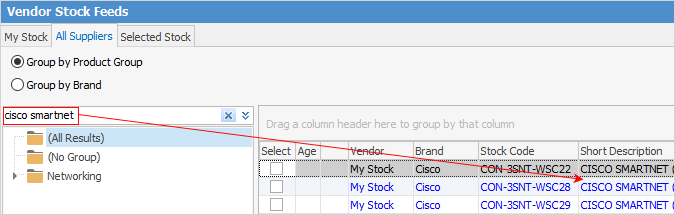
To clear the search, select the Clear icon or enter new search text and select the Search icon.

Across the top of the form there are several tabs: My Stock, All Suppliers, Selected Stock and a tab for each vendor a stock feed is received from.
To show the Vendor tab at the top, go to the Suppliers tab at the bottom, select the supplier, right click and select Open Supplier.
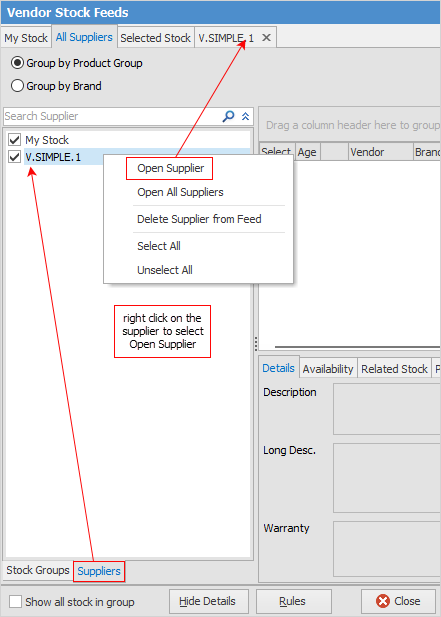
There are several other selections available in the pop-up menu, including tick/untick choices, as well as the ability to delete a supplier from the feeds.
From this screen, search for stock, pricing and availability for both the company's stock and stock provided in feeds from one or more of the vendors (via the highlighted tabs below).
 |
 , or press Enter. The stock grid will display the results of the search. By default, all search results will be displayed – drill down by clicking within the stock grouping displayed within the Product Tree.
 |
For optimal viewing of vendor stock feeds, a screen width of 1280 pixels is recommended as the minimum screen resolution. |
Sorting, searching and grouping is available as per other lists in Jim2. Select the column header in the grid to sort, then drag it to the Group By area to group.

A useful feature here is the ability to see the company's own internal stock (existing stock in Jim2 – lines coloured in blue text in the grid), stock from a specific vendor, or stock from multiple vendors in a consistent manner.
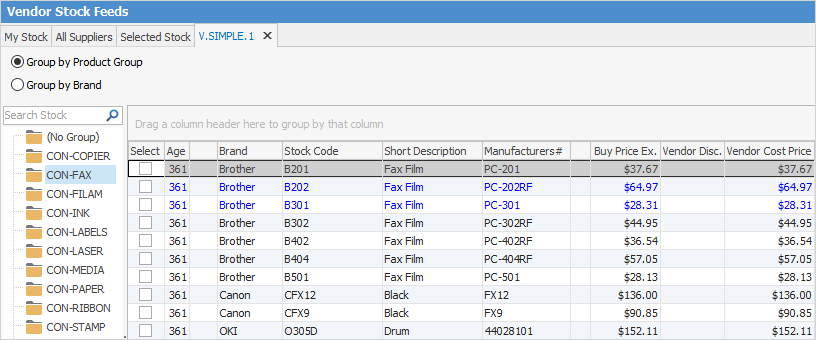
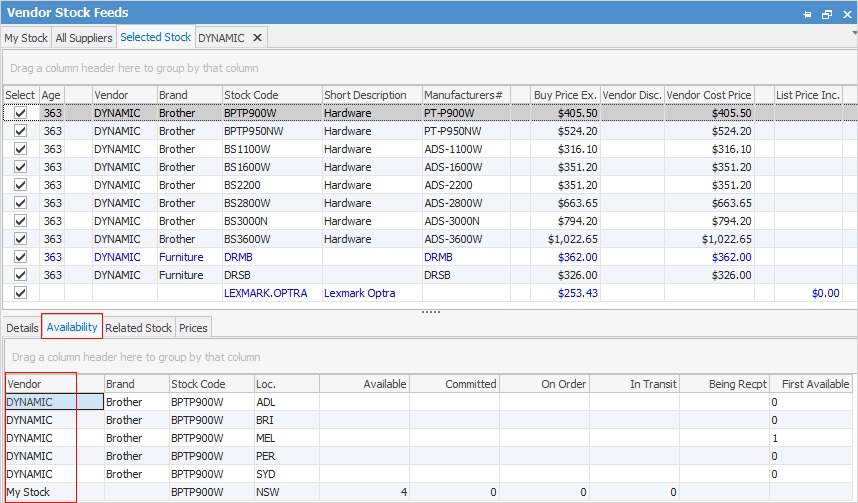
This allows searching both the company's own stock and the suppliers' stock at the same time. Availability across multiple vendors can also be seen, for example. company inventory displays a quantity of five in stock on hand (on the Availability tab), Vendor A has 100 and Vendor B has 50, and at what price.
|
The vendor price of Jim2 internal stock (lines displayed in blue text) will be updated each time a vendor stock feed comes in. |
Jim2 can handle feeds from hundreds of vendors, and it is easy to link unknown vendors to cardfiles.
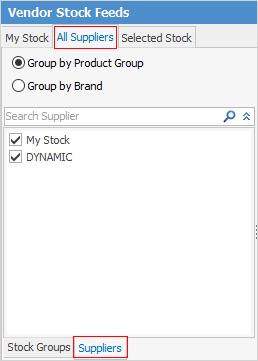
The All Suppliers tab includes a Suppliers tab. Going to the tab displays My Stock and a list of vendors that provide feeds. Choose which suppliers to include by ticking/unticking the box to the left of each supplier.
Links are created during vendor feed processing based on the following from the feed: ▪manufacturer code and manufacturer brand – Jim2 stock code and brand ▪GTINumber (global trade item number) – GTI Number in Jim2 ▪ Stock code and vendor – vendor stock code and vendor stock code tab of Jim2 stock (Vendors tab in the stock footer). .
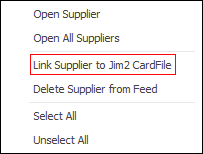
When importing a feed, it is possible that a supplier code in the feed doesn’t match an existing vendor cardfile, especially one that contains multiple suppliers. For example, the feed contains Hewlett Packard, whereas the vendor is called HP in the Jim2 database. In this case, the feed will still be processed, and the suppliers that were unable to be linked will be displayed as <UNKNOWN> XXXX, where XXXX is the unmatched supplier name (ie. HP). To link the unknown supplier, from the Suppliers tab located in All Suppliers, right click on the supplier, and select Link to Jim2 CardFile.
 |
It is also advisable to add the brand when adding stock to Jim2 manually to ensure it is picked up correctly.
The stock grid displays the following information:
Column |
Purpose |
|---|---|
Select |
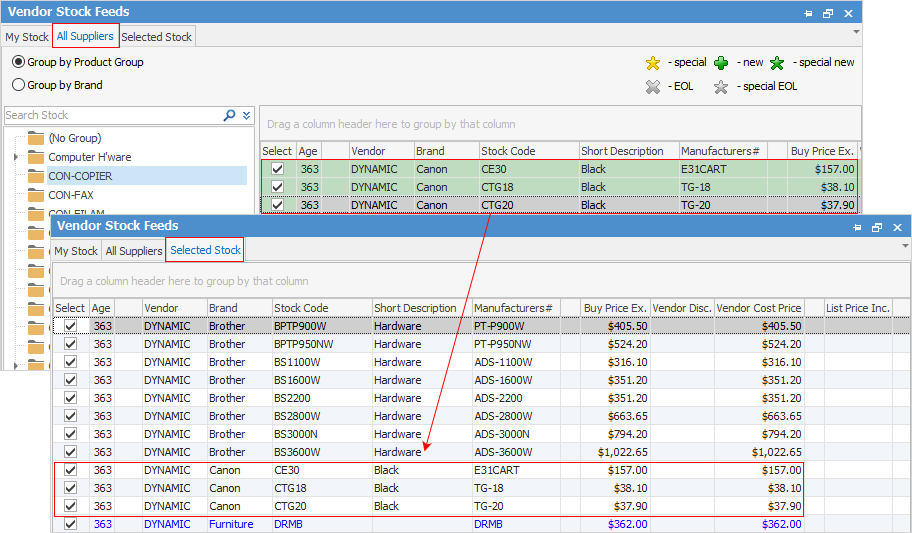
Allows selecting stock of interest. Once ticked, the stock line background will change to green and the selected stock will appear in the Selected Stock tab (in the header). Select stock from several vendors at the same time, with all selections shown in the Selected Stock tab.
 |
Age |
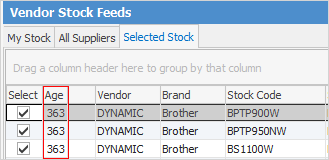
The Age column shows how many days since that particular line of stock has been updated by a vendor stock feed. For example, 1 indicates that this stock information is one day old, or was updated yesterday.
 |
Vendor |
Vendor displays the card code of the vendor this information is from (All Suppliers and Selected Stock tabs only). |
Brand |
The brand or manufacturer of the product. |
Stock Code |
The stock code that the vendor uses to identify this product. |
Short Description |
The vendor's stock description. |
Manufacturers# |
The manufacturer's stock code for this product. |
Buy Price Ex. |
The vendor buy price excluding tax. |
Vendor Disc. |
The vendor discount. |
Vendor Cost Price |
The vendor's cost price |
List Price Inc. |
The vendor list price including tax. |
GP% |
The gross profit percentage margin (Buy ex. vs List ex.). |
Group Code |
This is only applicable when a stock feed is for a buying group, in which case this is the stock code used within that buying group. |
Qty Avail. |
Displays how many units (or pieces) the vendor has in stock, per warehouse. |
|
There are two columns with coloured up/down arrows. These indicate price movement up or down for that stock.
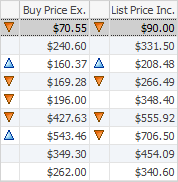
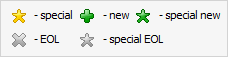
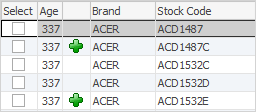
The legend at the top right explains the icons shown within the grid:
 |

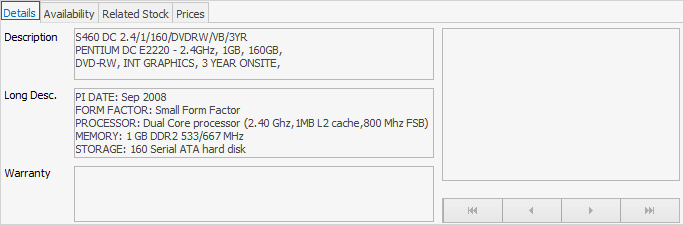
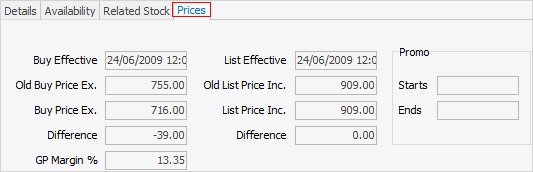
Directly beneath the stock grid are the details for the currently active stock:
|


If user security allows it, right click within the list grid, select Export Data and save the list information as an XLSX file.
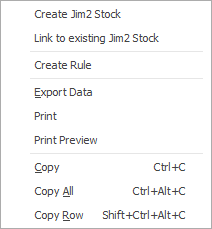
There are a number of other useful right click options, all self explanatory.
Further information
eBusiness and the Publish Price to Options