Please contact support@happen.biz to obtain the custom Techdata xml.
Create a subdirectory on your server for the data feeds. The example below is c:\Jim2\Feeds.
Within the Jim2 Configuration Manager, right click on the JES instance and select Configure. Under StockFeed, set up as follows.
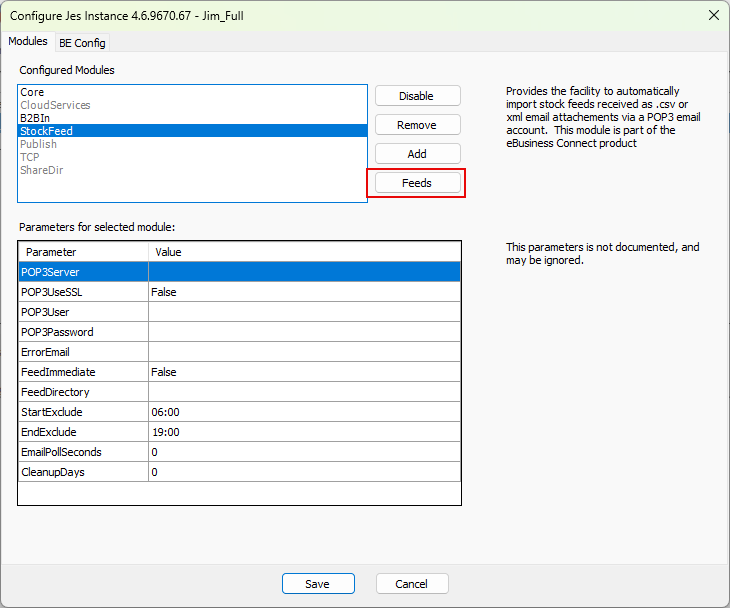
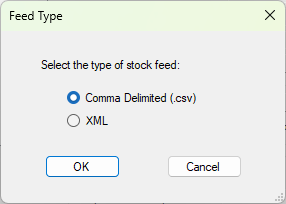
Select the Feeds button, then select Add New.
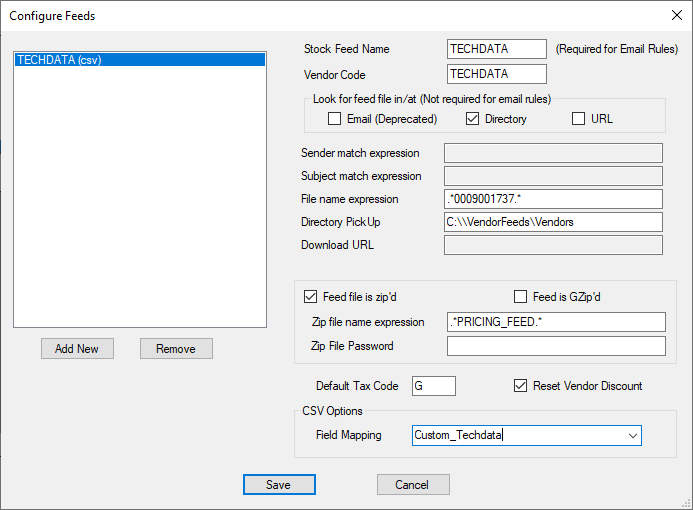
Example JES Configuration:
Copy and paste the Custom_Techdata into c:\Program Files\Happen Business\JES\bin\StockFeedMapFiles. Your file name may be different, so please ensure to update accordingly.
Stock Feed Name: This is used for email rules, and must match.
Vendor Code: Your vendor card code.
Restart JES.
To see if a feed is being processed, check the Age column for the vendor in Jim2 under eBusiness > Vendor Stock Feeds. This shows the age of the feed in days.
Further information