A document is checked out by a specific person, updated as required, then checked in for quality control purposes. Documents makes use of Jim2’s workflow methodology by the use of statuses.
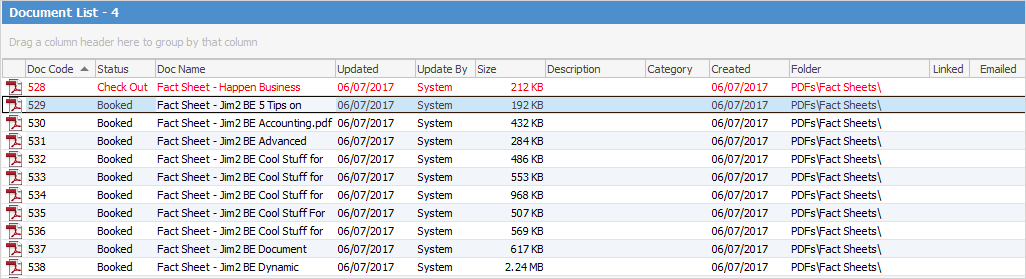
Checked out documents are easily recognised, as they are coloured in red in lists, etc. and are on the Check Out status, allowing for easy filtering when searching in lists, etc.

On the ribbon, go to Documents > Create Document List.

Select and view the required document. On the ribbon, click Check Out.
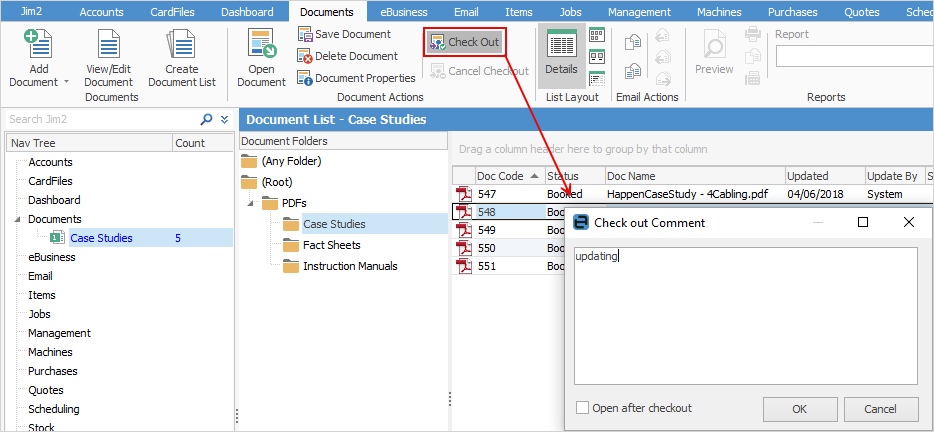
A screen will appear where comments can be added about why the document is being checked out.
Tick Open after checkout, then click OK. This will prompt to save the document locally, then the document will open.
If the document list is run again, the checked out document will be highlighted in red text.
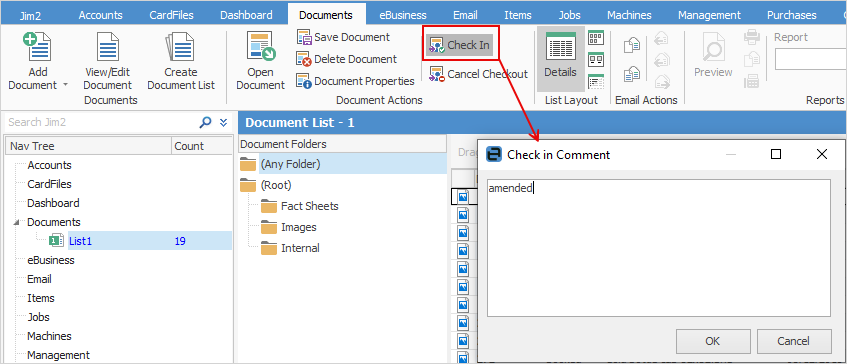
Once changes have been made, select Check In and enter any information relevant to making the change in the Check in Comment area.
Locate the amended document that was saved locally and choose it to replace the original document in Jim2.
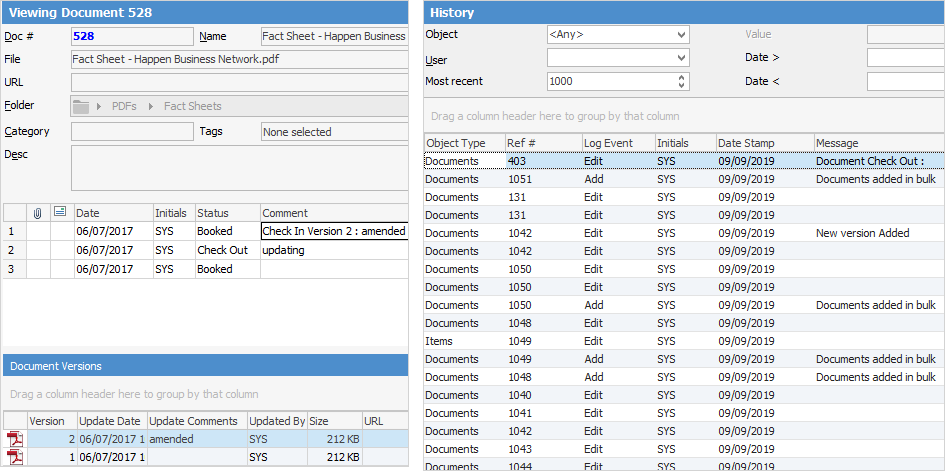
A log of a document's check out/check in history is seen in the document’s related comments, and also in the Jim2 history log (via the ribbon).
A document check out can be cancelled, or if checked out by a user, the check out lock can be stolen (see Steal Lock below) so that another user can edit and check it back in.
If the checked out file was saved to an external place, ie. a folder on the computer, cancelling the checkout will also delete the externally saved file.

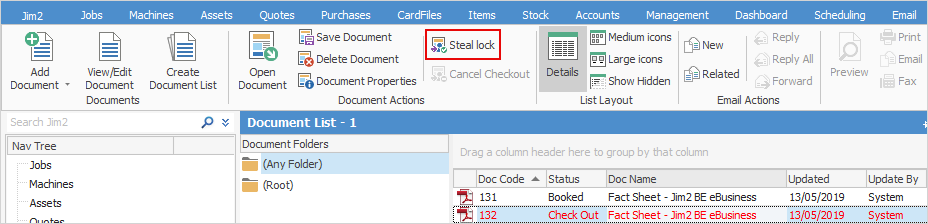
If someone in the same group has checked out a document, it is possible to steal the lock from them. When selecting the checked out document, the Check Out icon on the ribbon will change to Steal Lock.
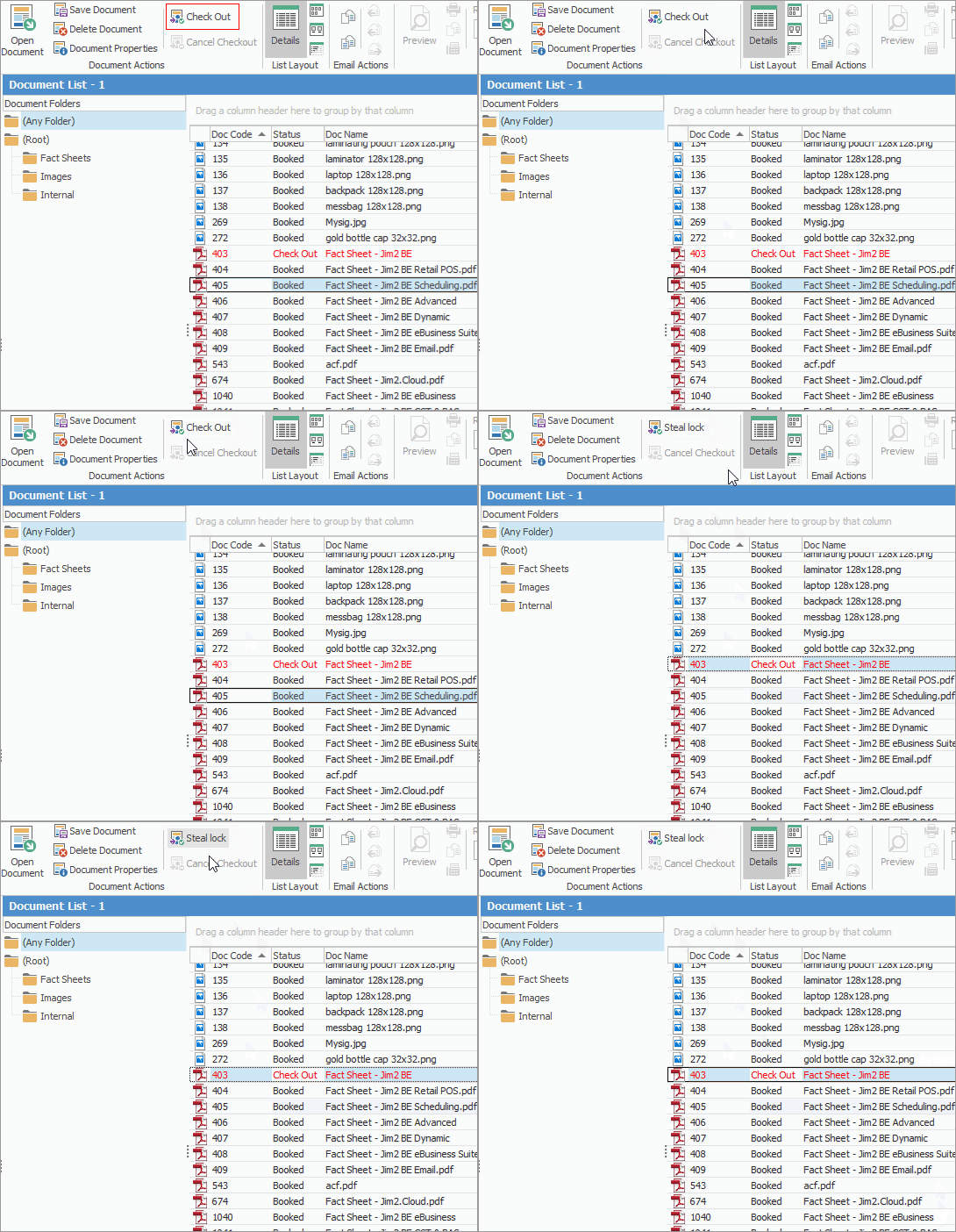
Click Steal Lock.
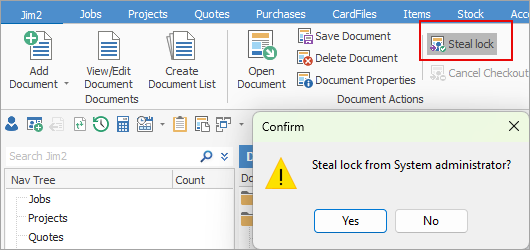
After the Confirm screen opens and Yes is selected, the Check out Comment screen will open, where information on why the lock is being stolen can be entered. |
|
Since all documents are stored within the Jim2 database, the Jim2 backup file size will increase accordingly. See Database Size Maintenance for more information. |

Further information