On the ribbon, go to Stock > Stocktake, click Run and open the required stocktake session.
In View mode, find the line of stock which needs re-entering, then double click in the Counted Qty field (or right click and select Expand) to expand the view and show the counts in detail.
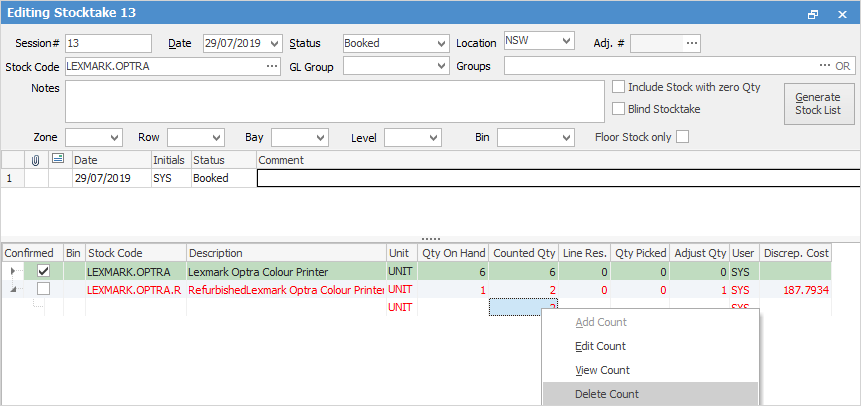
Now right click on the count to delete and select Delete Count from the drop down list. A Confirm message will appear:
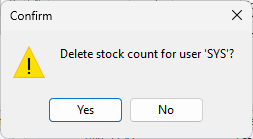
Click Yes to confirm the deletion.
If there are additional counts for this stock code, delete them too.
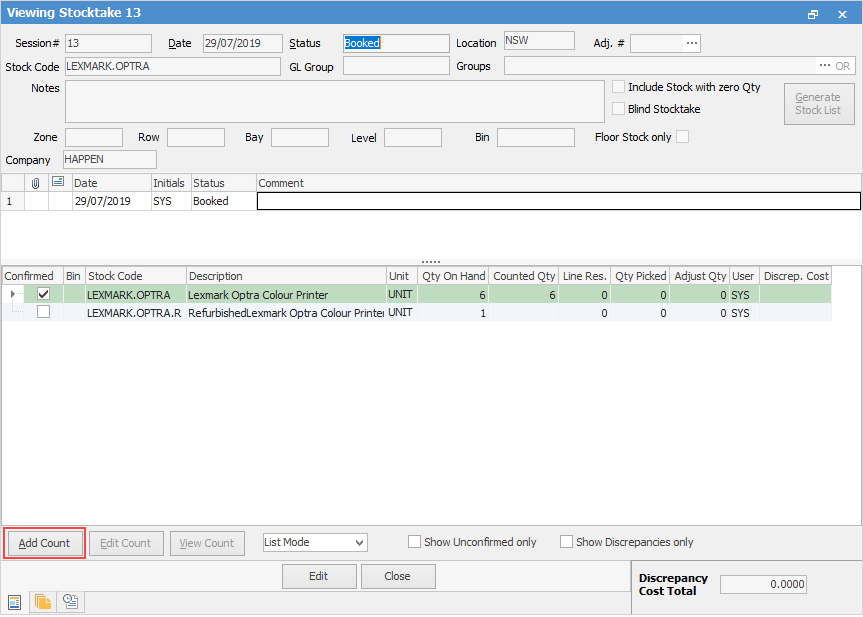
In View mode, click Add Count to re-enter the count. Remember to use the tab appropriate to the stock type.
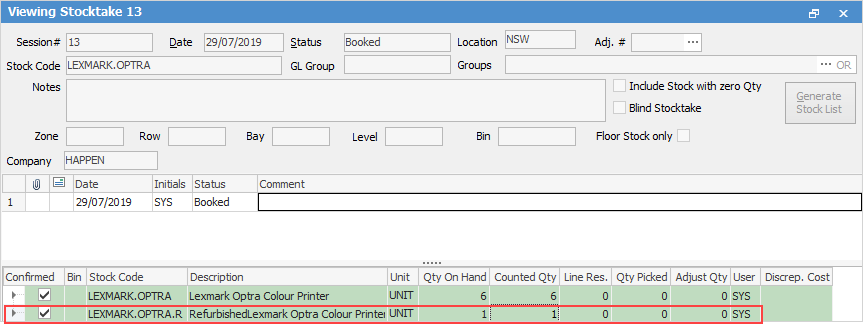
The stock line should now appear in black on green, with the Confirmed box automatically ticked, ie. the count is confirmed.
Further information