Jim2 can record and report on two types of labour.
Billable labour is recorded in the stock grid of a job, and sold to customers at specific rates. Examples of labour as stock can include workshop rate labour, onsite rate labour, express rate labour, etc. It is possible to be very specific with labour in respect to Items as well – setting up flat rates of labour for specific tasks/Items.
Actual labour is recorded on the Labour tab of each job by all users who have contributed actual time to complete a job. A running tally of all labour entered via the Labour tab shows in the bottom bar of each job. Add a labour rate on the User tab of the cardfile as well.
The best way to distinguish between billable and actual labour is that billable labour produces profitability reports, and actual labour produces productivity reports.
Most objects (jobs, quotes, etc.) throughout Jim2 support the tracking and recording of actual labour. All objects that support labour display the Labour tab, which presents a running total of the actual labour added so far.
Status Bar – Labour
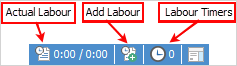
The right-hand side of the status bar has several labour related features as follows:
Status Bar Icon |
Item Caption |
Description |
|---|---|---|
Actual Labour |
Running total of daily and week-to-date actual labour in hours and minutes. |
Actual Labour displays daily and week to date running totals. This is updated automatically whenever labour is added. When selected, this provides quick access to time sheets. Actual Labour must be enabled via Tools > Options > General > Labour. There are further options that can be selected in this area as well. |
Add Labour |
Add labour to active object. |
Provides a method of adding actual labour to a currently open object. Labour can also be added by pressing F7 on the keyboard whilst editing the object. |
Labour Timers |
Total of active timers for currently logged user. |
This is where to start and stop timers for objects within Jim2 currently being worked on. Click to add, view and delete labour timers. Provides quick access to labour timers, and displays the number of currently active timers. |
 |
The user must be logged on to Jim2 under their username to see and start/stop their timers. |
Further information