The Stock tab on the footer of an Item will bring the stock selection grid to view for that Item. When setting up an Item, this is the area to assign or apply certain stock to that Item automatically. Stock of any type can be linked to Items via this tab, including tests and checks. This stock grid allows to automatically add multi-part stock to Items. As an example: a sales Item may need to include accessories that are (or can be) sold separately, but need to belong to this Item.
 |
Tests and checks to be performed every time this Item is processed are applied to the Item as stock – the stock type must be Applies. Apply a stock status to these tests and checks, ensuring jobs containing Applies stock cannot be finished until users have completed these tests/checks. |

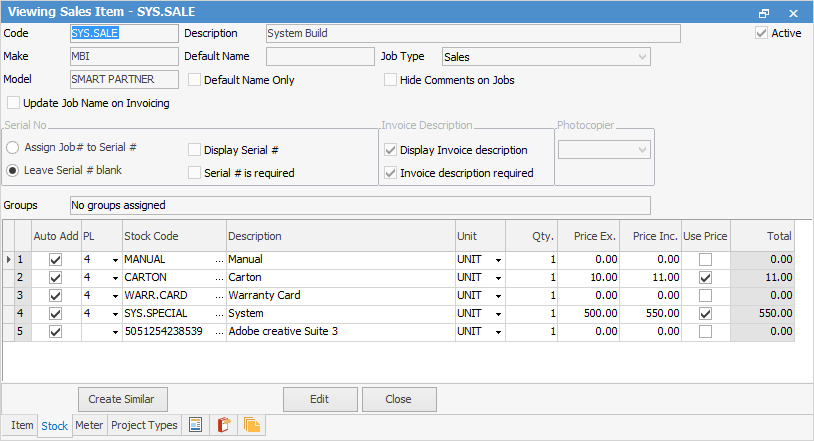
The fields within the stock grid for a service or sales Item are:
|

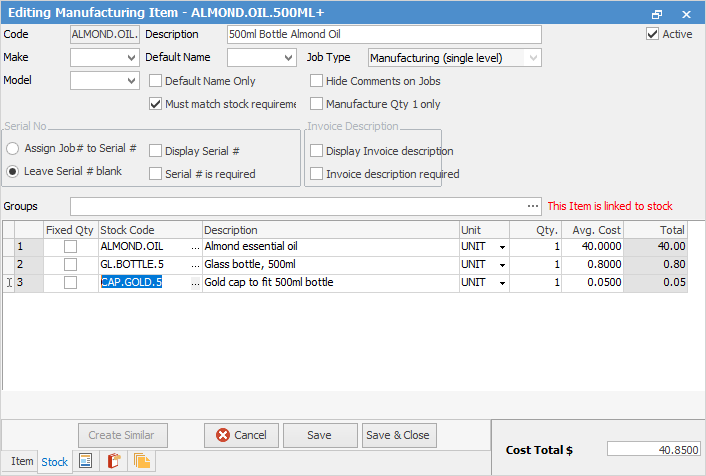
The fields within the stock grid for a manufacturing Item are:
|
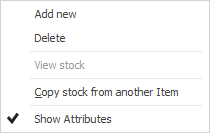
Right click options in the stock selection grid
Field |
Explanation |
|---|---|
Add new |
This will place the cursor in the Stock Code field ready to enter a stock code. |
Delete |
This will delete the entire line of stock. |
View stock |
This will open the stock record of the stock code entered. |
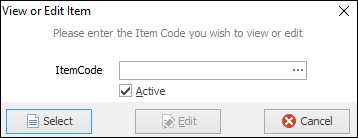
Copy stock from another Item |
This will bring up the View or Edit Item screen to enter an Item number. The Select button will populate the stock grid with the stock from the Item entered.
 |
Show Attributes |
Tick to show attributes on stock lines. Untick to hide attributes. |
Further information