|
The Stock List is a very powerful search function within Jim2. Lists are also one of the easiest features to master, and the most practical way of searching for information in Jim2. Users can define their own responsibilities by creating lists that apply to their function.

|
Note: If the Create Stock List icon is greyed out there are two reasons for this:
1.Jim2 only allows 25 lists per object. If there are already 25 lists in the Nav Tree, a list will need to be closed to allow creation of a new list.
2.The user's security does not allow them to create the list. |
|
The Stock List can collate information from jobs, purchase orders, stock movements in real time for cross reference, and use archived data. Jim2 provides for searches on active and inactive stock by ticking/unticking the Active field (top right of form). This allows for monitoring current and historic trends in relation to customers, users, stock and status.
|
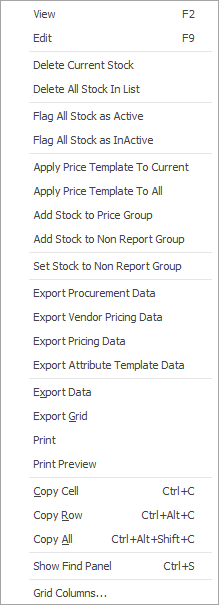
The Stock List includes the ability to flag stock as active or inactive, provided user Security allows it. Simply generate a Stock List based on any selection criteria, right click in the grid, and select Flag Stock as Active or Flag Stock as Inactive from the pop-up menu.

|
Please be aware that this will mark all the stock in the grid as active or inactive.
|
|
Note: If the Stock Qty field in the header of an Advanced List is left blank when choosing a location, the list will show all stock on hand for all locations, regardless of whether there is stock or not.
|
There are two different styles of Stock Lists – Basic and Advanced. Select the type by using the tabs at the bottom of the Stock List form.
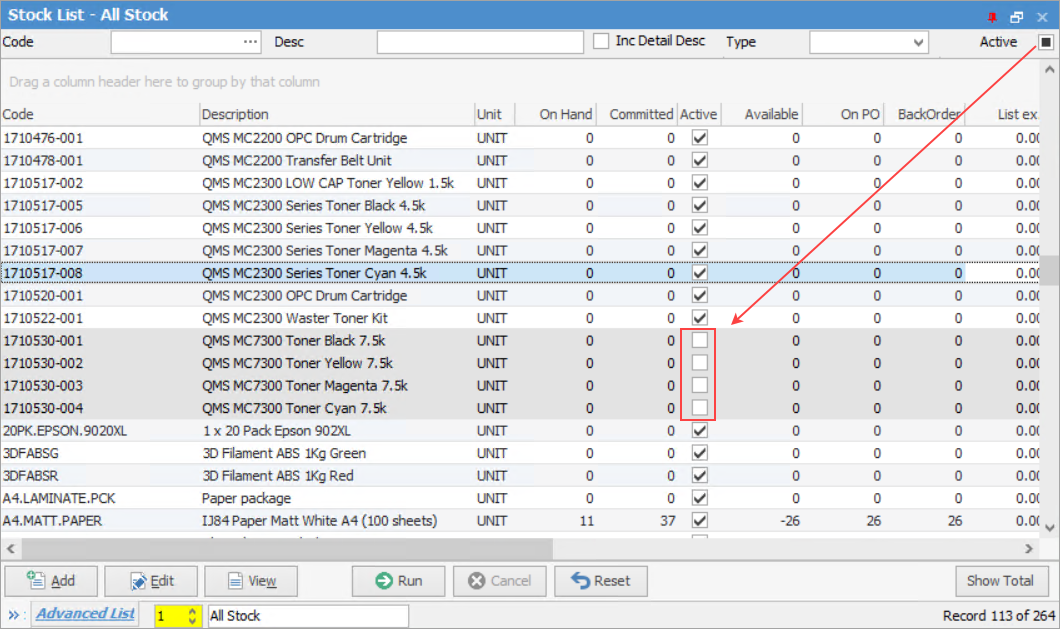
When the stock list is first opened, the default view is the List tab, in which only the first five fields in the table below are displayed. Select any combination of those fields to generate a stock list. Running a list with stock which is marked as Not Active (ie. the Active box is empty) means inactive stock will be displayed in this list on a grey background.
|
|
|
|
Stock
|
Code
|
Selects the specific stock code entered.
|
Desc
|
Selects stock with the description entered here.
|
Inc Detail Desc
|
Will include the detailed description (as entered on the Descriptions tab in the stock header) in the search.
|
Type
|
Selects the stock with the chosen type.
|
Active
|
Selects stock that is either Active/Inactive or both (see below for more information on the meaning of the checkboxes).
|
The Advanced List tab allows searching by any combination of the fields shown below, in conjunction with any of the first five above
|
Vendor
|
Vendor
|
Selects the stock for the vendor entered here.
|
Vendor Stock Code
|
Enter the vendor stock code to search for.
|
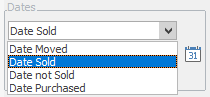
Dates
Enter start and end dates.
|
Date Moved
|
Any stock that has a movement (transaction) for the dates selected.
|
Date Sold
|
Any stock that has been sold for the dates selected.
|
Date not Sold
|
Any stock that has not been sold for the dates selected.
|
Date Purchased
|
Any stock that has been purchased for the dates selected.
|
Extras
|
Labour Content
|
Selects stock with this value of labour content entered.
|
Barcode
|
Selects stock with this value for the barcode entered here.
|
Weight (kg)
|
Selects stock with this value as the weight.
|
Price Template
|
Select relevant price template, as per price template setups.
|
Publish Price to
|
Choose from Price List & Web, Price List, Web, or Don't Publish.
|
Parent Stock
|
Used to link versions of a product to a parent. For clients who have website integration.
|
Dangerous Goods checkbox
|
Tick to show only stock that has Dangerous Goods ticked in the Details tab.
|
Promo
|
Select a Promo to show only stock in the list that is on that Promo.
|
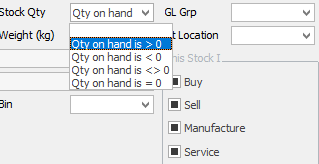
Stock Qty & Location
|
Qty in stock is >0
|
Selects stock with quantity greater than 0.
|
Qty in stock is <0
|
Selects stock with quantity less than 0.
|
Qty in stock is <>0
|
Selects stock with quantity other than 0.
|
Qty in stock is = 0
|
Selects stock with quantity equal to 0.
|
At Location
|
Selects stock in this location using the Stock Qty selection.
|
Note: If the Stock Qty field is left blank when choosing a location, the list will show all stock on hand for all locations, regardless of whether there is stock or not.
|
|
Groups, Stock Groups & Stock Attributes
|
GL Group
|
Use the drop down list to search for stock attached to a particular Stock GL Group.
|
Stock Groups
|
Click the ellipsis [...] to select stock within this group or groups.
|
Stock Attributes
|
Click the ellipsis [...] to choose from a list of attributes. The Stock List will then display all stock with the attributes selected here.
|
Serial numbers & Attributes
|
Serial#
|
Choose from any combination of not required, on purchase, and/or on sell, to find stock with matching serial number statuses.
|
Attributes
|
Choose from any combination of not required, on purchase, and/or on sell, to find stock with matching attribute requirements.
|
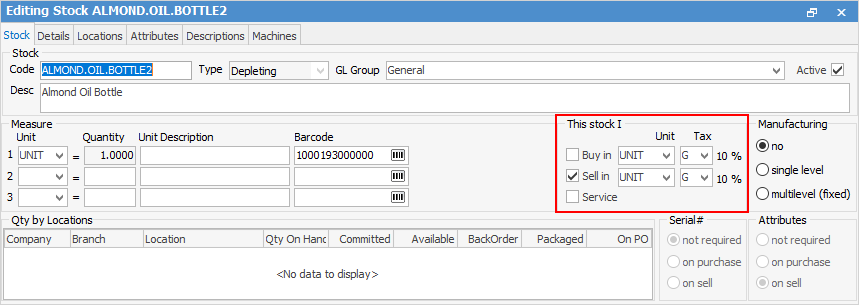
This Stock I
|
Buy, Sell, Service, Manufacture
|
Choose any combination of these checkboxes to refine the search.
Note: Ticking/unticking more than 1 checkbox in the This stock I section will place an or between the conditions.
For example, untick Buy, Sell, Service and tick Manufacture and this will tell Jim2 to get all stock that is not Buy, not Sell, not Service but is Manufacturing.
|

|
Will only return results for what is ticked.
|
|

|
Will not return results for any unticked boxes.
|
|

|
Will return results for either of the above.
|
|
|
On the right-hand side of the Groups selection within the list is the word OR. Clicking this wording will change it to &. This relates to how to use groups within the search. To be able to select two groups and find things that are in both groups, use the & option. To search two groups and find anything that is in either one of those groups, use the OR option. Double clicking on the words Card Grp at the beginning of the Card Grp field will turn the field green to indicate that group selection is inverted. For example, select cards that are not in these groups.
|
|
Any stock which is not marked as active will show in this list without a tick in the box under the Active column when Active in the header shows a solid box.
See here for information on the use of the Reset button.
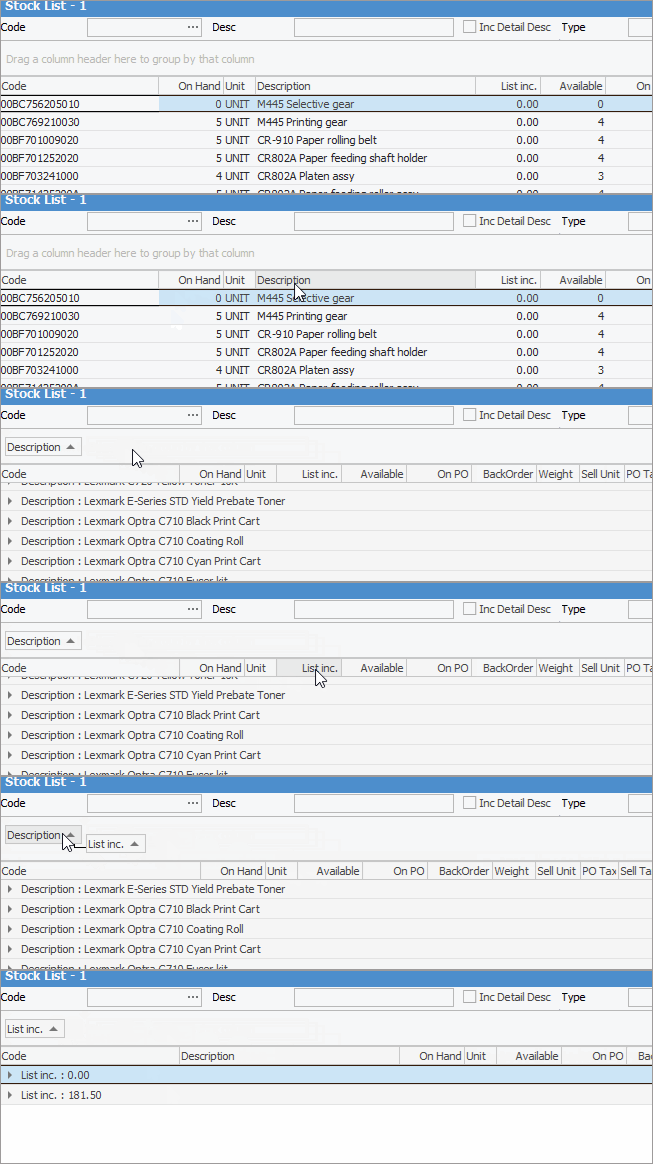
Sorting, searching and grouping are available as per other lists in Jim2. Select the column header in the grid, then drag it to the Group By area to group.
How to use this list, and the purpose of each of the fields is explained in detail in How to Create a List of Stock.

|
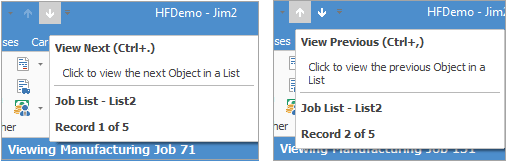
When viewing stock from a list, click the arrow in the quick access toolbar to move to the next/previous stock code in that list:
Shortcut keys:
Ctrl+. moves to the next object in the list
Ctrl+, Moves to the previous object in the list
|
Not all fields are showing in this image
This section explains the field headings in the Stock List fields. Refer to Lists for details on sorting, naming, grouping, etc. The headings may not be strictly in this order, and there may be extra columns depending on the Jim2 version.
|
|
|
Code
|
Stock code number.
|
Description
|
Description of stock as per the stock code.
|
Unit
|
Unit type, ie. box, each, unit.
|
On Hand
|
How much stock is on hand currently.
|
Committed
|
How much stock is committed to jobs.
|
Available
|
How much stock is available to sell.
|
On PO
|
How much stock is currently on order.
|
BackOrder
|
How much stock is currently on back order.
|
List Inc.
|
Price including GST.
|
Weight
|
Weight of the stock, if applicable.
|
Sell Unit
|
Selling unit type, ie. box, each, unit.
|
PO Tax
|
Tax type on purchase, ie. G.
|
Sell Tax
|
Tax type on sell, ie.G.
|
GL Group
|
Stock GL Group.
|
Active
|
Shows whether the stock is active or inactive.
|
Price Group
|
Shows stock in a specific price group. Customer pricing is based on these price groups.
|
Price Template
|
As set up in Stock > Price Templates.
|
Publish Price
|
Publish to price list, web or both.
|
Avg Cost
|
Displays the average cost for the stock.
|
Last Cost
|
Displays the last cost for the stock.
|
|
|
|
|
View
|
View the highlighted stock.
|
Edit
|
Edit the highlighted stock.
|
Delete Current Stock
|
Delete the highlighted stock.
|
Delete All Stock In List
|
Delete all the stock in the list.
|
Flag All Stock As Active
Flag All Stock as InActive
|
Change all stock in the list to Active.
Change all stock in the list to Inactive.
|
This will mark all the stock in the grid as active or inactive.
|
|
Apply Price Template to Current
|
Allows changing the price template used for the highlighted stock.
|
Apply Price Template to All
|
Allows changing the price template used for all the stock in the list.
|
Add Stock to Price Group
|
Applies price group to all stock in the list.
|
Add Stock to Non Report Group
|
Adds all stock in the list to the non report group selected.
|
Set Stock to Non Report Group
|
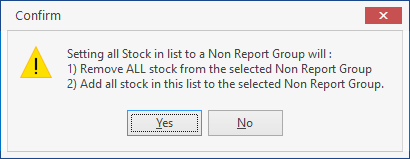
Adds whatever stock is in the list to the non report group, and removes any stock that was in the group that is not in the list.
You will receive the following warning when attempting to do so:
|
Export Procurement Data
|
Exports procurement data for the list to a spreadsheet.
|
Note: This report will show bins and min qty high and low information.
|
|
Export Vendor Pricing Data
|
Exports vendor pricing for the list to a spreadsheet. This export will also show the last updated column for all stock.
This report will also show all vendors on each stock code. In the spreadsheet, you will see duplicate stock codes with a Rank column next to the vendor showing 1, 2, 3 etc. which is the order of the vendors that appear on that stock record.
|
Export Pricing Data
|
Exports pricing information for the list to a spreadsheet.
|
Export Attribute Template Data
|
Export stock attribute data that can be used to make changes then re-import.
|
Export Data
|
Exports data from the grid to a spreadsheet file.
|
Export Grid
|
Exports the grid to a spreadsheet. This is particularly useful if the grid has more than one header row, as it will export all header rows.
|
Print
|
Print the list.
|
Print Preview
|
Preview the list to be printed.
|
Copy Cell
|
Copy the highlighted cell.
|
Copy Row
|
Copy the highlighted row.
|
Copy All
|
Copy all, which can then be pasted into a spreadsheet
|
Show Find panel
|
Opens the Find panel:
|
The Find panel will remain in a pinned list but will disappear from an unpinned list on log off.
|
|
Grid Columns...
|
Allows adding more columns. Also allows removal of columns. Select the column to add, then drag it to the position required in the columns within the grid. To remove, click and drag to the Grid Columns... window, or drag down away from the header area.
|
|
|
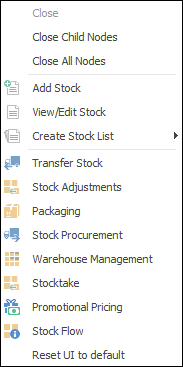
After the top 3 (which are self explanatory), these options mirror what is on the ribbon in the Stock tab, except for the last tab, which will Reset to Default all tabs.
|
Further information
Create a Stock List
|