
Customer and vendor cardfiles can be associated to one or all companies.
When adding a company, it is linked to a cardfile, much like associating a Branch to a cardfile. Invoice, purchase order, statement, etc. details are pulled from this linked cardfile.
Address details, etc. for reports are pulled from what has been entered in Tools > Options > Company (if no company cardfile has been created), otherwise from the company cardfile (or branch cardfile, if Branches are enabled and the branch has a linked cardfile).
The company cardfile is important as it is used to handle intercompany transactions (eg. company 1 raises an invoice on company 2). Jim2 detects that a company cardfile is used and flags the journal with the destination company.
All company entities should be ticked as both Customer and Vendor, and the correct company for each company cardfile must be selected.
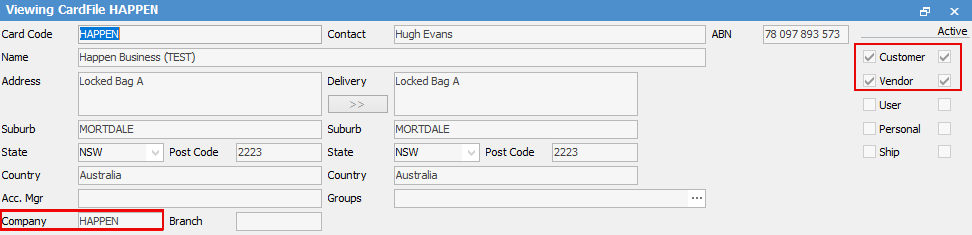
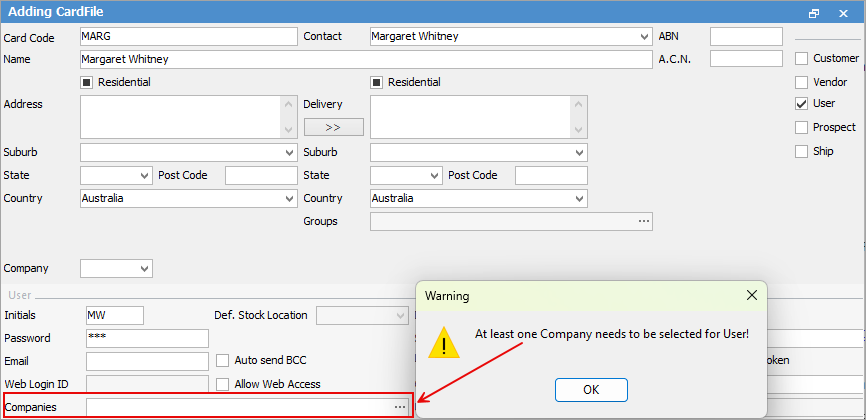
If a company is not chosen, the following warning will pop to screen:
 |
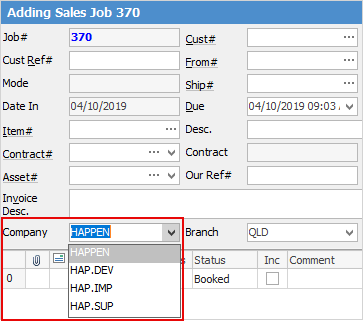

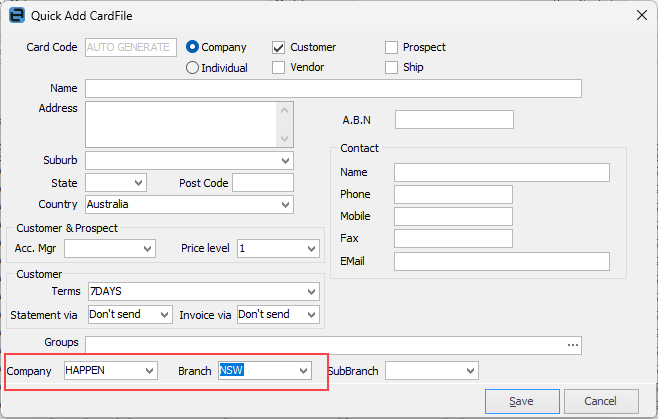
Cardfiles with no company assigned can be used in any company. If a company is assigned to a cardfile, that cardfile is restricted to use within that company only. The Quick Add CardFile feature also includes the Company feature.
 |
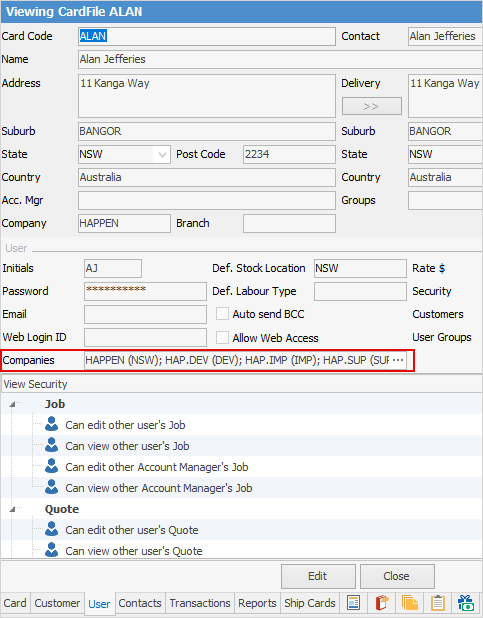
The User tab of CardFiles includes Companies. This allows restricting users to specific companies. Users can also be restricted from viewing transactions on cardfiles via Jim2 Security.
On the User tab of a cardfile, the Companies and Stock Locations dialog (clicking the ellipsis [...] beside the Companies field) allows setting up which companies the user can access, along with their default company and related branch (if branches are enabled) and stock location (assigned at point of logging in). See User Security for more information.
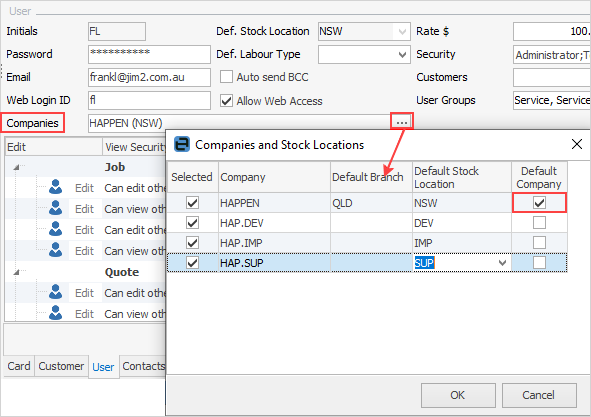
When selecting the company, select the default stock location, as well as which company is the default company for that user. A single account manager per shared customer cardfile is also supported.
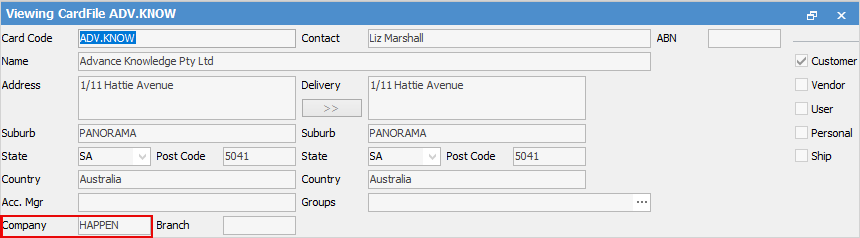
All customer, vendor and ship cardfiles display the Company field in the header. It is suggested to leave this field blank unless the customer/vendor is only going to deal with one company.
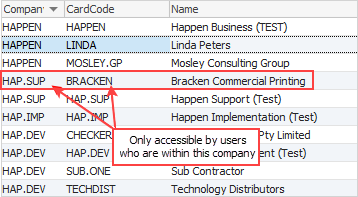
Which cardfiles relate to which companies can be seen via the CardFile List.
 |
Copy/Move/Merge functionality will only work within the same company.
Allows batching by company. Direct Debit checkbox is only enabled if all companies being invoiced have Direct Debit configured (refer Banking Setups). |
Further information
Multi-Company Stock Locations Setup