Now the setup is completed, the template is ready to use. Either from an existing Project or by creating a new one, ensure it has the appropriate Project Type.
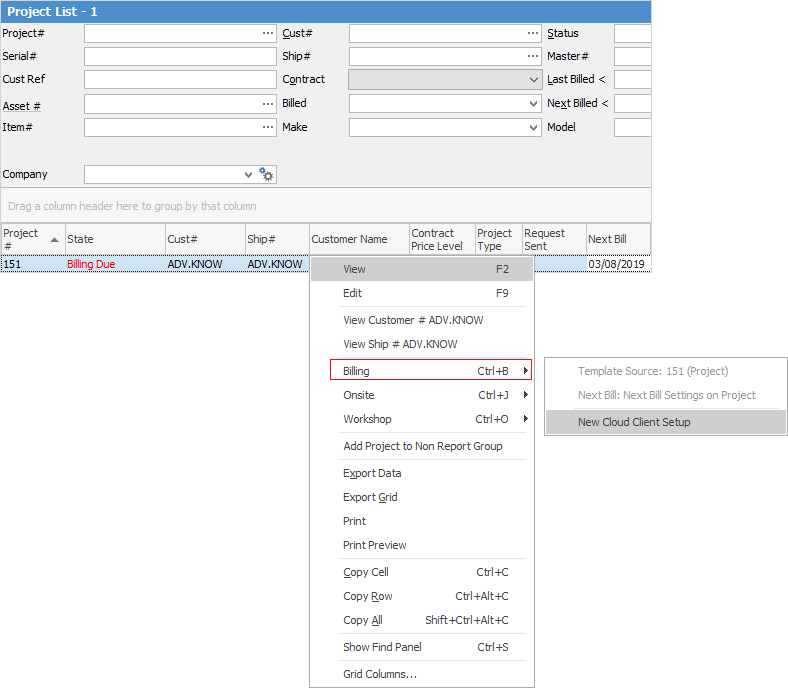
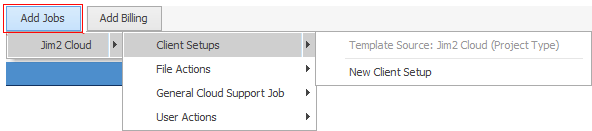
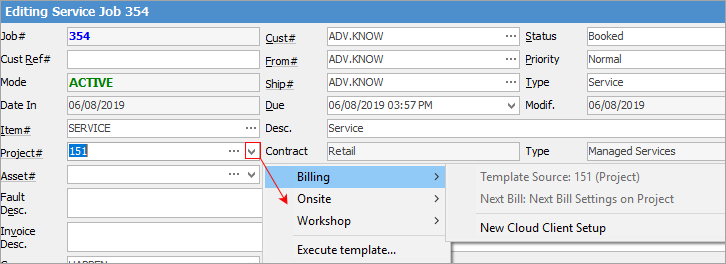
The template can now be selected from the right click menu on a Project List, from within a Project, or via a job that has been tagged to a Project.
Via Project List:
Via Project:
Via a job when prompted after the Project selection prompt:
The job is then created, and in this case left in Edit mode, ready to work on.
A quantity of templates could be created and associated to an action. With the appropriate settings, the selection of the action from the Project List or Project menu will initiate the creation of multiple jobs at a single click, making it ideal for IT Projects.
Further information
Non-Billing Template Setup and Usage
Project Template Creation Example 1
Project Template Creation Example 2