Existing Managed Services users moving to Managed Services Template billing
This section is included to help existing customers currently using older versions of the Managed Services Edition for billing to understand what changes they should be immediately aware of, and how to fast track to the use of the template billing model. Now, all existing Projects with stock lines contained within the Default Stock tab will have Project-specific templates created for them. This is to ensure that billing can continue without any change or update required.
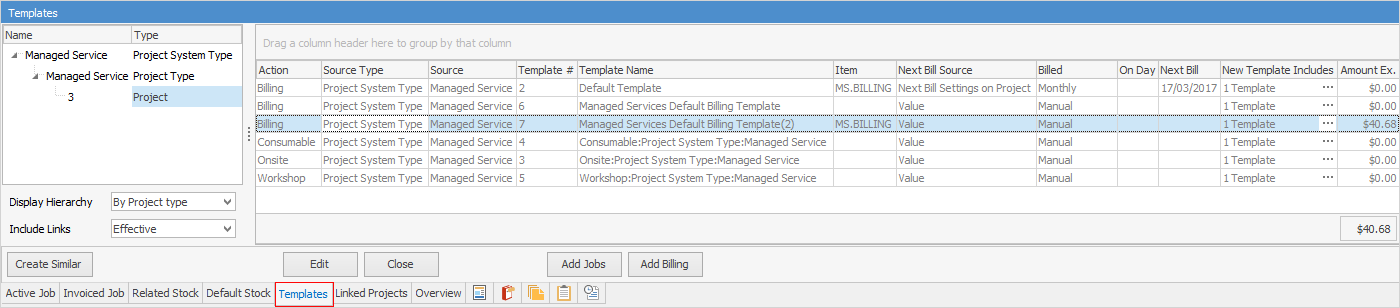
The Templates tab of each existing contract will show the applicable billing template, which can be viewed and edited as appropriate.
As mentioned in the Included Templates section, there are some default inheritances that fit most situations.
Prior to performing any upgrade, restore the production Jim2 accounts database to your training database. Refer to Create a Training Database for information on how to do this. Run the upgrade installer and ensure upgrade both databases.
Log on to the training database
The first thing to notice when running a Project List is that all the Projects with billing stock will have a contract value in the Billing Total Ex. column (far right of screen). The Billing Total will also show in the billing template itself.

View the template via the Templates tab in the footer on the Project, or view them all via the ribbon.
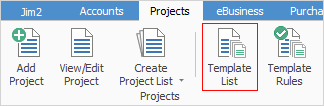
Select Projects > Template List.
Update the view filter to show both Active and Shared templates, then Run the list.

Review the templates and ensure they are correct. Take note of the default inheritance and how it applies to the templates. Now log on to the training database and perform a billing job creation run from a Project List or at Project level, as per normal practice.
Run a list of the created billing jobs and review to ensure they are correctly representing the contract header and template stock values expected. Once the jobs are being created for billing correctly, make any identified changes to the production environment in preparation for the next billing run.
While not required immediately, you should work through the other examples within the training database. Look at how to better streamline ongoing job creation requirements. |
Further information
Generating Jobs Using Project Templates
Non-Billing Template Setup and Usage
Project Template Creation Example 1