|

Each tab is explained in detail below.
|
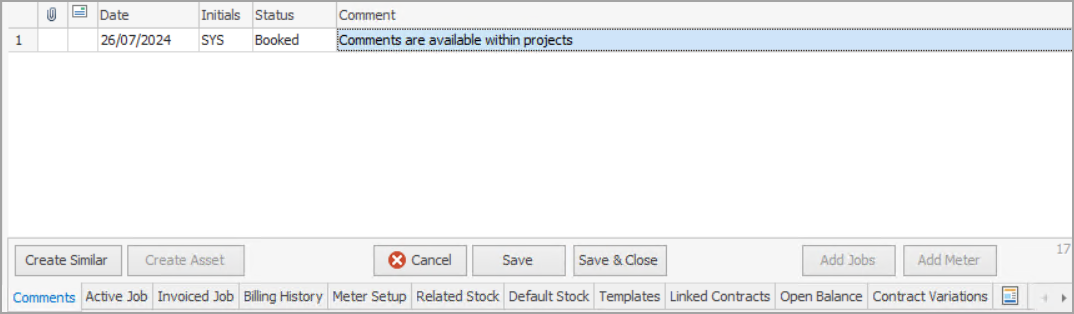
This screen lists all comments entered into the Project. Unlike the Comments field in the header, these comments are not visible to customers.
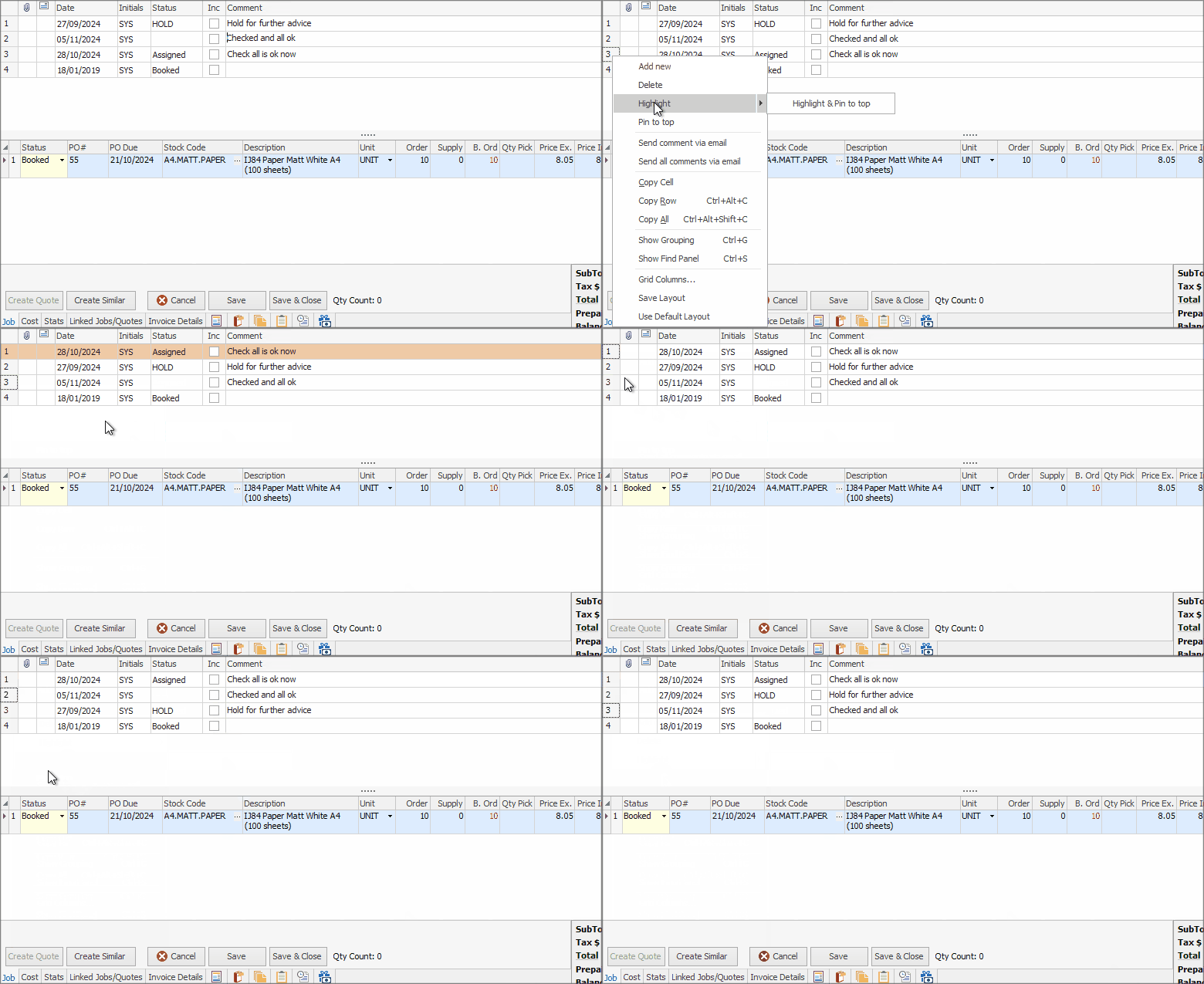
You can also highlight any comment line and pin to the top of the Comment grid by right clicking in the Comment grid and selecting Highlight & Pin to top.
Above shows for a job, however it is the same for projects.
|
|
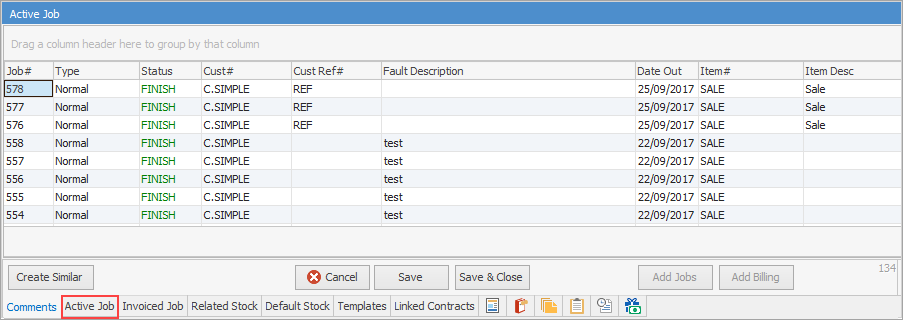
This screen lists all jobs created for this Project. Change the order of the columns by clicking and dragging the column header to a new position, then right click in the grid and click Save Layout.
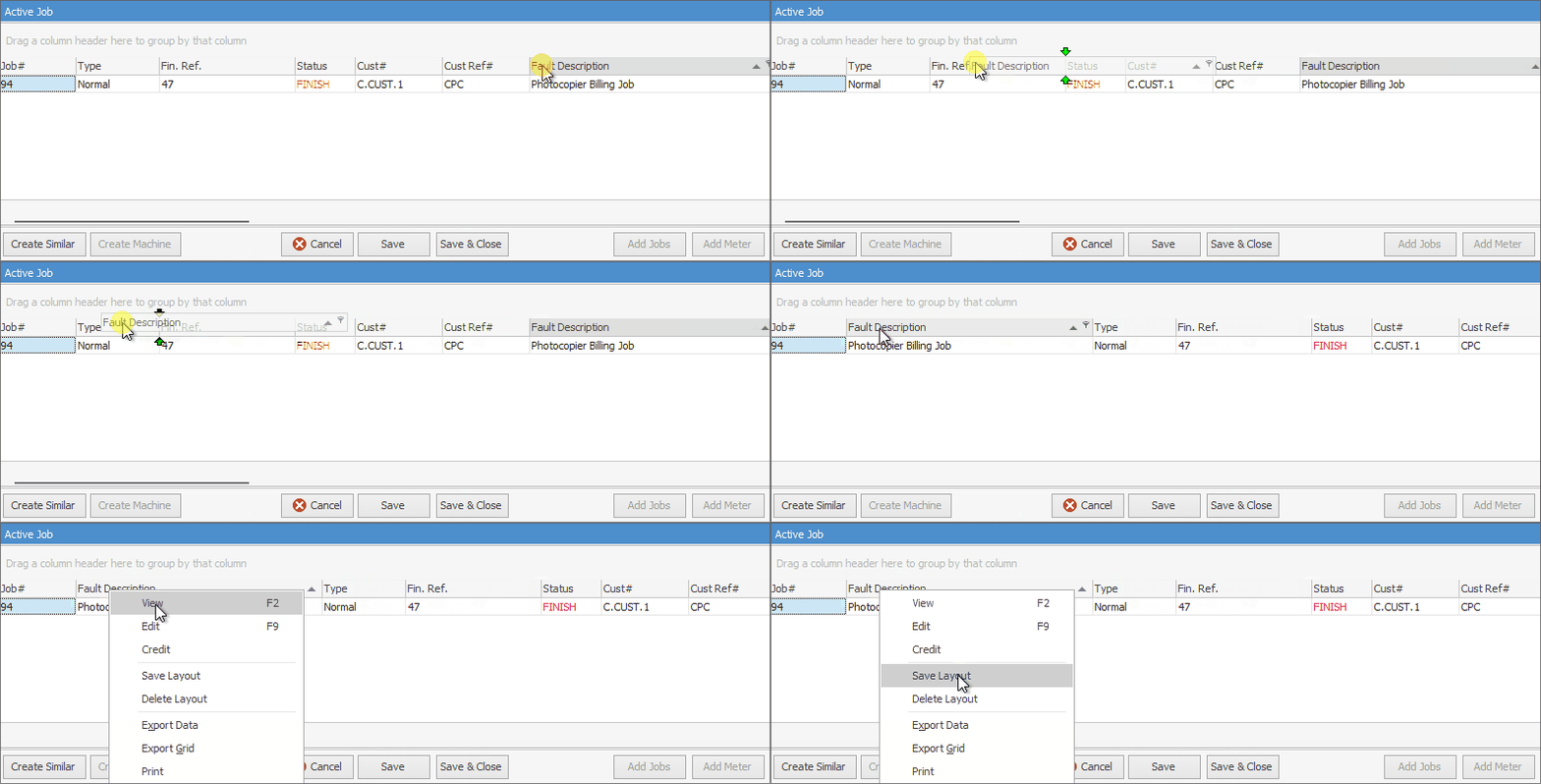
Not all columns are showing in this image
|
|
|
Job#
|
The job number created
|
Type
|
The job type, as set up in Tools > Setups > Job > Job Type.
|
Status
|
The status of the job.
|
Cust#
|
The customer card code.
|
Cust Ref#
|
Any reference the customer provides, or an internal reference.
|
Fault Description
|
This description can come from:
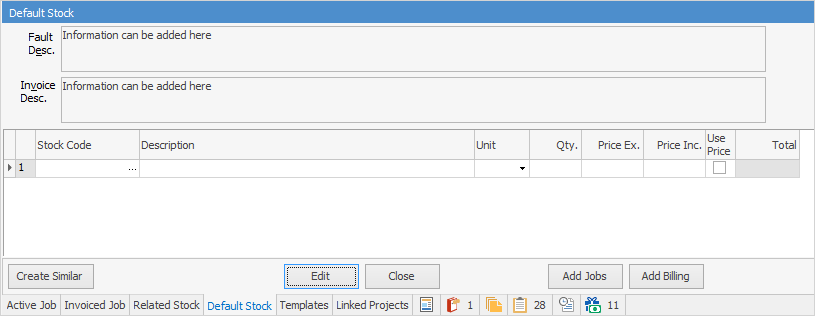
▪the Project's Default Stock tab if a value is entered her, or
▪the Project template associated with this Project. |
Date Out
|
This date updates as the job process progresses. Once invoiced, for instance, this will be the invoice date.
|
Item#
|
The Item on the job. This matches the Item for the Project.
|
Item Desc.
|
The description as entered on the Item.
|
Serial#
|
The serial number on the Project.
|
Date Due/Time Due
|
The date and time the job is due.
|
Name
|
The person currently responsible for the job. If not specified, this will fall back to the user who created the job.
|
Acc. Mgr
|
The account manager for this job, usually the original salesperson.
|
Job Total Inc/Ex/Total
|
The job totals including/excluding tax.
|
Job Type
|
The job type as set up on the Project template or the job itself.
|
Priority
|
This usually matches the priority set on the Project.
|
Quote#
|
The quote number if a quote was produced prior to creating the job.
|
Price Level
|
The price level as set up on the customer cardfile.
|
Tax Paid
|
Either true (including tax) or false (excluding tax).
|
Tax Content
|
The amount of tax being charged.
|
Quote
|
True or false, depending on whether a quote was raised.
|
OurRef
|
An internal reference as entered on the job/Project.
|
Status Date/Time
|
The date and time the status was changed.
|
Date In
|
The date the job was created.
|
Labour
|
Total labour recorded on the job in minutes.
|
PrevJobNo
|
Previous job number if applicable.
|
From#
|
The customer cardfile.
|
Ship$
|
The ship cardfile if different to the customer cardfile.
|
Invoice Description.
|
Description entered on the job. This can also be populated from the Default Stock tab on the Project, if entered there.
|
InvNo
|
The invoice number for this job.
|
Variation #
|
Variation number, if applicable. user more by Managed Print Services.
|
|
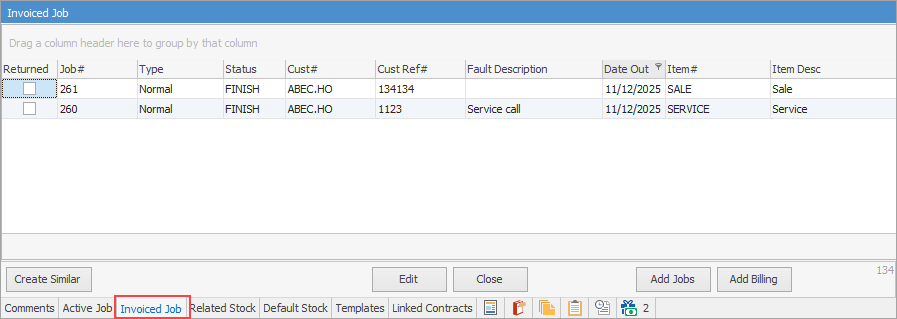
Not all fields are showing in this image
|
|
|
Returned
|
This is automatically ticked by Jim2 if the invoice has been returned. A grey field indicates a partial return, and a solid tick indicates a full return.
|
Job#
|
The job number created
|
Type
|
The job type, as set up in Tools > Setups > Job > Job Type.
|
Status
|
The status of the job.
|
Cust#
|
The customer card code.
|
Cust Ref#
|
Any reference the customer has provided, or an internal reference.
|
Fault Description
|
This description can come from:
▪the Project's Default Stock tab if a value is entered here, or
▪the Project template associated with this Project. |
Date Out
|
This date updates as the job process progresses. Once invoiced, for instance, this will be the invoice date.
|
Item#
|
The Item on the job. This matches the Item for the Project.
|
Item Desc.
|
The description as entered on the Item.
|
Serial#
|
The serial number on the Project.
|
Date Due/Time Due
|
The date and time the job is due.
|
Name
|
The person currently responsible for the job. If not specified, this will fall back to the user who created the job.
|
Acc. Mgr
|
The account manager for this job, usually the original salesperson.
|
Job Total Inc/Ex/Total
|
The job totals including/excluding tax.
|
Job Type
|
The job type as set up on the Project template or the job itself.
|
Inv #
|
Invoice number for that job.
|
Priority
|
This usually matches the priority set on the Project.
|
Quote#
|
The quote number if a quote was produced prior to creating the job.
|
Price Level
|
The price level as set up on the customer cardfile.
|
Tas Paid
|
Either true (including tax) or false (excluding tax).
|
Tax Content
|
The amount of tax being charged.
|
Quote
|
True or false, depending on whether a quote was raised.
|
OurRef
|
An internal reference as entered on the job/Project.
|
Status Date/Time
|
The date and time the status was changed.
|
Date In
|
The date the job was created.
|
Labour
|
Total labour recorded on the job in minutes.
|
PrevJobNo
|
Previous job number if applicable.
|
From#
|
The customer cardfile.
|
Ship$
|
The ship cardfile if different to the customer cardfile.
|
Invoice Description
|
Description entered on the job. This can also be populated from the Default Stock tab on the Project, if entered there.
|
Variation #
|
Variation number, if applicable. user more by Managed Print Services. if used.
|
|
|
|
|
|
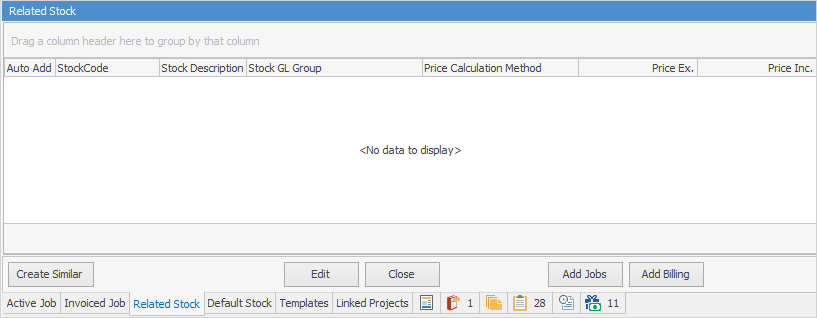
Auto Add
|
This box will be ticked if the stock is to be automatically added to a job when that Item is used.
Note: If ticked, the stock will be added to every job that uses that Item.
|
Line#
|
The line number of related stock in the Item.
|
StockCode
|
The stock code for that stock record.
|
Stock Description
|
The description of the stock as set up on the stock record.
|
Stock GL Group
|
The GL Group as set up on the stock record.
|
Price Calculation Method
|
The price calculation method as set up on the stock record.
|
Price Ex/Inc
|
Prices excluding and including GST.
|
|
|
To see this entire tab, it needs to be ticked on Tools > Options > Project. If it isn't ticked, only the Fault and Invoice Desc. fields can be seen. These fields are editable to allow entry of information if desired.
|
|
Not all columns are showing in this image
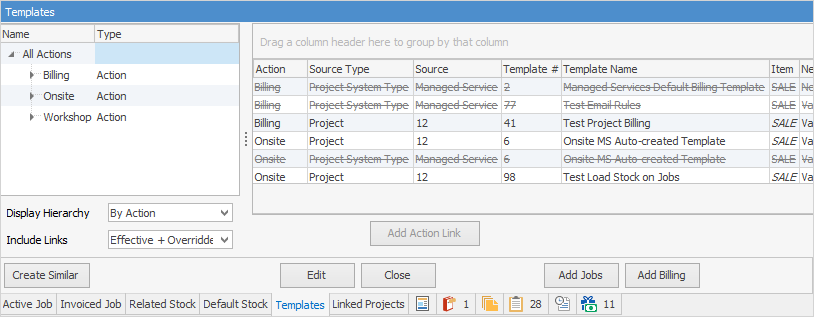
This tab displays all templates in use by this Project. See Project Templates for more detailed information.
|
|
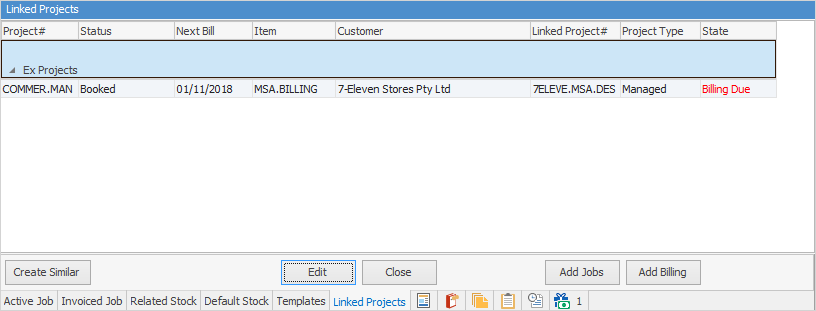
This tab will display all Projects linked to the current Project.
|
The tabs that are common to many objects are explained below.
|
|
|
|
|
This tab displays any documents attached to this Project, eg. a signed delivery note. Any documents linked to the customer cardfile will be added to contracts upon creation.
|
|
|
This tab will display all watchouts related to this Project, and allows addition of new watchouts.
|
|
|
This tab will display all notes related to the Project, including the contact that the note is related to. New notes can be added here.
|
|
|
This tab will display all tasks (appointments, phone calls, to do's, etc.), related to this Project, as well as allowing adding new tasks.
|
|
|
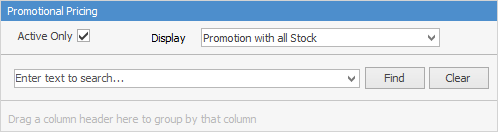
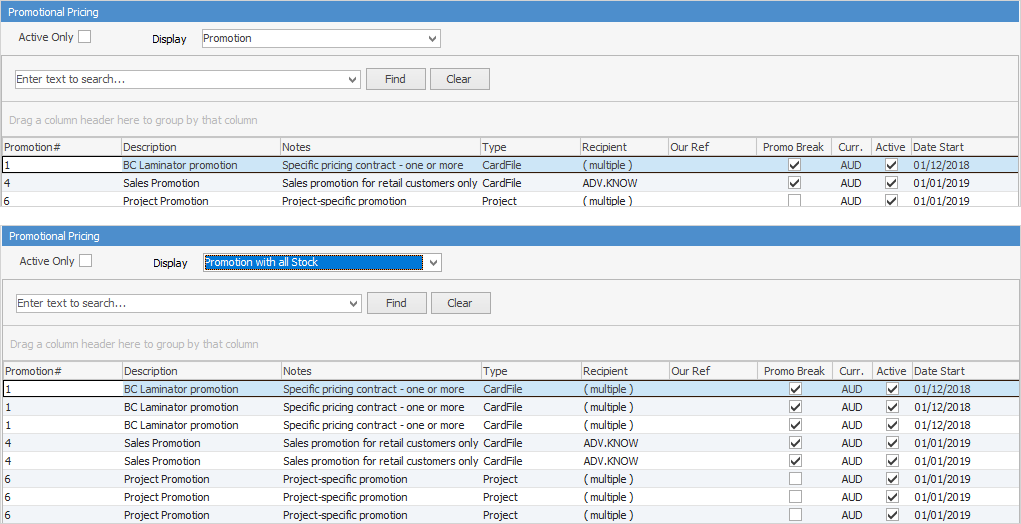
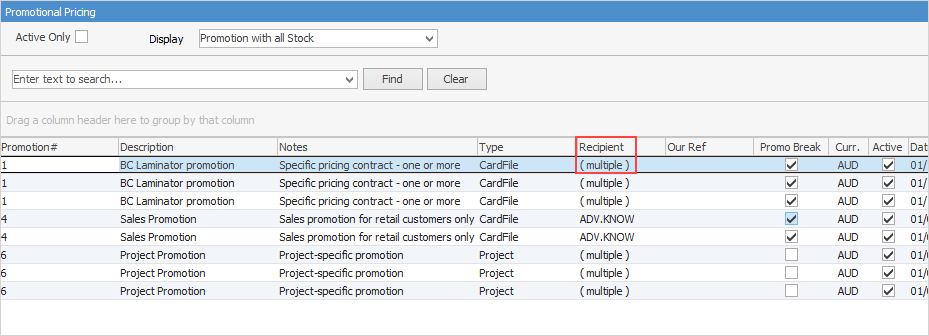
If this Project is part of promotional pricing, this tab will show which promotions are related. Unticking Active Only, will show all promotions, including those that are finished.
Narrow the information down by choosing either to Display Promotion or Promotion with all Stock.
Not all fields are showing in these images
The number on the right side of the icon denotes the number of active promotions applicable to this Project.

|
|
|
Promotion#
|
The promotion code number.
|
Description
|
The description as it appears on the promotion.
|
Notes
|
Displays the notes entered on the promotion.
|
Type
|
The Jim2 object type, ie. specific pricing.
|
Recipient
|
Lists cardfiles, price levels, etc. that relate to the promotion. If there are many cardfiles, it will show (multiple).
|
Our Ref
|
Our reference as appears on the promotion, if used.
|
Promo Break
|
Shows whether Promo Break is used or not.
|
Curr.
|
Shows the home currency.
|
Active
|
Ticked means that the promotion is currently active, unticked means the promotion has finished.
|
Date Start
|
Start date of the promotion.
|
Date End
|
End date of the promotion.
|
Vendor
|
Vendor supplying the stock.
|
The fields below show only when Display Promotion with all Stock is selected.
|
Branch
|
Branch (if branches are enabled).
|
Stock Code
|
Stock code related to the promotional pricing.
|
Qty +
|
The promotion quantity plus.
|
Price Ex.
|
Ex GST price for that stock code.
|
|
Further information
Assets
Prepaid Labour Reporting
Preview Pane
Project Header
Project List
Promotional Pricing
|