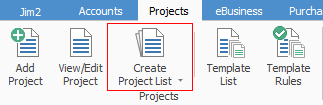
The Project list is a very powerful search function within Jim2. Users can define their own Project responsibilities by creating lists that apply to their specific function. For example, generate a list of all active Projects in your name, or use a Status to see where the Project is up to.
|
Note: If the Create Project List icon is greyed out there are two reasons for this: 1.Jim2 only allows 25 lists per object. If there are already 25 lists in the Nav Tree, a list will need to be closed to allow creation of a new list. 2.The user's security does not allow them to create the list. |

Project lists run live in the Nav Tree, and will be refreshed at regular intervals (depending on how many minutes are stipulated) as Projects are updated across the network. Name and pin the lists so that they represent what is being searched for. This helps if there are multiple lists running at the same time.
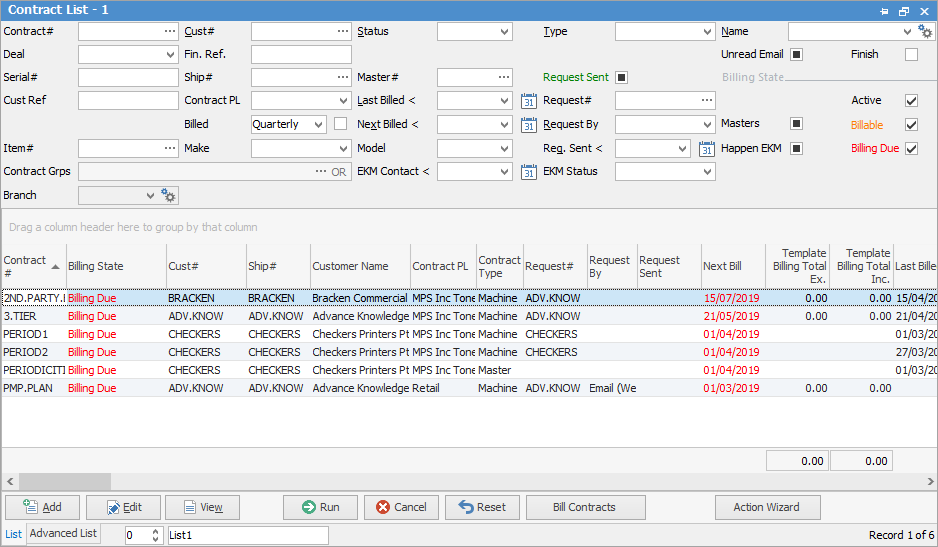
See here for information on the use of the Reset button.
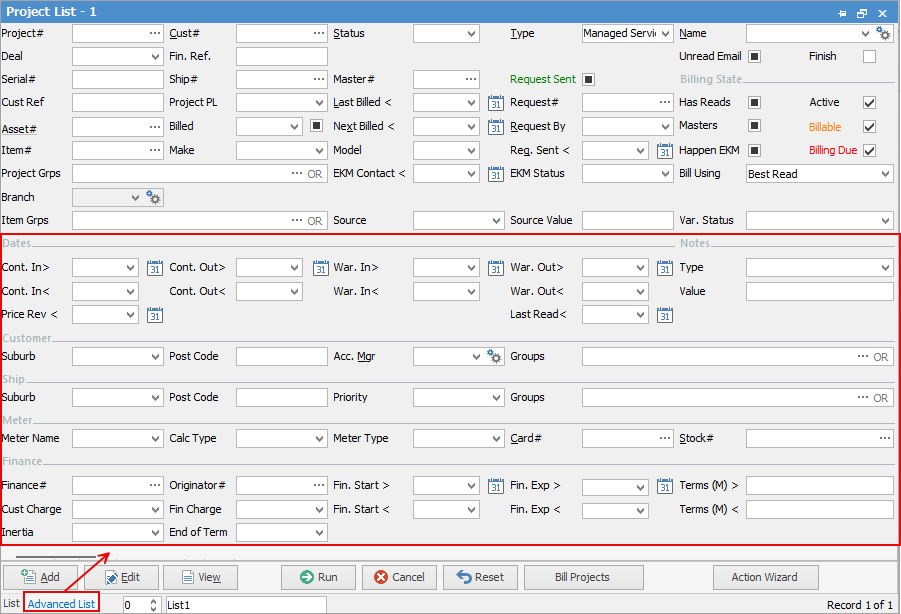
Configuring a Project list can be performed from either a standard List or using the Advanced List option. List or Advanced List can be selected at the bottom of the Project List screen.
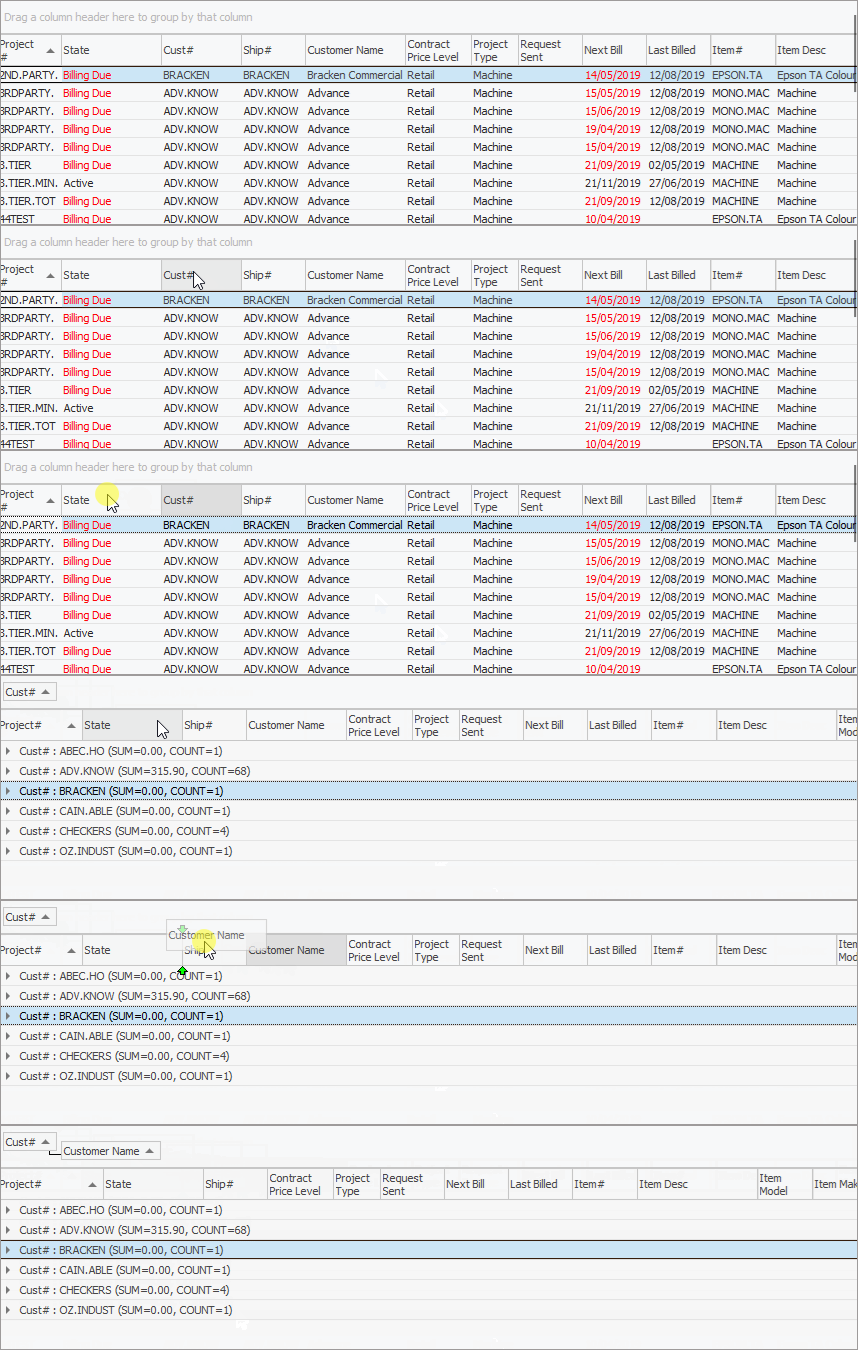
Sorting, searching and grouping are available as per other lists in Jim2. Select the column header in the grid to sort, then drag it to the Group By area to group.
To view or edit any of the Projects within the list, double click or use the F2 function key on any of the fields relating to the Project to be displayed.

Field |
Explanation/Usage |
|---|---|
Project# |
Enter a specific Project number. |
Cust# |
Enter a specific customer card code. |
Status# |
Filter the list via status to only include relevant status type. |
Type# |
Filter to include the type of Project (as set up in Tools > Setups > Project Types). |
Name |
Enter the name of the user. |
Deal |
This field relates to Managed Print Services and are not available for Managed Services. |
Fin. Ref. |
This field is used by Managed Print Services. |
Unread Email/Finish |
Ticked will show all (unread email/finished contracts), unticked will show none, solid black box will show everything. |
Serial# |
Enter a specific serial number to refine the search. |
Ship# |
Enter ship card code if different to customer card code. |
Master# |
Enter Master Project number. |
Request Sent |
This relates to Managed Print Services. |
Cust Ref |
Enter a customer reference to search for within the list. |
Project PL |
Select the Project price level.
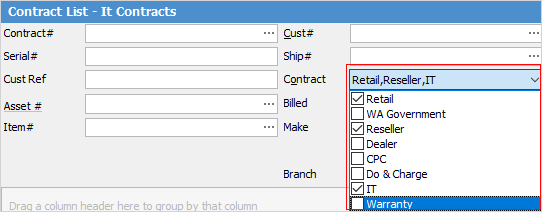
Note: More than one can be selected, or leave blank to run a list of all contracts. |
Last Billed < |
Narrow down the search by looking for last billed before this date. |
Request # and tick boxes next to this |
These are used by Managed Print Services. |
Asset# |
The Asset number. |
Next Billed < |
Enter a date for the next billing before this date. |
Request By |
This field is used by Managed Print Services. |
Item# |
Enter an Item type. |
Make |
Enter a Make type. |
Model |
Enter a Model type. |
Active |
This means the contract has been billed for the last period and a new bill is not yet due. |
Request Sent |
This field is used by Managed Print Services. |
Project Grps |
Select Project groups to refine the list. |
EKM fields and Bill Using |
These fields are used by Managed Print Services. |
|
Some letters in the field names within the header are underlined, eg. Cust#. Using Alt+ the underlined letter will jump to the field beside that heading. |

Advanced Project List Header
The Advanced List will allow searching by the following criteria, in combination with any of the fields above.
Item |
Explanation/Usage |
|---|---|
Item Grps |
Select Item group to search within. |
Source, Source Value, Var. Status |
These fields are used by Managed Print Services |
Cont.In > Cont. Out > |
Enter contract start and finish dates after a specific date. |
War. In > War. Out > |
Enter warranty start and finish dates after a specific date. |
Type |
Select a Note type. |
Cont. In < Cont. Out < |
Enter contract start and finish dates prior to a specific date. |
War. In < War. Out < |
Enter warranty start and finish dates prior to a specific date. |
Value |
Enter further Note criteria to narrow down the search. |
Price Rev < |
This can be used to set when pricing was reviewed, or when pricing is to be reviewed. |
Last Read |
This field is used by Managed Print Services. |
Customer Suburb |
Enter the Customer suburb. |
Customer Postcode |
Enter the Customer postcode. |
Customer Acc. Mgr |
Select the Customer Account Manager. |
Groups |
Select cardfile report/non report groups as desired. |
Ship Suburb |
Enter the Ship suburb. |
Ship Postcode |
Enter the Ship postcode. |
Priority |
Enter the job priority. |
Groups |
Select cardfile report/non report groups as desired. |
Meter Name and all other fields from here |
These fields are used by Managed Print Services. |
|
On the right-hand side of the Groups selection within the list is the word OR. Clicking this wording will change it to &. This relates to how to use groups within the search. To be able to select two groups and find things that are in both groups, use the & option. To search two groups and find anything that is in either one of those groups, use the OR option. Double clicking on the words Card Grp at the beginning of the Card Grp field will turn the field green to indicate that group selection is inverted. For example, select cards that are not in these groups. |
This section explains the field headings in the Project list. Refer to Lists for details on sorting, naming, grouping, etc. The headings may not be strictly in this order, and there are a number of headings that relate to Managed Print Services only.
Field |
Explanation |
|---|---|
Project |
Project number. |
Billing State |
Displays where the Project is up to, ie. Active, Billing Due, etc. Any text coloured red means that an action is required. |
Cust# |
Customer card code. |
Ship# |
Ship card code. |
Customer Name |
Customer name. |
Project PL |
Displays the price level for the machine, as set up in Price Levels. |
Project Type |
Displays the type of machine, as set up in Project Types. |
Request#, Request By, Request Sent |
These fields are used by Managed Print Services. |
Next Bill |
Displays the next bill due date. Any text coloured red means that an action is required. |
Template Billing Total Ex. |
The figure shown here is the amount of the next billing action due ex GST.
Note: if there is more than one billing action, the amount shown here will be for the next billing due, and will not show the total of all billing due. |
Template Billing Total Inc. |
The figure shown here is the amount of the next billing action due inc GST.
Note: if there is more than one billing action, the amount shown here will be for the next billing due, and will not show the total of all billing due. |
Last Billed |
Displays the last billed date. |
Last Billed Total Ex. |
Last billed total amount ex GST. |
Children fields |
These fields are used by Managed Print Services. |
Item# |
Item number. |
Item Desc |
Item description as shown in the Item. |
Item Model |
Model. |
Item Make |
Make. |
Name |
The user responsible for the Project. |
Cust Ref |
Customer reference. |
Serial # |
Serial number (if applicable). |
Contract In/Contract Out |
The project in and out dates. |
Asset# |
The Asset number. |
Asset Ship# |
The ship address of the Asset. |
Asset Item# |
The Item attached to the asset |
Asset Item Desc |
The description of the Item on the Asset. |
Asset Model |
The model of the Asset. |
Asset Make |
The make of the Asset. |
Asset Owner# |
The customer who is the owner of the Asset. |
Warranty In/Warranty Out |
Date warranty commenced and expires. |
Status |
The status of the machine, ie. Booked, etc. |
Location |
Primarily used to describe the location of equipment in a customer's building, ie. Reception, 1st floor, etc. |
Customer Region |
Customer region group. |
Ship Region |
Ship region group. |
Ex Mach# |
If a machine was at a previous customer, returned and went to a new customer, this number relates to the machine contract from the original customer – allowing tracking the entire life of the machine and would be more used by Managed Print Services. |
Billed (from Header) |
Billing frequency, ie. monthly. |
Master# |
This field is used by Managed Print Services. |
Price Rev |
Date price last reviewed. |
Acc. Mgr |
Customer account manager. |
Billing Ready Source to Master Meter columns |
These fields are used by Managed Print Services. |
Billable |
Will show the billable date. |
Unread Email |
Will show any unread emails against the Project. |
|
Will only return results for what is ticked. |
|
Will not return results for any unticked boxes. |
|
Will return results for all of the above. |


|
When viewing a Project from a list, click the arrow in the quick access toolbar for the next/previous Project in that list:
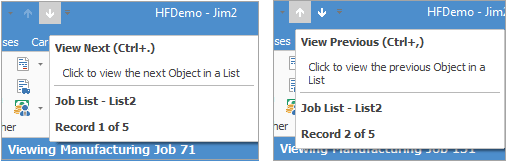
Shortcut keys: Ctrl+. moves to the next object in the list Ctrl+, Moves to the previous object in the list |
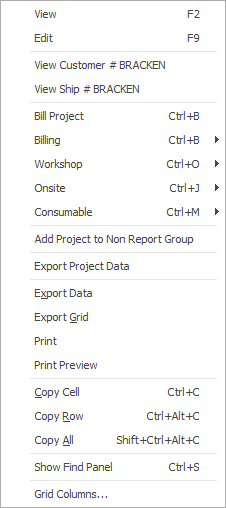
If user security allows it, right click within the grid, select Export Data and save the list information as an XLSX file.
Within the State and Next Billed fields, text coloured red means that an action is required on that Project, ie. a billing job needs to be generated, etc.

Once billing has been performed, the text will revert to black, ready for the next billing due cycle.
Request Sent text is green to indicate that the request has been sent, otherwise the field will be blank. |
|
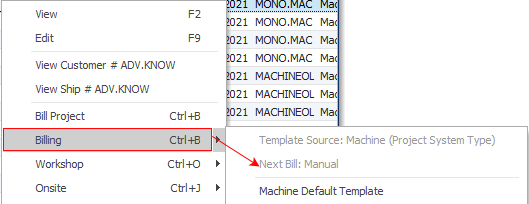

Right click options in the Nav Tree
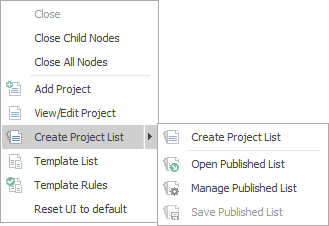
After the top 3 (which are self explanatory), these options mirror what is on the ribbon in the Projects tab, except for the last tab, which will Reset to Default all tabs.
Further information