
Click Add from the bottom of the Template List. Click Change Template to edit the Template.
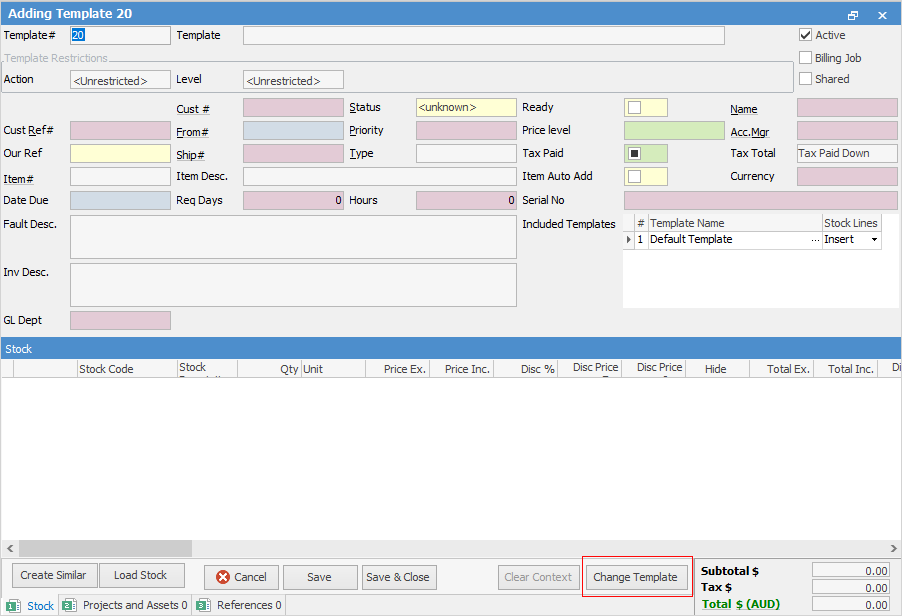
The fields have different colour shading, which is designed to help understand where the values in a template are being derived from. See below for an explanation of the colours. You will see there is an included template.
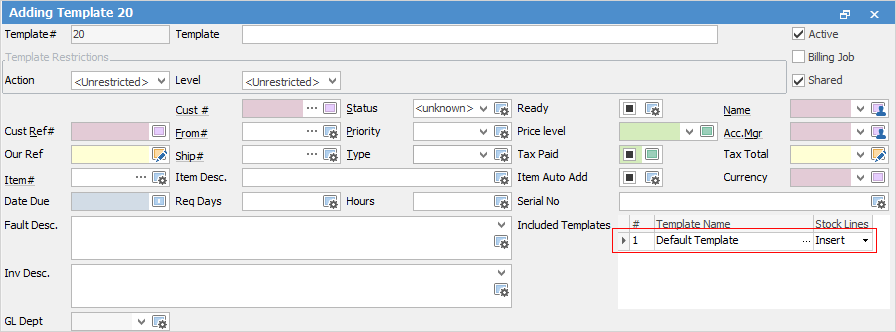
All new templates will inherit values from the Default Template (included template), which you will see in the list of Project templates. This can be removed from included templates, or changed to another template at any time by clicking the ellipsis [...] in the Template Name field.
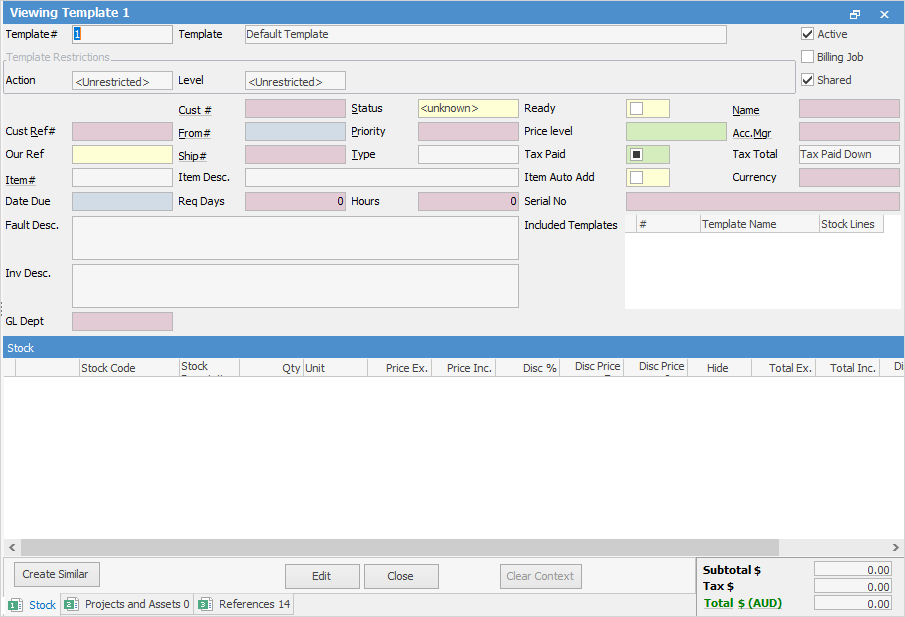
The Default Template already has some key values configured, which saves having to configure them for every template created.
This is a sample template:
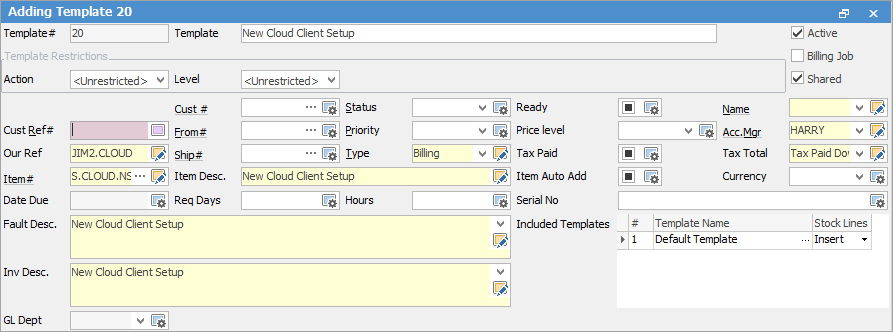
Effective value source template – New Cloud Client Setup Value Path – Template Name New Client Setup |

Add stock to the template, which will drop that stock into the Projects. The order of the stock lines can be changed within the stock grid via drag and drop. Click and hold the mouse in the area left of the stock line number, then drag to where the line is required to sit.
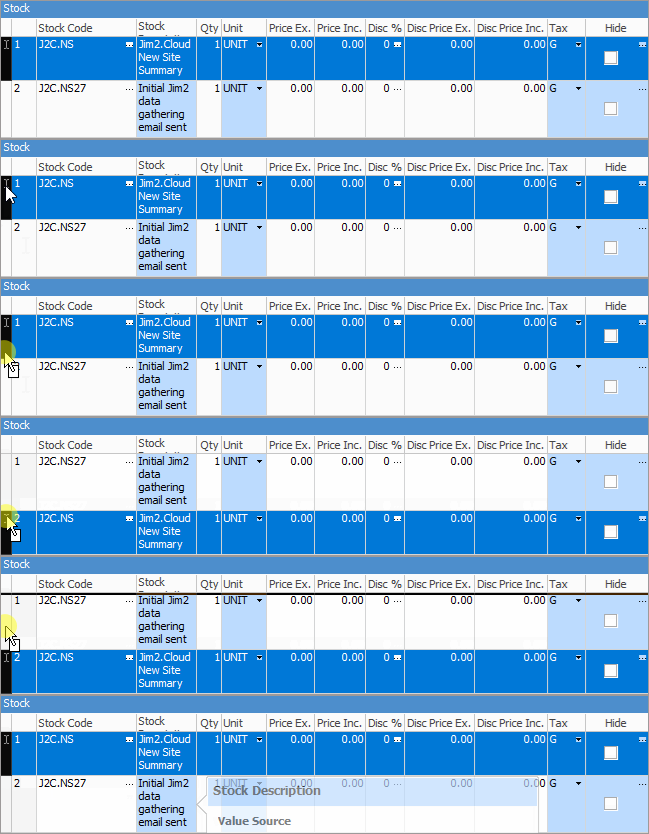
Select more than one row at a time using the Shift key.
To add more stock, click Change Template, go to the stock code field and click the ellipsis [...] to add a new stock line.
To copy from another template, in Edit mode, click the Load Stock button.
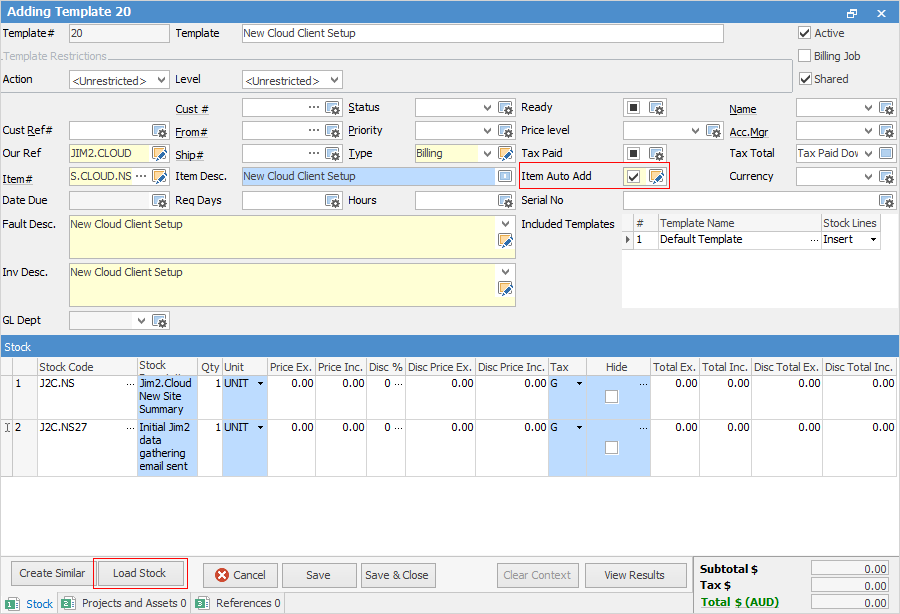
The template lookup screen will be presented, where a user can select the template to copy stock from.
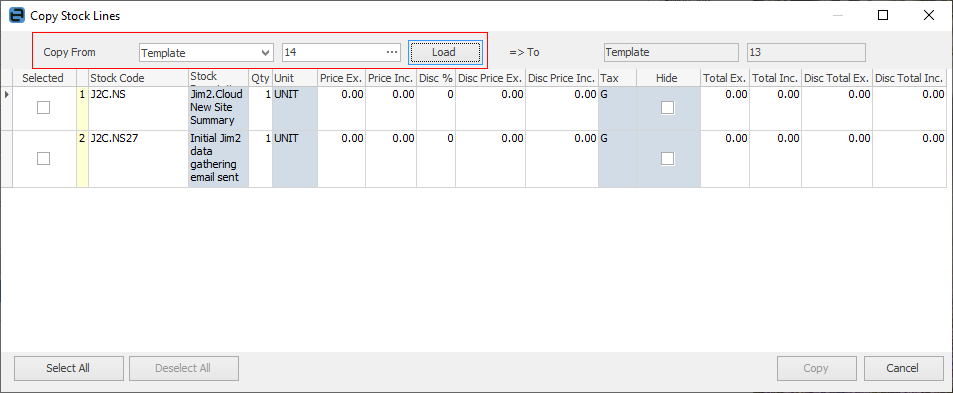
Select all stock or individual stock lines to copy to the other template.
|
Further information
Generating Jobs Using Project Templates
Non-Billing Template Setup and Usage
Project Template Creation Example 1
Project Template Creation Example 2