Create a list that will show what invoices are due as at a certain date.
1.On the ribbon, go to Accounts > Creditors. Select Date Due date, then click Run.
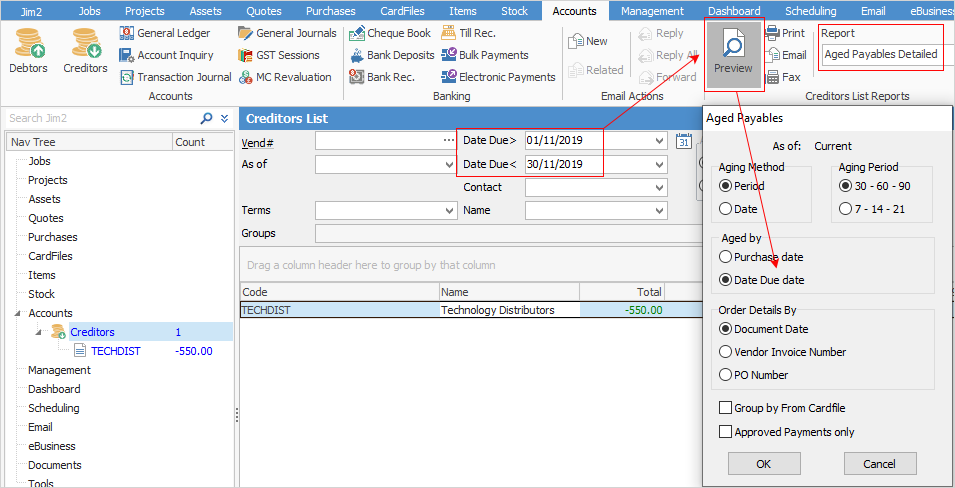
2.Select the Aged Payables Detailed report, click Preview and change Aged by to Date Due date. Click OK, then Print.
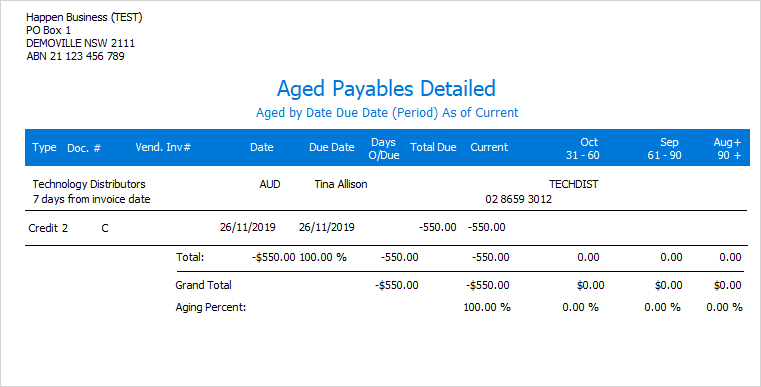
The due date on invoices is calculated from the vendor terms set on the vendor cardfile, and the vendor invoice date when saving the purchase order, although the due date can be changed when finishing the purchase order.
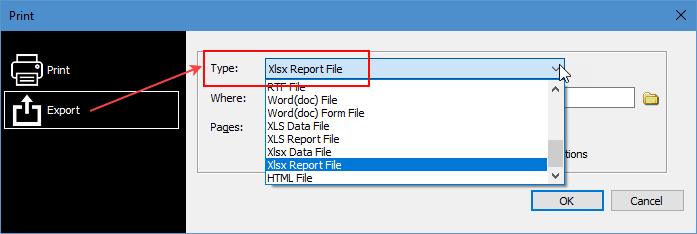
This report can either be printed or saved to a spreadsheet file.
You can use the Excel icon to produce reports directly to Excel. Permission for use of this is based on security since it accesses the report for the information.
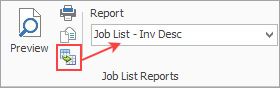
When Excel is selected, it will open spreadsheet windows and populate it with raw data from the selected report. Each report pipeline with be represented in a separate sheet, eg. Job, JobComments, JobStock etc. This will produce a much more comprehensive report in spreadsheet format for all these reports.
Further information
Discounts and Account Fee entries
Manage Payment Returned from Bank