The Managed Services licence (Projects) provides the following functionality:
▪Invoice contracts on a manual or regular basis (monthly, bimonthly, quarterly, biannually, annually etc.)
▪Add jobs, with or without charges, from managed service contracts to analyse the use of managed service product offerings, labour and service activities.
▪Use Managed Services and Scheduling to automatically add recurring jobs for regular tasks.
▪Maintain information at a contract level, including Documents, Watchouts, Notes and Tasks.

When jobs are created they need to have an Item specified. Use existing Items, or create new ones specific to managed service requirements. The use of Items assists with reports and filtering within Jim2, as well as defining whether the job is a system level job type of sales, service or manufacturing.
On the ribbon, go to Items and add Item MS.BILLING, with a description of Managed Service Billing, and a job type of Sales. For service-related managed services jobs, create additional Items with a job type of Service, eg. MS.ONSITE, MS.GOLD.ONSITE, etc. Click Save. |
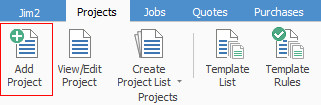
On the ribbon, go to Projects > Add Project.
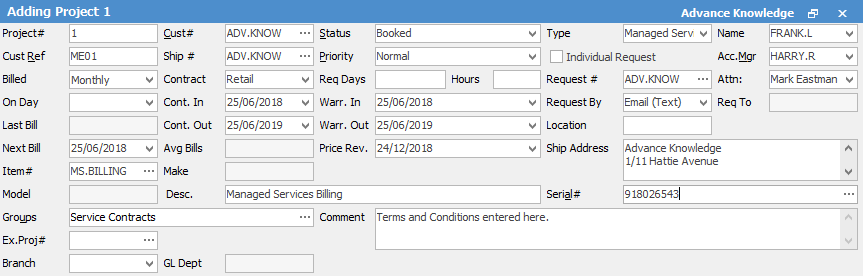
 ▪Enter applicable Project Number (Jim2 will automatically populate this field, however change it), Cust#, Ship#. ▪Select Type Managed Service (which was set up earlier). ▪Select Customer and Ship details. ▪Enter Cust Ref# (authorisation number for billing – may be a customer purchase order number or a person's name). ▪In Billed, select appropriate billing frequency and set the Next Bill Date. If the day for the next bill date is after the 28th of the month, you will be required to enter an On Day value as well. This allows Jim2 to correctly deal with shorter months when advancing the next bill date. ▪In Contract, select the Project Price Level (which was set up earlier). ▪In Item, select MS.BILLING, or another appropriate Item (this will be used by billing jobs by default, but can be overridden using Project Templates). ▪In the comment field, enter the managed service agreement terms and conditions. ▪Update any other optional fields, and add the contract to the managed services groups as appropriate. ▪Click Save.
The values entered here are what are referred to from the template when configuring a data field to get the value on Project.
Templates will auto-populate.
To be made aware when a Project is due to expire, there are two ways available: 1.Create a reminder in the Schedule for when the contract is going to end, or 2.Create a published list and check each month to see all contracts due to expore.
|

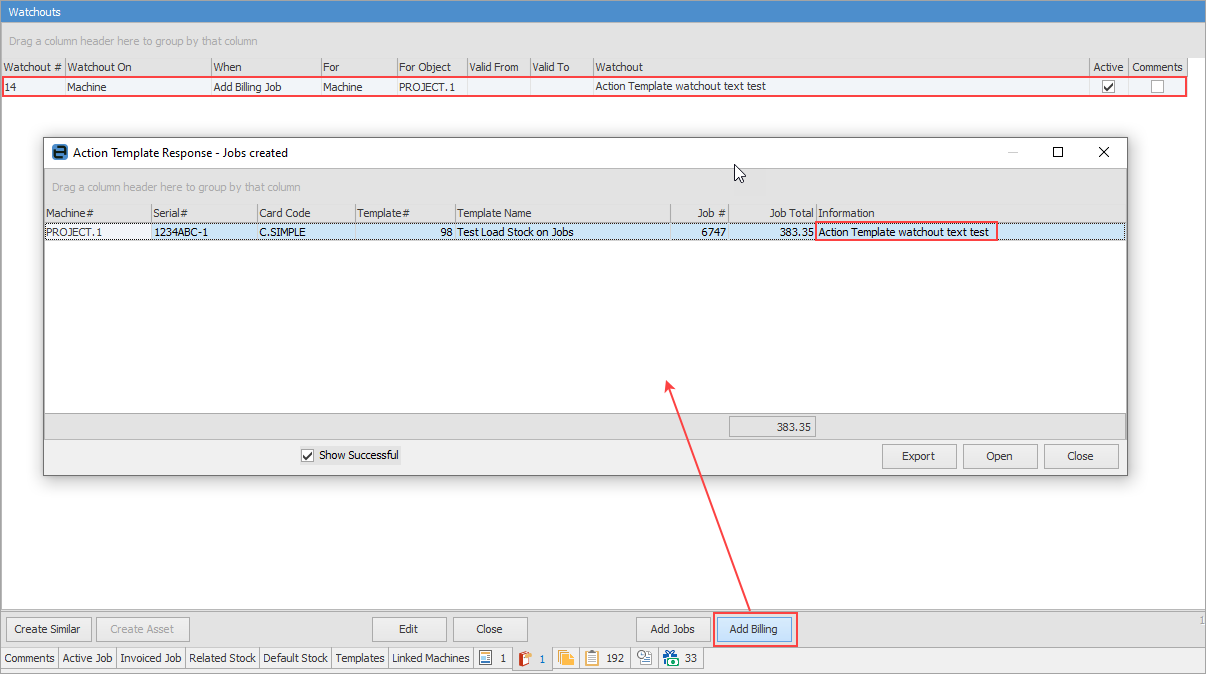
When billing Projects, the job creation window will pop up, where you can also see any watchout text that has been added to it.
 |
Further information