
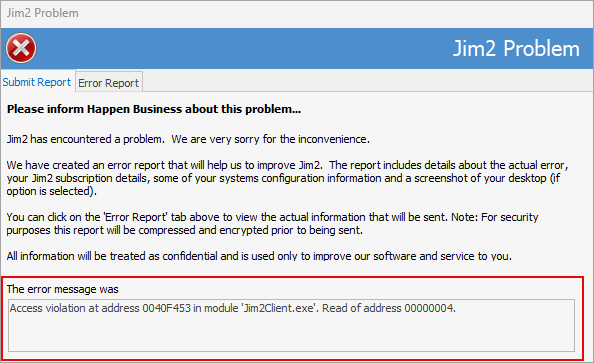
Access violation errors usually signify a bug, ie. when the application attempts to access a part of the memory it is not allowed to access, or there is some form of legacy from a previous logoff of Jim2. Whenever an access violation is received, quit Jim2 then log back on. If that does not resolve the issue, please contact support@happen.biz
|

This can happen if a previous session leaves temporary data behind, which the print process then tries to reuse.
Quick steps to try: 1.Close Jim2 completely. 2.Reopen Jim2 and try printing again.
In most cases this clears the connection and resolves the error.
If the issue persists, restart the Jim2 Server service on your application server. This will refresh all active connections, however users will be booted out and will need to log back in. |
This error indicates that something is missing in a field or column when you are trying to save the object. When this error pops up, be sure to read the entire message, as it usually names the table/column with the issue. It can often be fixed by deleting the offending row//column and re-entering it, or logging out of Jim2 and back in to try again. You may also need to stop/start the Jim2 Server.
If all else fails, please contact support@happen.biz for further assistance. |
This error relates to the database or server possibly being offline, or due to communication loss between Jim2 and the server. When this occurs, log out of Jim2, then log back in. If that fails, reboot your computer and try again. |
[FireDAC] error: cannot insert the value NULL into the column ‘SlineNum’ (this one is usually to do with serial number). Clear the line of stock, add it again and re select the serial number. |
This issue occurs when a report is generated or previewed with an error: ▪The report template has been edited in Report Designer and introduced a syntax error. ▪The script references a field or object that doesn't exist on that report, or was renamed/removed ▪A report template got corrupted or partially copied from another template with mismatched object names.
If the report has been edited, the best approach is to either copy from a system report and create again, or edit the faulty report to locate the issue.
If this does not assist, please contact support@happen.biz for further assistance. |
This error occurs when another process is attempting to obtain locks on the same resources. If you receive a deadlock error, please email support@happen.biz for assistance. |
If the error message is Cannot insert duplicate key in object, it is related to a particular object. For example, if it relates to a stock transfer, create a new stock transfer but do not save it. Then create another stock transfer and save this one. Go back and cancel the stock transfer that was not saved and this should fix the duplicate key issue.
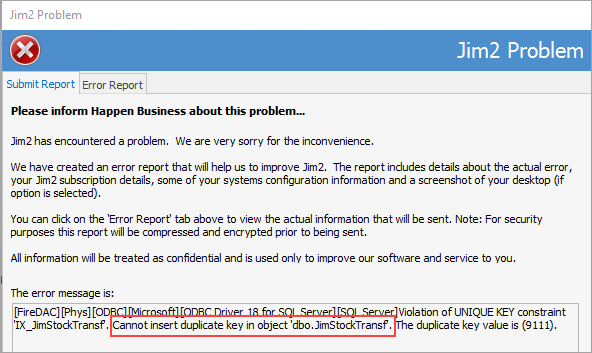
For all other duplicate key issues, the best approach is to restart the Jim2 Server Service via the Jim2 Configuration Manager.
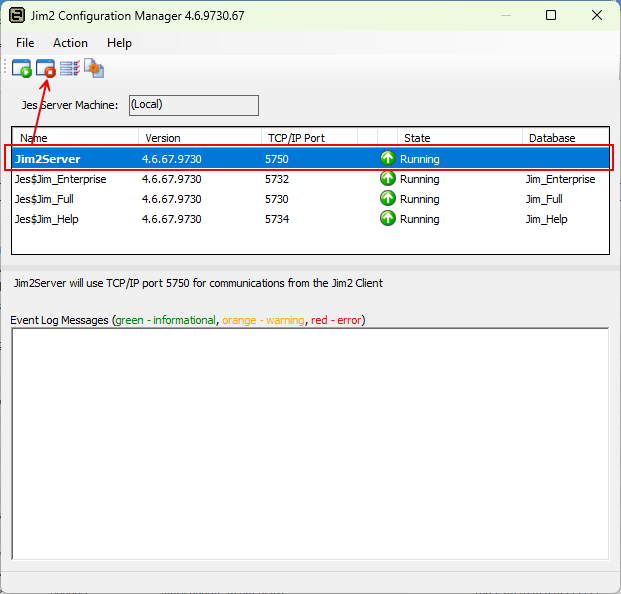
Otherwise, restart SQL Server (via Microsoft SQL Server Management Studio) to see if will resolve the issue. |
Identify which stock code is causing the issue as, in some cases, simply re-selecting the attribute resolves it. If not, create similar and cancel the original job. |
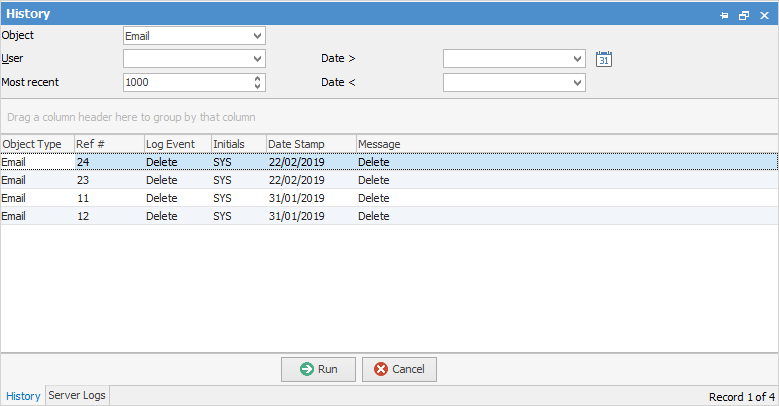
The Jim2 Client logs failed attempts in the Jim2 log (History in the ribbon) when sending emails.
 |
If this error message is received, it indicates that Branches may have been turned on at some point, then turned off. To fix this issue, go to Tools > Options > General > Branches and turn branches on. Once the task is finished, return to this option and turn Branches back off if required. |
There can be a few causes for this message to appear: 1.This message indicates all user licences are in use, in which case, you will need to wait for someone to log out. 2.It can also mean that Jim2 froze and you had to end it via the Windows Task Manager if on premises, or via a reset by Happen Business for Jim2Cloud customers. In this case, if you log back on too quickly, your own lock may not have cleared yet, so you will need to wait 10 minutes before logging back on. 3.The system is locked by sys. This can occur after a Jim2 crash. If this is the case, wait 10 minutes, then log back in again. |
This could indicate that another object is locked by a user (ie. when trying to enter a general journal and there is an open bank reconciliation). If this is the case, the other object needs to be closed first.
If this is not the case, log out of Jim2 and log back in. Should this not resolve the issue, wait 15-20 minutes for the lock to clear, otherwise Jim2 Server will need to be stopped and started to clear the lock. |
Jim2 will lock the GL while other users are dealing with transactions. Any GL changes should be conducted when no-one else is logged in (out of hours), and you have no objects in edit mode. |
When creating a new object (ie. job, quote, etc.), if the number doesn't click over from the last number, the Jim2 Server Service will need to be restarted. You will require everyone to log off Jim2 (this is usually a 2 minute process), stop and start the Jim2 Server.
|
Delete the bootstrap file: Bootstrap folder location - C:\Users\%USERNAME%\AppData\Local\Happen Business\LocalJim2\
Should be found in folder 9428. |
This error suggests there is an entry on the object that is too long. Locate the entry and remove or shorten it. |
These errors suggest there is a network disconnect. When these occur, check that settings are set to not put the computer to sleep. |
This issues arises when the stock in the transaction you are working on is locked by another user, ie. they have the stock open in edit mode, or a job involving that stock. Once the stock is saved, this screen will not appear. If the lock is on a purchase order because a job is locked, the job will need to be saved before the purchase order can be saved. |
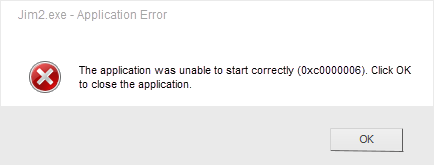
This error is usually caused by a networking issue between a user's workstation and the server.
Here are a couple of things to try: ▪Log off the workstation, logon and try again ▪Check running processes (via Task Manager on the Details tab) and ensure there is no Jim2.exe process already running. If there is, stop the process and try again.
If neither of these work, contact support@happen.biz for assistance. |
Whilst you can continue to work within Jim2, restarting JES will usually clear this error. |
Further Information
Jim2 Server Scheduled Backup Fails