The preview pane is a quick way to see transaction insights for a customer.
 |
Note: The security level for the preview pane defaults to 5.
See here for setting security on which users can see preview panes. |
When in a quote, the preview pane will display on the right hand side of the screen.
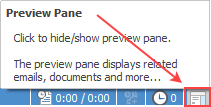
Select the Preview Pane icon on the bottom right of the status bar to show/hide the Preview pane:
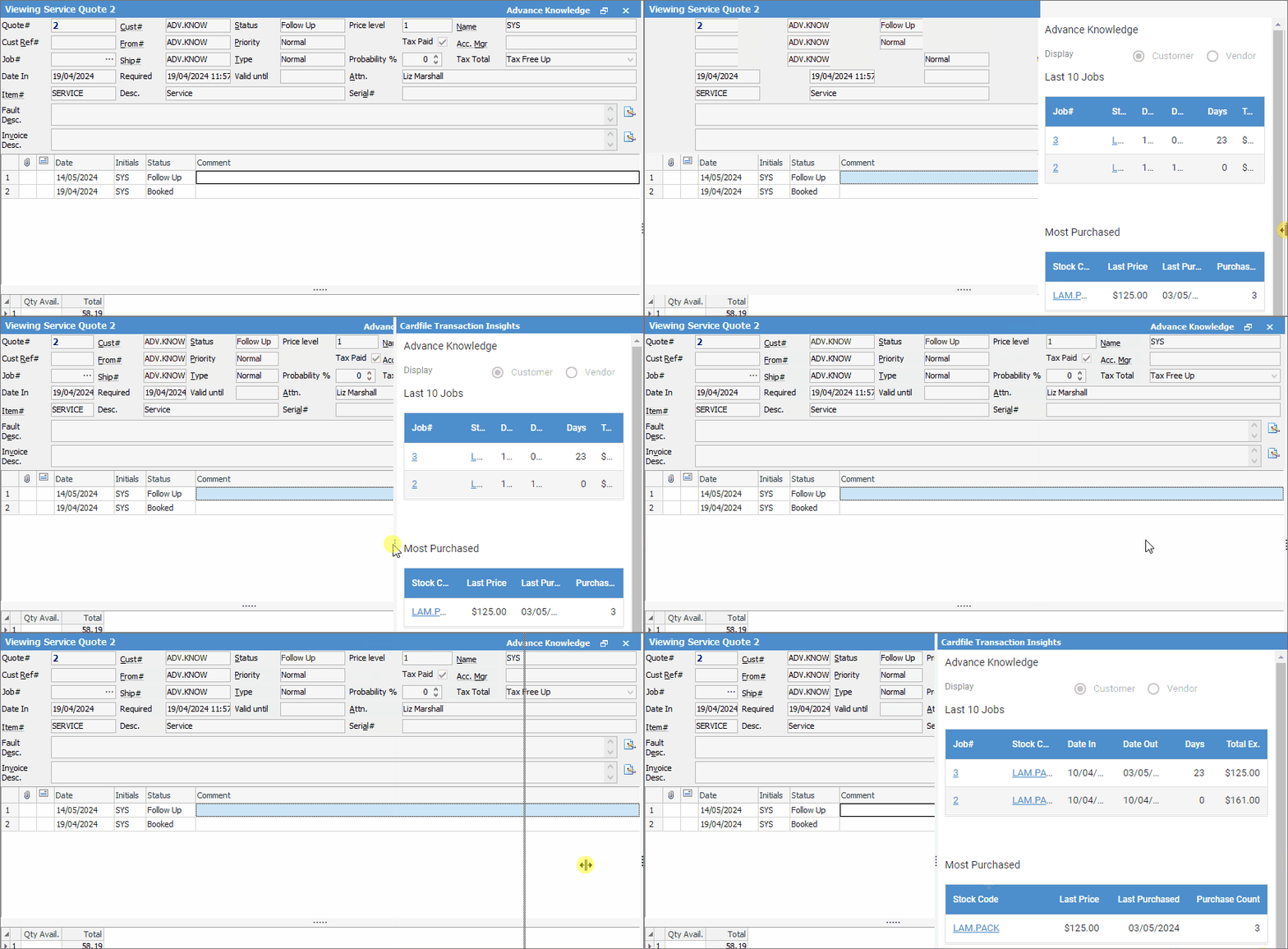
If the Preview Pane does not appear, click on the 3 vertical dots at far right and drag to the left, or double click for it to appear:
|
Note: If the preview pane does not populate, it will need to be refreshed. This can be done in a number of ways: ▪Double click on the blue bar at the top. 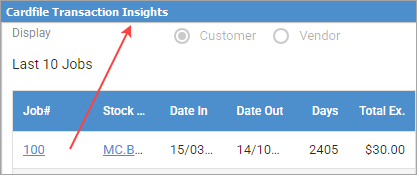 ▪Open another object with preview then go back to the original object. |

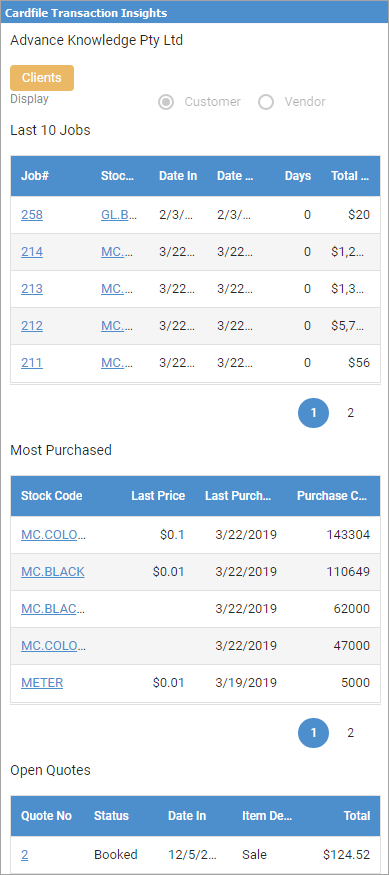
There may be two tabs on the bottom of this preview pane. The above image is the Cardfile Transactions tab, and there will also be an Email tab if there are any emails attached to the job. The email will show in this preview pane.
This area displays the following for the customer:
Area |
Explanation |
|---|---|
Display |
This area will show all groups the customer belongs to. |
Last 10 Jobs |
This area displays the last 10 jobs and their total ex GST |
Most Purchased |
Lists the stock most purchased, along with quantities. |
Open Quotes |
Displays all open quotes for this customer, along with status, date in, Item description and total amount. |
Further information