The Cost tab depends on the selling price calculation as to what cost it picks up. For example, using List – Percent it will pick up either the vendor estimated cost or last cost, depending on the most recent date. If using floor cost markup %, a percentage loading is added to the actual cost of stock in order to increase the visible last cost. This compensates for handling costs, etc. in order to reflect the real cost of this stock
So, if the selling price calculation is Last Cost or List, it will pick up either Last Cost or Estimated Cost (most recent). If the selling price is Avg Cost plus it will pick up Avg COGS etc.
 |
Note: If Multi-Company is in use, costs are calculated from the cost of stock across all companies. |
If the Vendor tab on the stock record is being regularly updated, it will use that cost – it may be worthwhile investigating eBusiness Connect to automate this process. Contact support@happen.biz for more information.

Jim2 matches the price level (see Pricing tab in stock) with the current customer. If Jim2 finds a price level match, it will look at the Price Calc Method: ▪If Price Calc Method is Avg COGS + Markup or Avg COGS + Margin, Jim2 will get the Average COG Value. ▪If Price Calc Method is Max COGS + Markup or Max COGS + Margin, Jim2 will get the Max COG Value ▪If Price Calc Method is Est. Cost + Markup or Est. Cost + Margin, Jim2 will get the Vendor Estimated Cost (from the Vendors tab on the stock record).
All other values for Price Calc Method mean that Jim2 will get the Last COG Value.
|

On the Cost tab, there are extra fields added to the job tab's expanded view. These extra fields relate to the cost price of goods and/or services. In the footer area the Tax $ and Total $ amounts are replaced with fields which show the total cost price and profit related to the job.

The Cost tab's fields are explained below. See Purchase Details further below for information on the Vendor and Manual Cost fields.
Parts Grid |
Description |
||||
|---|---|---|---|---|---|
Date |
This is the date the stock is entered on the job. |
||||
Initials |
Initials of the person adding the job/stock. |
||||
Status |
Choose a status at line level here. A message will appear asking if the job status is to be changed as well. Choosing No will leave the job status as is.
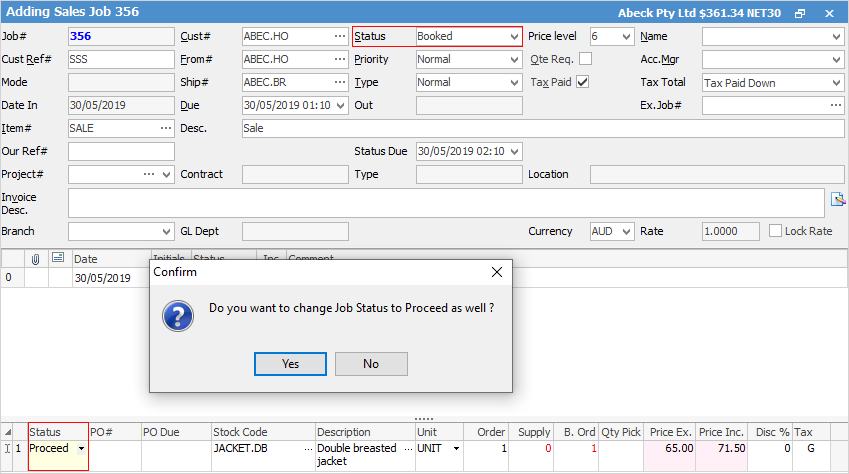
The statuses chosen from here are based on what is set up in Status. |
||||
PO# |
Linked purchase order number for this stock line.
Note: This purchase order number cannot be added or changed. It will automatically populate on auto create PO. |
||||
PO Due |
This displays the due date of the linked purchase order at line level, or purchase order header due date, if not set at line level on the purchase order. |
||||
Stock Code |
Enter a stock code here, or select the ellipsis [...] which will bring up the Stock Select screen for searching. |
||||
Description |
The description will default here from the stock code. This information can be amended or added to. |
||||
Unit |
The unit measure. A default unit measure will appear here. Choose from the drop down |
||||
Order |
Enter the quantity required for the job. |
||||
Supply |
Enter the quantity to be supplied. |
||||
B.Ord |
If the quantity supplied is more than is available, this field will autofill with the back order quantity. |
||||
Qty Pick |
Only appears for Advanced Warehouse Management. |
||||
Price Ex. |
Price excluding GST. |
||||
Price Inc. |
Price including GST. |
||||
Disc% |
Enter a discount as a percentage here. |
||||
Tax |
Select the correct tax code (normally G). |
||||
Total |
Total price for this line. |
||||
Est. Cost |
The estimated cost for all of the goods and/or services used, excluding tax. This will change as the job progresses from an open status to being invoiced.
When you invoice the job, the costs change to actual cost from a purchase order. However, if you sell in advance, there is no stock on hand so no purchase order to obtain the costs from. When you purchase stock or do a stock adjustment, Jim2 will backfill the stock sold in advance and add the costs to the invoiced job. |
||||
Cost Total $ |
The total cost for all of the goods and/or services used, excluding tax. |
||||
Markup % or |
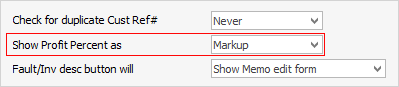
The difference between the cost price of a stock or service and its selling price, displayed as a percentage. Choice as set up in Tools >Options > Jobs.
|
||||
Total |
The total cost of all units of stock or service, excluding tax. |
||||
The following fields display amounts in the home currency. The Comm fields will only appear if Commission Sessions are enabled in Options. |
|||||
Vendor |
The vendor the cost price was sourced from, and who a purchase will be created for when using auto create purchase order. |
||||
Manual Cost |
The cost price that is used in job profit calculations. This will be used when using Auto Create purchase order. |
||||
Estimated Cost |
The estimated cost price of each line of stock or service, excluding tax. |
||||
Cost Total |
The total cost price of each line of stock or service, excluding tax. |
||||
Comm Floor |
Used when calculating commission based on profit. If a commission floor cost is entered, profit calculations will use this value rather than the actual cost. For example: cost $1,000, actual cost $945, profit is based on $1,000 floor cost. |
||||
Comm % |
Percentage of commission to be paid, depending on commission method: price inc, price ex, or profit. |
||||
Comm Extra |
A flat dollar amount paid per stock sold. For example, $100 for every XYZ sold. |
||||
Note: Commission components can be combined. For example 10% commission of profit based on floor cost plus an extra $10. |
|||||
 to use a different unit measure. This is based on what unit measures are set up on the stock code.
|
In Jim2, cost prices are always displayed to four decimal places. |
Purchase details are manually or automatically added to a quote (from the stock code Vendors tab), or updated via a promotion.

The purchase details are used when creating a purchase order using the auto create purchase order function, and allow for pre-setting both the preferred vendor and cost (buy price). The cost value is also used for calculating the job profit figures. When a job is invoiced, the actual cost values are used.
The purchase details show the source of the details (promotion, manually entered, etc.) and the source reference. The cost price is colour coded to indicate the source, and hovering over the coloured cell will display the details.
Purchase details can flow through the entire sale process as follows: ▪added to a quote when quoting the customer and sourcing buy details from the vendor ▪added to a job once the quote is accepted by the customer clicking Create Job (in the footer) ▪added to the purchase order from the job via auto create purchase order (right click in the grid). |
Commission details are added manually or automatically to a job, or updated via a promotion.

The values that make up commission details are (all in home currency only):
The commission details allow for pre-setting the commission values to use in a Commission Session, and are optional.
These show the source of the details (promotion, manually entered, etc.) and the source reference. The commission details are colour coded to indicate the source, and hovering over the cell will display the details.
Commission details can flow through the entire sale process as follows: ▪Added to a quote when quoting the customer. ▪Added to a job once the quote is accepted by the customer clicking Create Job (bottom left of screen). ▪Used in Commission Sessions when the job is invoiced. |
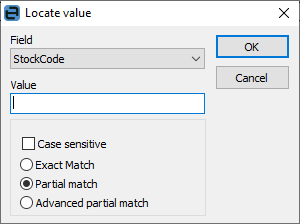
Within the stock grid, you can all columns and rows by selecting Ctrl+S. This will bring up the Locate value screen, where the field to search can be entered, along with entering text in the Value field.
Further information