When invoicing a job or list of jobs, and the customer has a credit balance, a credit, part credit or multiple credits can be applied to this invoice at the point of actually creating the invoice.
|
Note: If the invoice amount is less than the credit, you can apply the invoice amount only from the credit, and the remainder will stay on the debtor for future use.
However, you can't apply, for example $50 of a $100 credit to a $200 order |

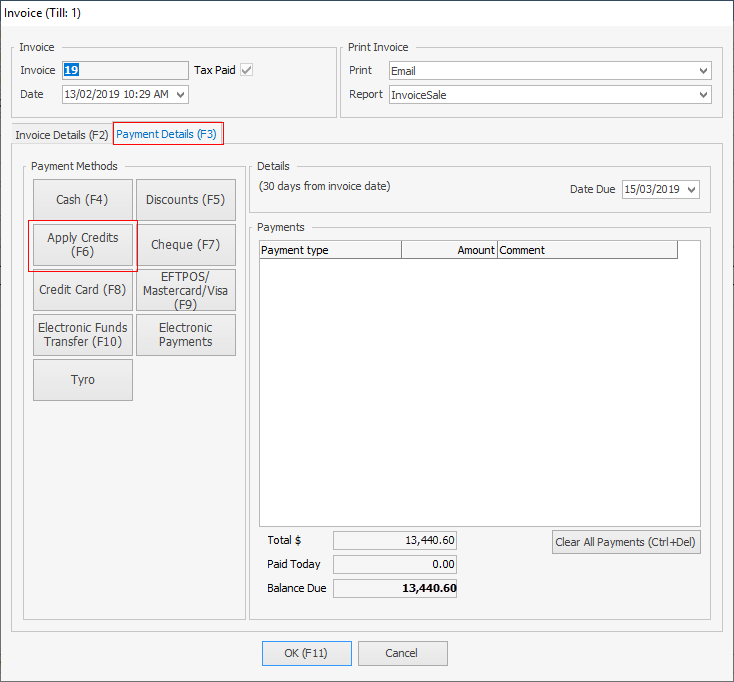
When the Invoice screen appears, go to Payment Details tab and select Apply Credits or use F6.
 |
Note: If Apply Credits is greyed out there are two reasons for this: 1.Via Tools > Security > Jobs Allow to apply credits during invoicing must be ticked. 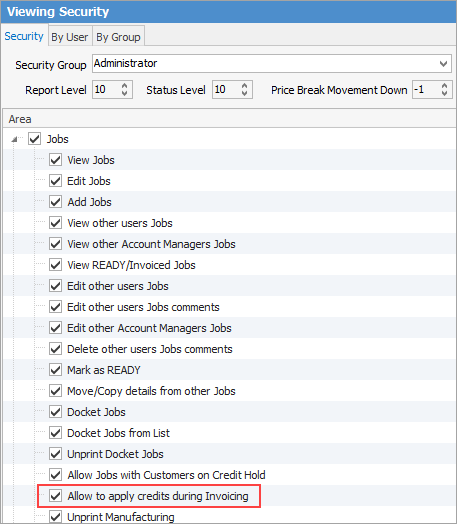 2.There is no credit on the debtor's account to be able to apply it. |
The Select Credit/Prepayments screen will be displayed.
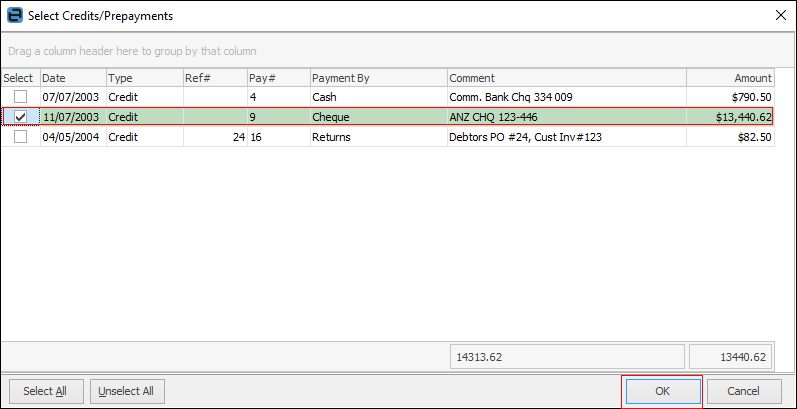
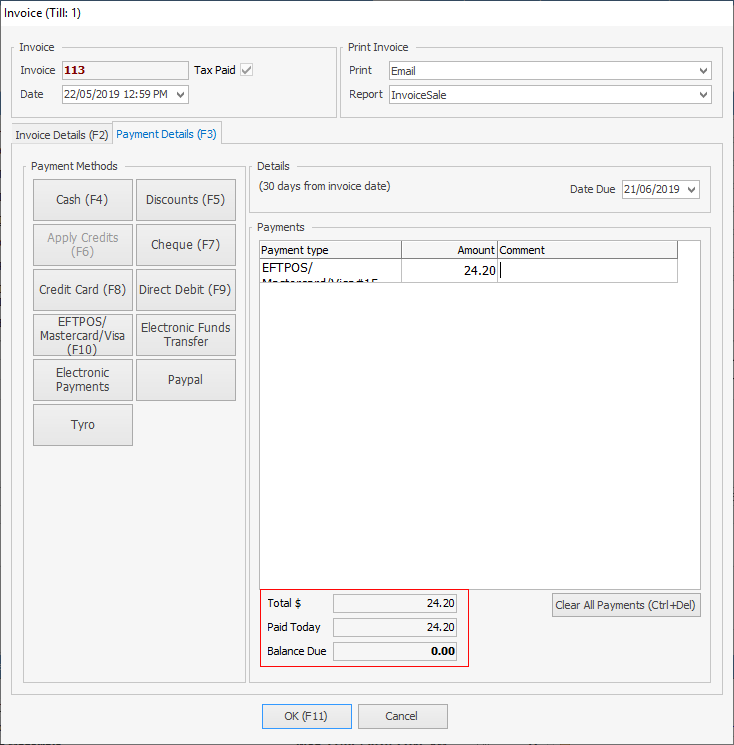
Tick the credit to be applied, then select OK. This will apply that credit (or part of that credit) to this invoice. The Paid Today field in the Invoice screen will show the total applied, and the balance due will reduce.
|
The word Print will change colour to indicate that the option chosen here differs from what the default is set to on the customer cardfile.
 |
Further Information
Invoice COD Customer Without Taking Payment
Raise a Tax Invoice for Progress Claims
Receive Payments when Invoicing