|
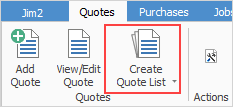
Note: If the Create Quote List icon is greyed out there are two reasons for this: 1.Jim2 only allows 25 lists per object. If there are already 25 lists in the Nav Tree, a list will need to be closed to allow creation of a new list. 2.The user's security does not allow them to create the list. |

1.Select the Create List icon in either one of these ways:
▪On the ribbon, go to Quotes > Create Quote List.
▪In the Nav Tree, right click Quotes and click Create Quote List.
 |
Some letters in the field names within the header are underlined, eg. Cust#. Using Alt+ the underlined letter will jump to the field beside that heading. |
2.The quote list screen is displayed. Use any of the fields in List or Advanced List tabs as search criteria.
3.Once search criteria has been entered, click Run and the query will be executed. The resulting quote list will appear.
|
When using the quote list, Jim2 provides the unique function of being able to enter data into the fields to either search for or exclude that data. For example, search using a customer's name or, alternatively, exclude that customer and search for all others. Choose to exclude certain data within a field by double clicking on the field which will show that field in a green colour. In effect, search by everything except that.
As an example, search for a product that has been used in a quote for a particular customer or prospect.
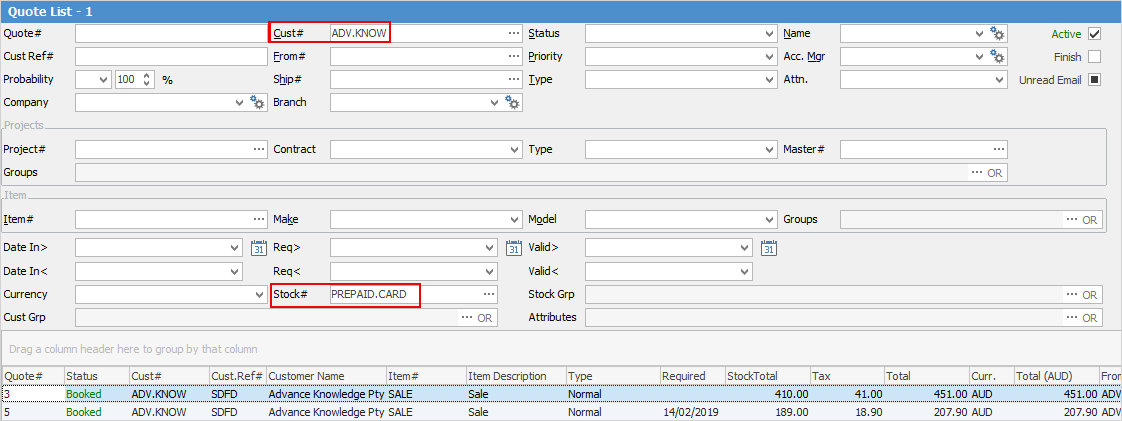 1.Create a quote list. 2.Enter the customer in the Cust# field. 3.Go to the Advanced tab at the bottom of the screen. 4.Enter the stock code into the Stock# field. This will bring up a list of all quotes for that particular customer and stock. Attributes can also be selected as a filter. |
4.Name the quote lists so that they represent what is being searched for, ie. Current – this helps the user looking for current quotes if they have multiple lists running at the same time.
Further information
Create Quote from Previous or Similar Quote
Create a Template for Recurring Quotes