The final step in the process is to confirm the count and finish the stocktake session.
When entering the counts, stock lines are confirmed automatically (ticked and green highlighted) when the quantity counted matches the quantity on hand.
To finish the stocktake session, every unconfirmed line must now be confirmed. This means, in Edit mode:
▪Agree that counted quantities which are more or less than the on hand figures are correct, then tick Confirmed.
▪Also agree that any line that has nothing entered is 0, so enter 0 via the Add Count process, then tick Confirmed.
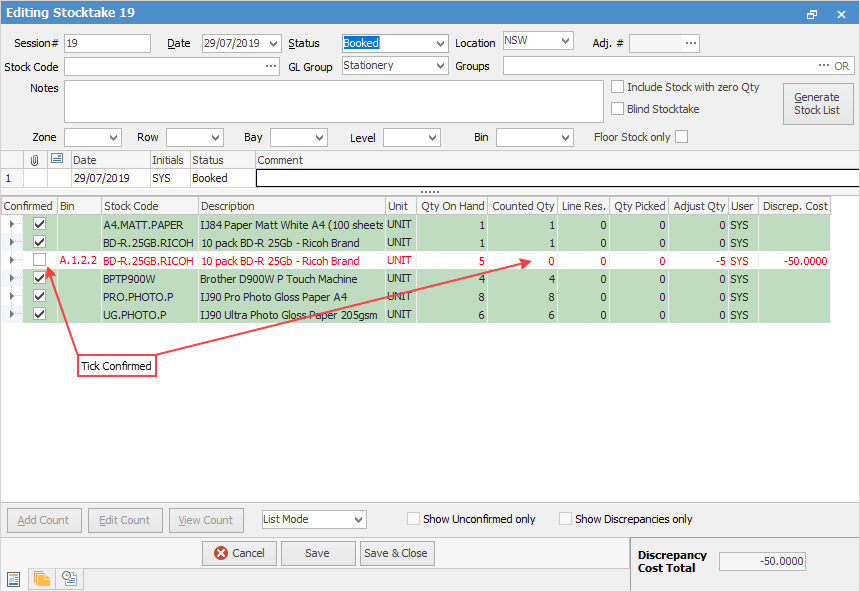
Change the status to Finish, then Save.
If there were discrepancies in any of the lines, a screen will appear asking for confirmation.
It will then create the necessary Stock Adjustment, which can be viewed and completed by going to Stock > Stock Adjustments on the ribbon to bring up the Stock Adjustment list and choosing the appropriate Adjustment #.
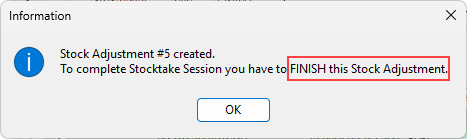
Any unticked lines in the stocktake session will create a new stocktake rather than add them to the stock adjustment.
|
The Stock Adjustment must be finished in order to record the changes to stock levels, and stock valuation. |

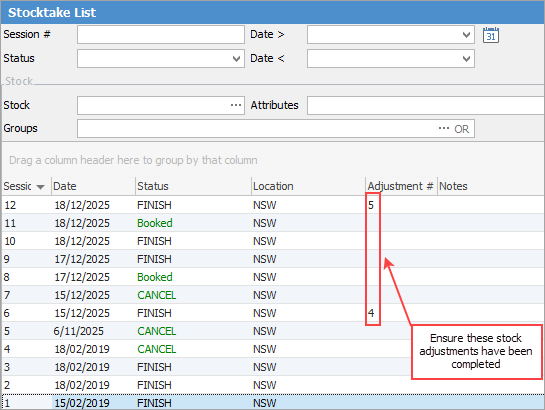
Run a Stocktake list if unsure of which particular stock adjustment to finish.
The stock adjustment number is displayed to the right of each Stocktake Session.
|
In order to free up confirmed stock for immediate use, ignore any stock that is unconfirmed and resolve it at a later time. Do this by creating a Back Order Stocktake Session, which happens automatically if finishing a session which still has some stock with unconfirmed counts.
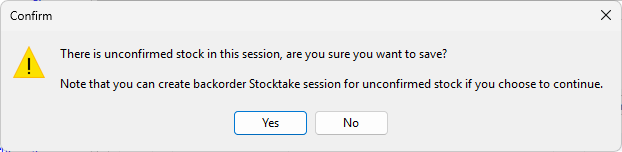
This will finish the current session with only the confirmed stock in the session, and create a new stocktake session showing only the stock that was not confirmed in the original session.
Clicking Yes will present a second warning. Saying Yes to this means all unresolved stock lines will appear on a new stocktake session, which should then be processed in the normal way. If No is clicked, the session will be finished and no back order stocktake session will be created. |


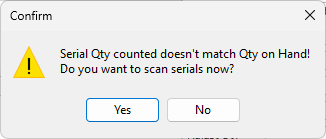
If you don't have Strict Serial scan ticked in Stock Options, when trying to manually confirm a stock count and a screen like the one above pops up, it usually means that the count for that stock code has been entered into the first tab (Stock) and not into the second tab (Serialised, Special, Adjustment).
This situation needs to be rectified before continuing, which can be performed in one of two ways: 1.If there is only a small quantity of stock in this stocktake session, click Generate Stock List, which will delete all counts previously entered, then re-enter the counts making sure that this is performed using the second tab where applicable). 2.If it is not practical to use the method above, manually delete the count for each stock code that is providing the error message and enter the stock count again, this time ensuring the second tab is chosen.
See Deleting & Re-entering Counts for details. |
Further information
Stocktake Preparation and Rules