You will need to generate a new licence key for the monitor so it stops reporting.
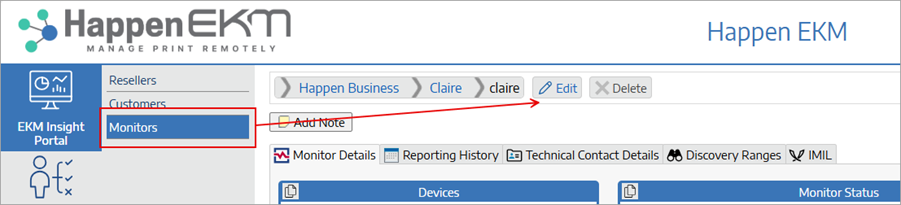
To do this, go to the monitor, and select Edit.
You can also click the pencil icon here to access the same window:
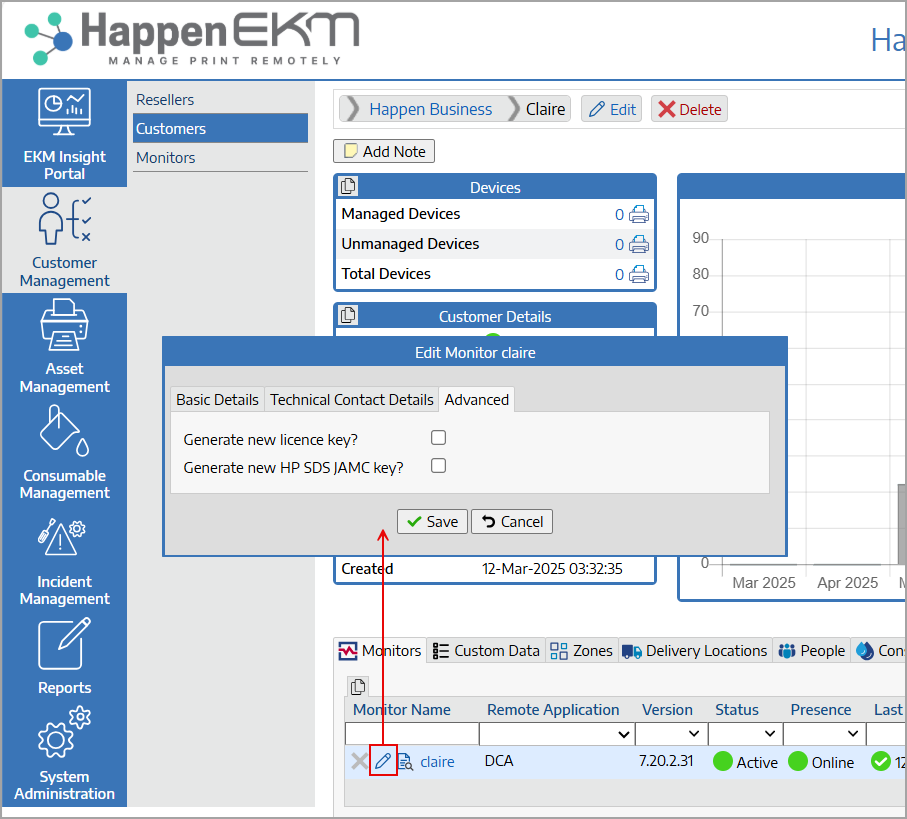
In the window that pops up, go to the Advanced tab, then tick Generate new licence key and Save.
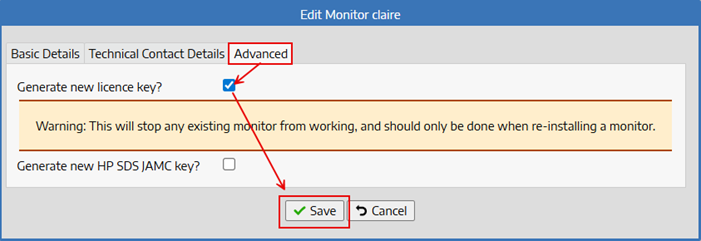
This will restart the monitor with the new licence, and disconnect any current connection (this may take a few minutes).
Once the monitor is offline, you can go to the customer file where the monitor should display the option to delete using the X.
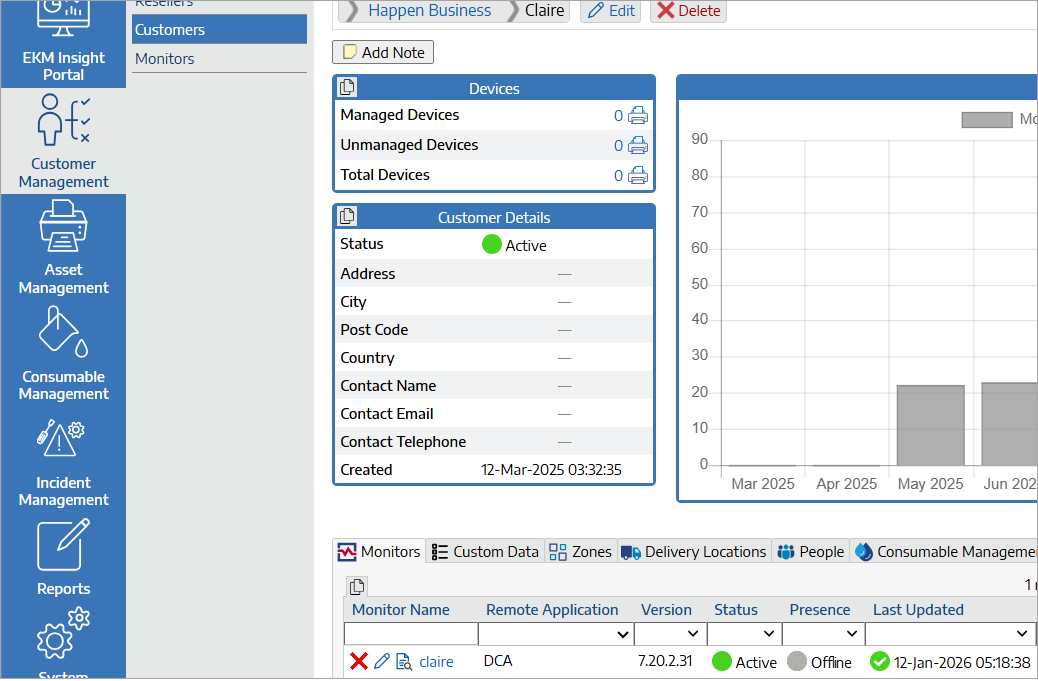
Tick the option to permanently delete and click Delete.
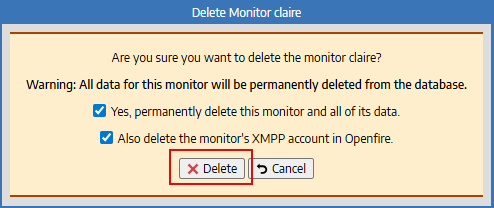
This will completely delete the DCA.
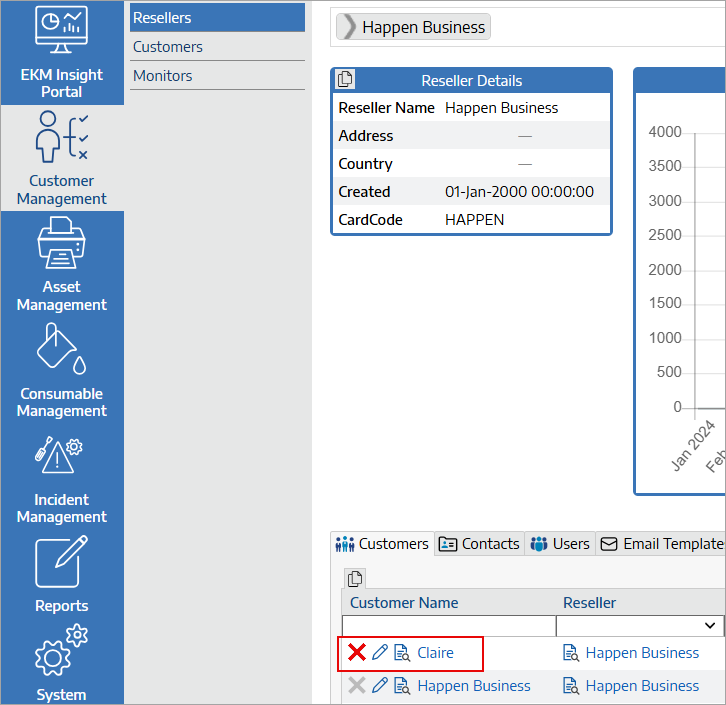
Once the monitor has been deleted, if there are no monitors remaining you can also delete the customer if required.
To do this, go back to the reseller section which lists your customers, and the customer you want to remove will also display the X to delete.
Further information
Happen EKM and Jim2 Integration
Happen EKM Deploy Remote Install Template
Happen EKM Configure Consumables Management
Happen EKM Automated Toner Job Creation
Happen EKM Incident Management