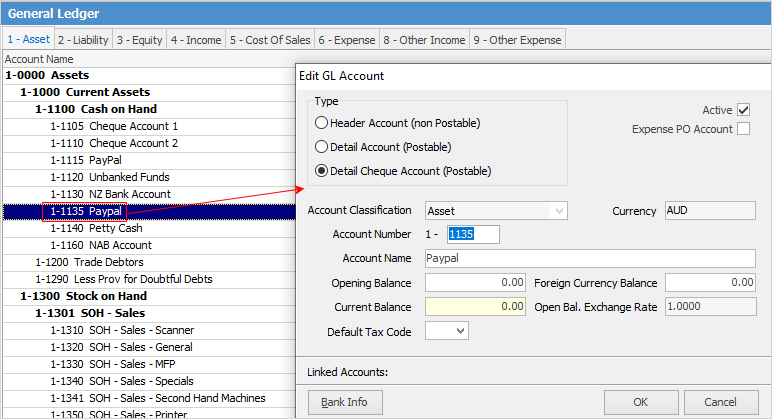
1.Add a new general ledger Asset account called Paypal and select Type Detail Cheque Account Postable.
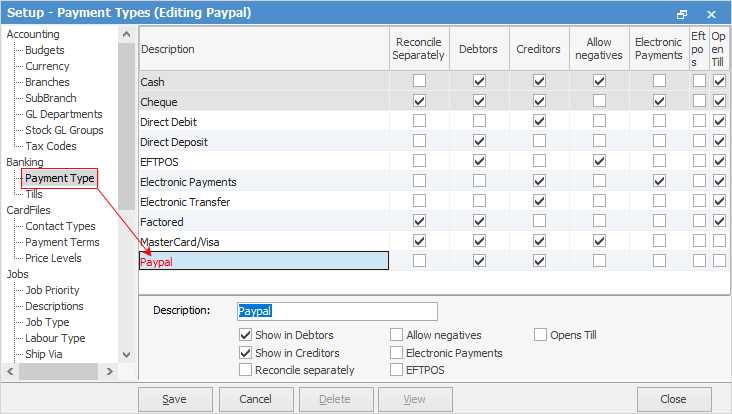
2.On the ribbon, go to Tools > Setups > Payment Types and add Paypal. Tick Show in Debtors and Show in Creditors.
3.Set up a Paypal vendor cardfile.
Then:
1.Receive the full amount, including the Paypal fee, against the debtor into the Paypal account.
2.If required, transfer the amount from the Paypal account to another bank account.
Other types this refers to are epay, bartercard, integrapay, etc.
Further information
Charge a Customer an Account Fee
Clear the Historical Balancing Account
Enter ATO Reportable Sub-Contractor Payments
Enter Capital into the Business
Enter Government Support Payments
Enter Prepaid Expenses and Amortising Costs
Remove Duplicate Payments in Closed Period
Share Utility Expenses with other Businesses
Suggested End Of Month Procedures
Understanding Debits and Credits