Please contact support@happen.biz to obtain the free Machine List Bulk Updater menu script, which can be used to apply a price increase across customers.

1.Save the script to a known location. on your pc. 2.In Jim2, go to Tools > Scripting Engine.  3.Click Import and select the script saved above. Confirm that you want to update, if prompted.  Close the Scripting Engine window. 4.Go to Tools > Menu Scripts. 5.Ensure the menu script imported is ticked, and click Save. 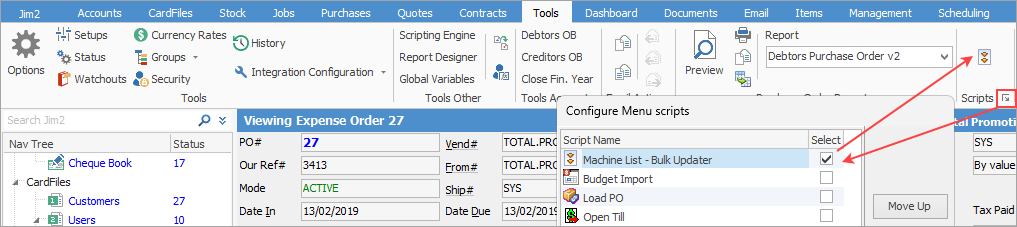 A new icon will appear in the Scripts section of the Ribbon menu. |
1.Create a filtered list of the all contracts that are due for a price increase, using any of the options in the header of the list, ie. price revision date, etc. 2.Select the bulk updater script in the ribbon. 3.Select your meter type and specify the meter stock codes you want the percentage increase to be calculated from. 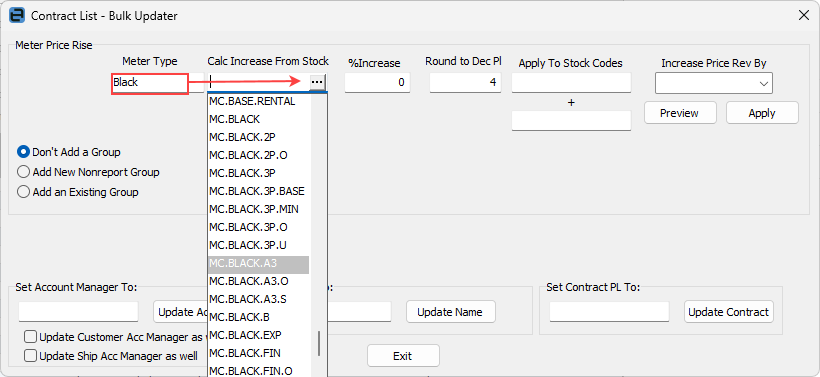 If you have multiple meter lines of the same meter type that require an increase (eg. black service and black finance), you can include both stock codes. 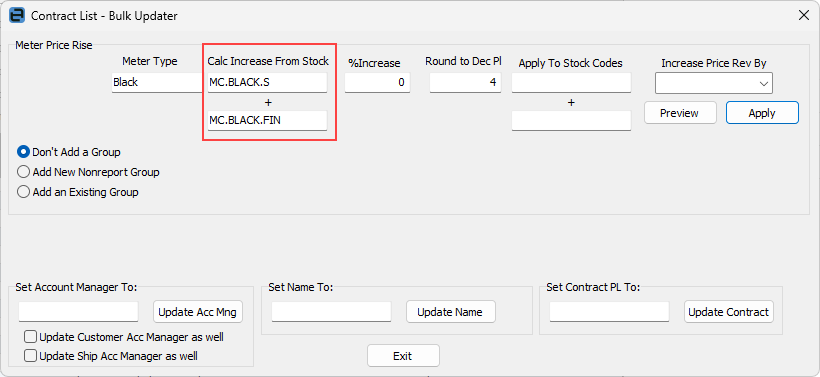 If you need to increase both standard and overs meters, add both relevant stock codes. 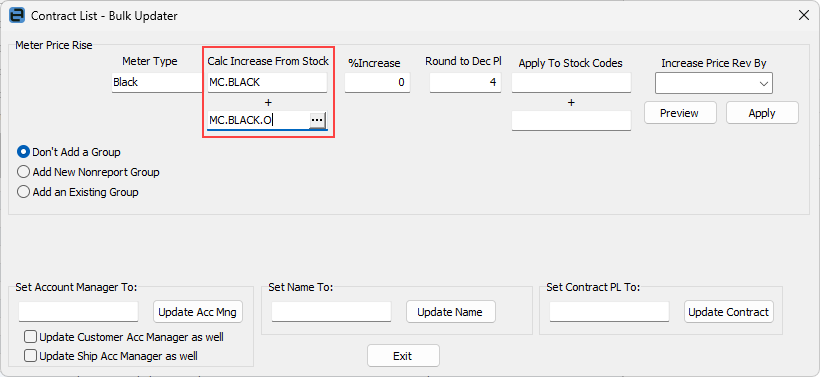 4.Enter the percentage increase you want to apply based on the current cost  5.Select the stock codes to apply the increase to. •As above, you can include multiple stock codes for the same meter type (eg. black service + black finance). •If increasing both standard and overs meters, include both stock codes.
After completing these fields, you can preview the changes by selecting Preview.
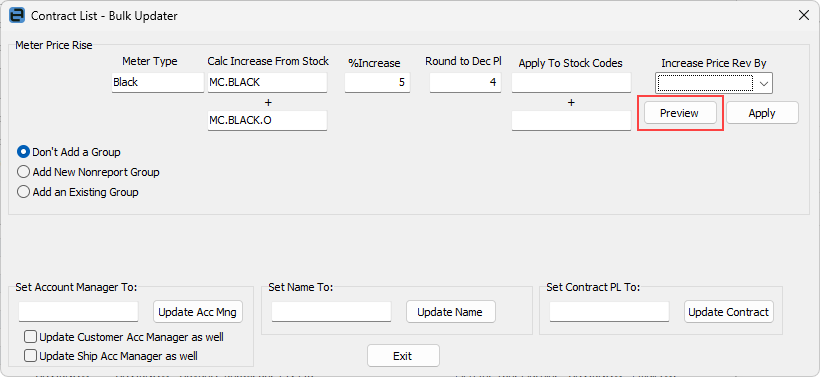
This will generate a spreadsheet listing the affected contracts, their current rates, and the new calculated rates. You can save this spreadsheet for your records.
When you are ready to proceed, select Apply to update the rates.
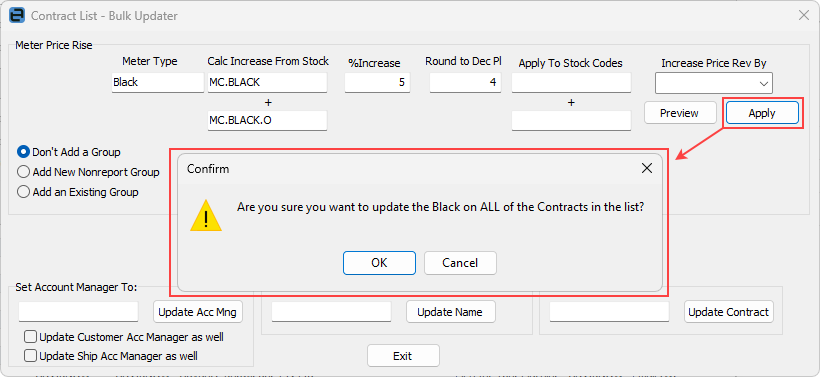
This process can be repeated for any other meter types you wish to increase.
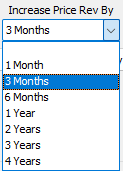
If you also need to update the price revision date on the contract, you can choose to increase this date by a specified time period.
|

Further information
Price Increases via Export/Import