This area explains how to find the most recent cardfile additions/edits.
There are a number of ways to view cardfile history.
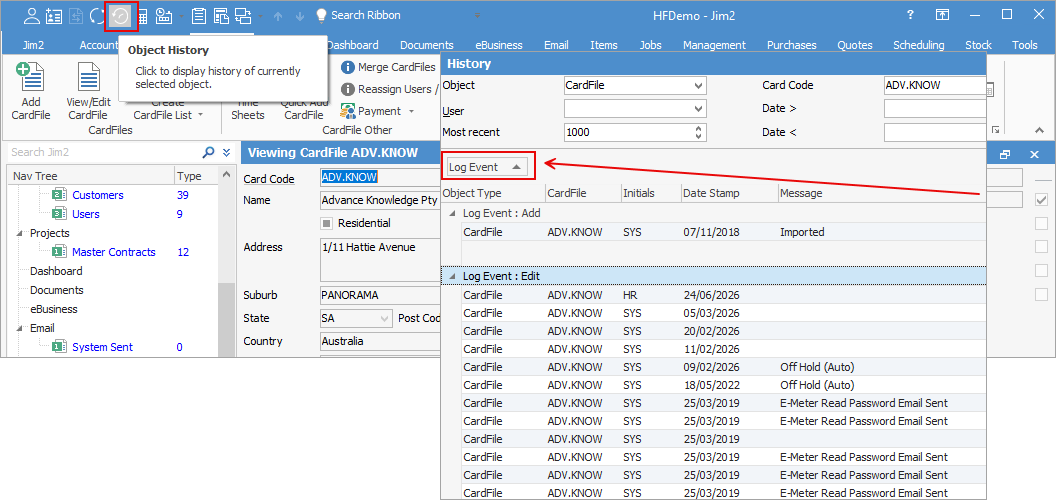
1.Whilst you have a cardfile open, you can click on the History icon in the quick access toolbar to view the history of that cardfile. You can also drag the Log Event column heading up above the headings so you can group event types:
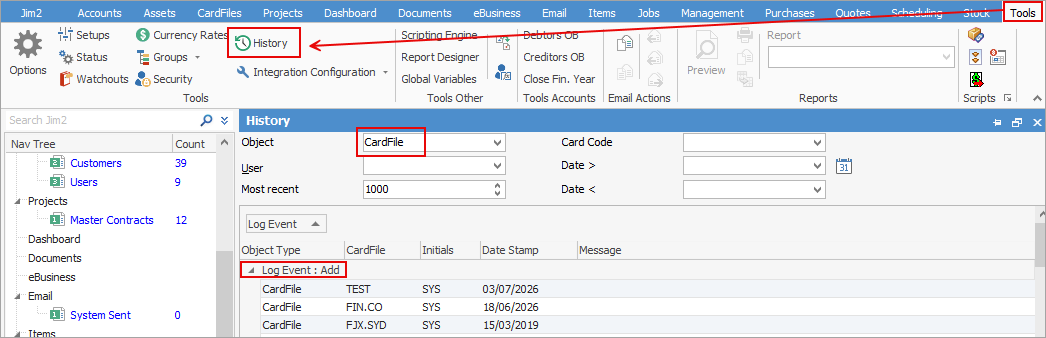
2.If you wish to see newly added cardfiles, you can go to Tools > History and select CardFile in the Object field, leaving the rest as is. Drag the Log Event up as per above, then expand Add to see recently added cardfiles.
3.Via Management > Reports in the ribbon, go to the System folder and select the 'Recently Updated Objects' and select CardFiles in the pop up window. In the Update Type field, you can select Added (the other option is Modified), and enter dates, if required.
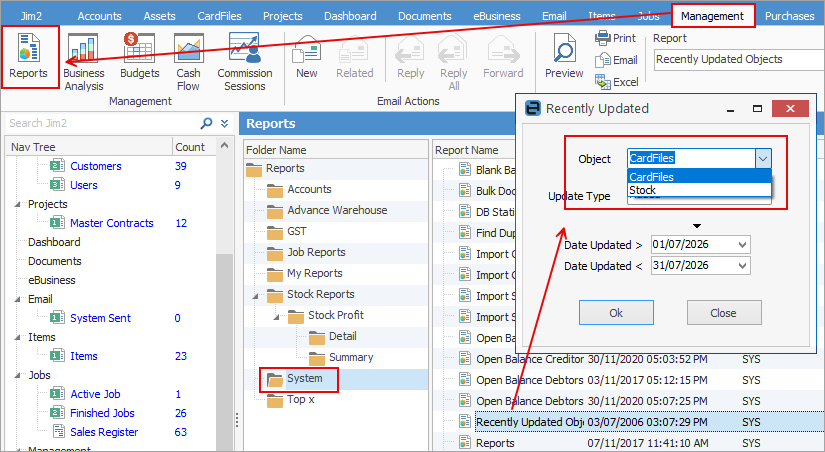
This can be saved to Excel showing the cardfiles and when they were added. Selecting Modified in the Update Type field will show all cardfiles modified within the date range you have chosen.
Further information
Bulk Update CardFiles with BPAY Ref
Export a CardFile Report to Spreadsheet