|
Note: If the Create Cardfile List icon is greyed out there are two reasons for this: 1.Jim2 only allows 25 lists per object. If there are already 25 lists in the Nav Tree, a list will need to be closed to allow creation of a new list. 2.The user's security does not allow them to create the list. |
This basic CardFile List can be used to confirm there are no duplicates, and that there is a cardfile to use for jobs, quotes and purchases.
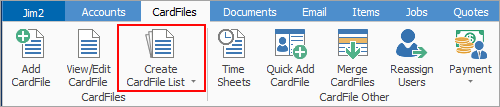
1.On the ribbon, go to CardFiles > Create CardFile list on the ribbon.
 |
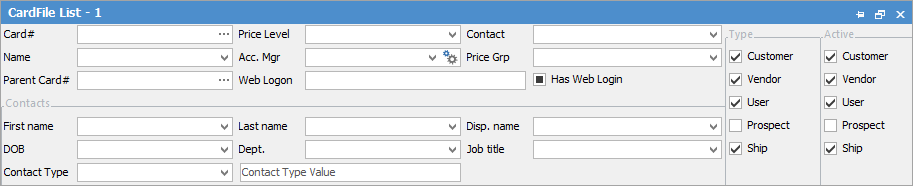
When creating a cardfile list, Prospect will not be ticked. This is by design, as there may be many Prospect cardfiles, which may slow loading of the list. |
2.Enter search criteria in the relevant fields. A simple example is to start entering Daycom into the Name field, which will automatically add the rest of the name.
3.Press Enter.
4.A list of cardfiles will display on the screen.
5.Scroll through the resulting list to locate the preferred cardfile.
6.Double click on the cardfile to open it in View mode.

1.On the ribbon, go to CardFiles > Create CardFile List. 2.Go to the Advanced List yab at the bottom left of the screen. This opens additional fields in the list header for filtering. 3.Restrict the amount of cardfiles to be searched by removing the ticks from those not required, eg. Customer, Vendor, etc. 4.Enter information required into applicable fields. Choose from drop downs as well. 5.Click Run or press Enter once all information is entered. 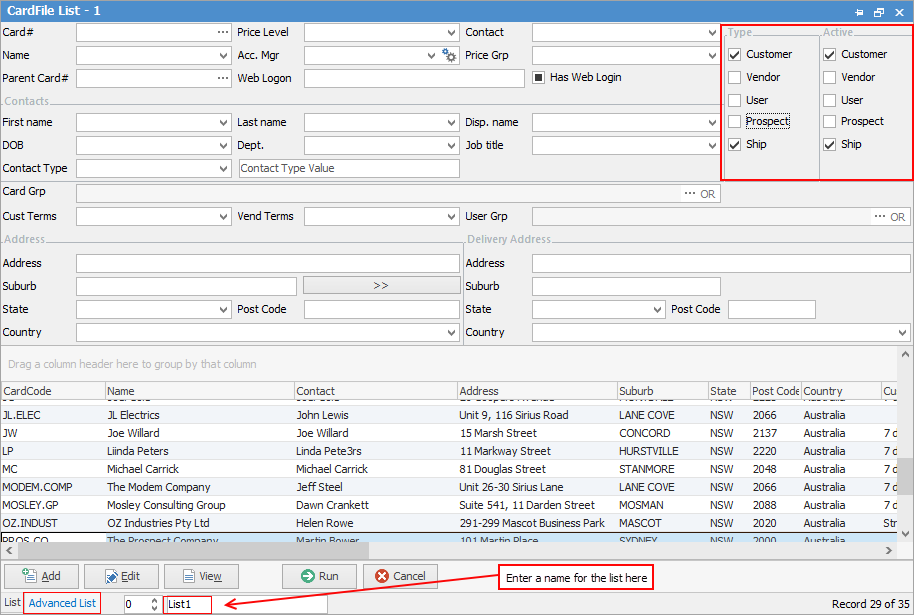 6.Name the list by entering a short description in the field which displays List1 at the bottom of the screen. The list name will change in the Nav Tree as well. 7.Pin the list by clicking the Pin icon at the top right of the List screen. Once pinned, run the list again to save the data in the pinned list. |
|
Note: If you wish to see ship cards that belong to parent cards, you can open individual parent cards and view the Ship cards tab at the bottom. |
|
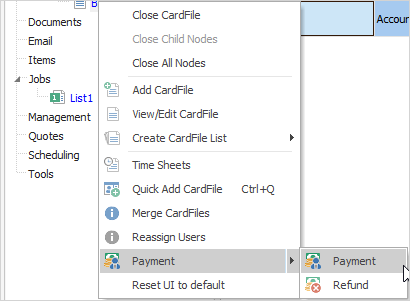
When a single cardfile is open, right click on it in the Nav Tree to take a prepayment or provide a refund on a prepayment or return. This is a very quick way to bring up the Payment or Refund screen for that customer/vendor instead of having to go to Debtors or Creditors.
 |
Further information
Bulk Update CardFiles with BPAY Ref
Export a CardFile Report to Spreadsheet