This report will show all vendors on each stock code. In the spreadsheet, you will see duplicate stock codes with a Rank column next to the vendor showing 1, 2, 3 etc. which is the order of the vendors that appear on that stock record.
 |
Note: Updating pricing will only affect new jobs, quotes etc. Any objects prior to the update will not have their prices updated. |
To begin, go to Stock > Create Stock List on the ribbon and run a filtered list of the stock requiring updating. Right click in the grid and select Export Vendor Pricing Data.

|
Note: You cannot update kitting or packaging stock prices using this method, nor can you update List Ex. |
You need the Rank, Stock Code, Vendor, Vendor List Price columns (along with any other columns you are specifically changing). If you use mixed currencies, you will require the Currency column and if you wish to show the date it was updated, keep the Last Updated column and enter the date required.
Jim2 will work out the Vendor Last Cost (buy unit price) and Estimated Cost (base unit price) for you based on the Vendor List Price and any discounts after that. If you have an amount in these columns when importing, you are overriding and telling Jim2 to specifically use these prices, which will be an issue if you have stock with multiple measure units and discounts.
Make your changes to the pricing, then save the file.
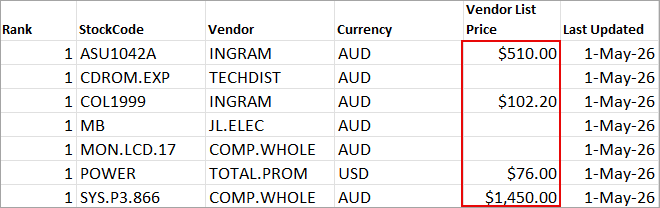
Rank is required because, if it is not set, Jim2 thinks there isn't one and will add a rank. It is also where you can update the pricing on stock codes where there are more than one vendor – they will be shown on separate lines showing the the same stock code and will be represented by a different rank number, ie. 1, 2, etc. Currency is only required if you are using mixed currencies and Last Updated is to be used if you wish to note the date it was updated in Jim2 on the Vendor tab.
On the ribbon go to Tools > Import Data and select Import destination: Stock Vendor Pricing.

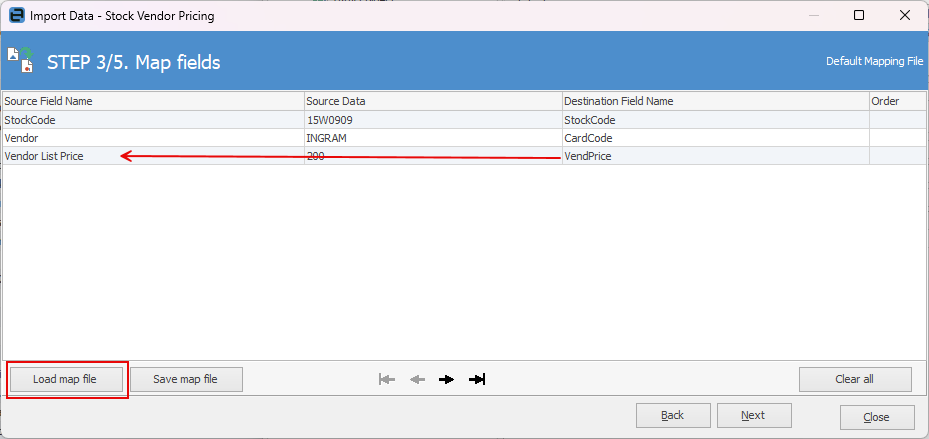
Click Next. Select the Source File name and open the saved spreadsheet. Map the Source Field Name to the Destination Field Name if not already done.
To change Destination Field Name, from the drop down list in that column select the corresponding field in Jim2:

Click Next, then Load data to grid from source.

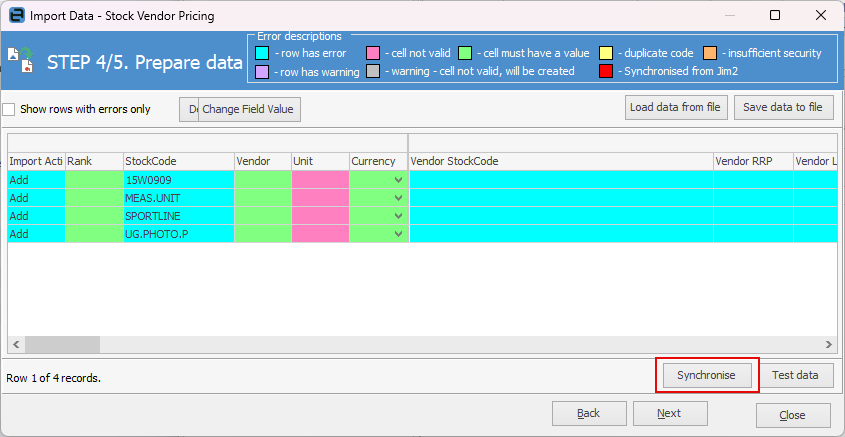
When you load the data you will receive a warning that there are errors. Please ignore this warning.
Click Synchronise, (this step is important as it ensures everything is ok to bring in to Jim2.)
Tick OK at the following window.

You will receive a pop up advising that the data test was successful.
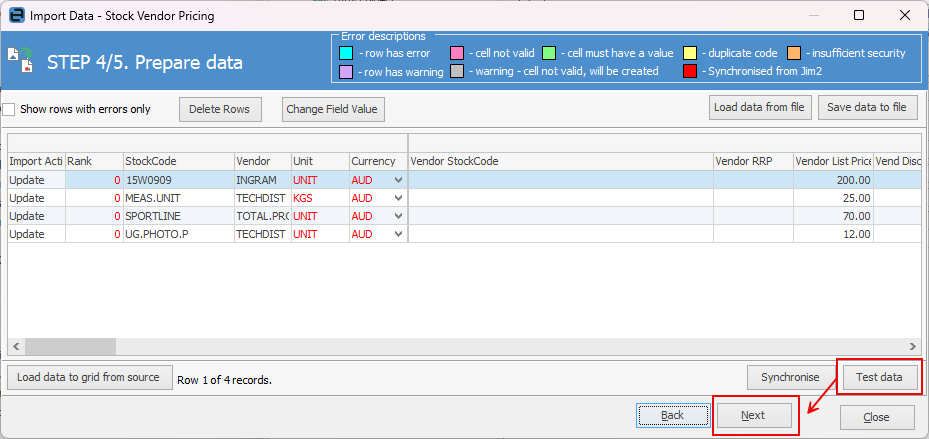
Click Test data, then Next.
Select Import data and you're done.

Further information
Backfill Stock Sold in Advance
Buy and Sell in Different Measures
Change a Serial Number on a Stock Record
Export a Stock Report to Spreadsheet
Generate Backdated Stock on Hand Report
Move Stock from Depleting to Asset
Report Showing all Vendors on Stock
Stop Users From Giving Discounts
Update Lead Time on Vendor Tab